

Logs and diagnostics
Use these pages to find out what a firewall is doing, without opening its own GUI or SSH.
Viewers can read logs, tables and config history. Traceroute and DNS Lookup need admin or owner to run in both the UI and API. Packet Capture needs the same role for the page, controls, status and downloads. Ping, command prompt, and deleting ARP entries, table entries, states or config backups also need admin in the UI. See Roles and permissions for API differences.
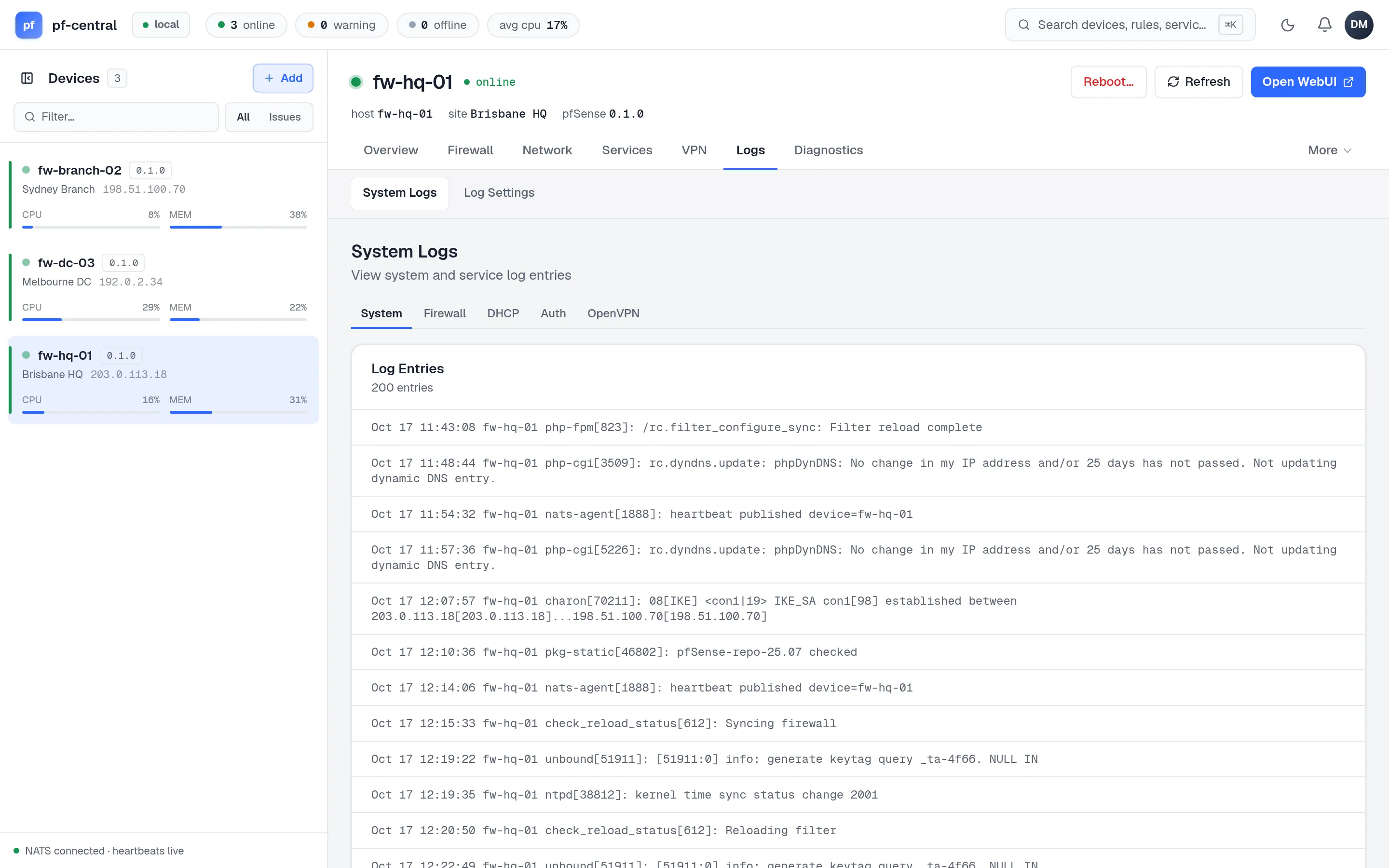
The Logs tab shows the last 200 lines of each pfSense log:
| Tab | File on the firewall |
|---|---|
| System | /var/log/system.log |
| Firewall | /var/log/filter.log |
| DHCP | /var/log/dhcpd.log |
| Auth | /var/log/auth.log |
| OpenVPN | /var/log/openvpn.log |
The lines are raw, as pfSense writes them. There is no search or live tail yet; reload the page to see new lines. Use your browser’s find (Ctrl+F) to search.
Log Settings shows the same system log. pfSense’s log settings are not editable from pfCentral yet.
To keep logs for longer, send them from pfSense to a syslog server (Status → System Logs → Settings → Remote Logging in the pfSense GUI).
Ping and command prompt
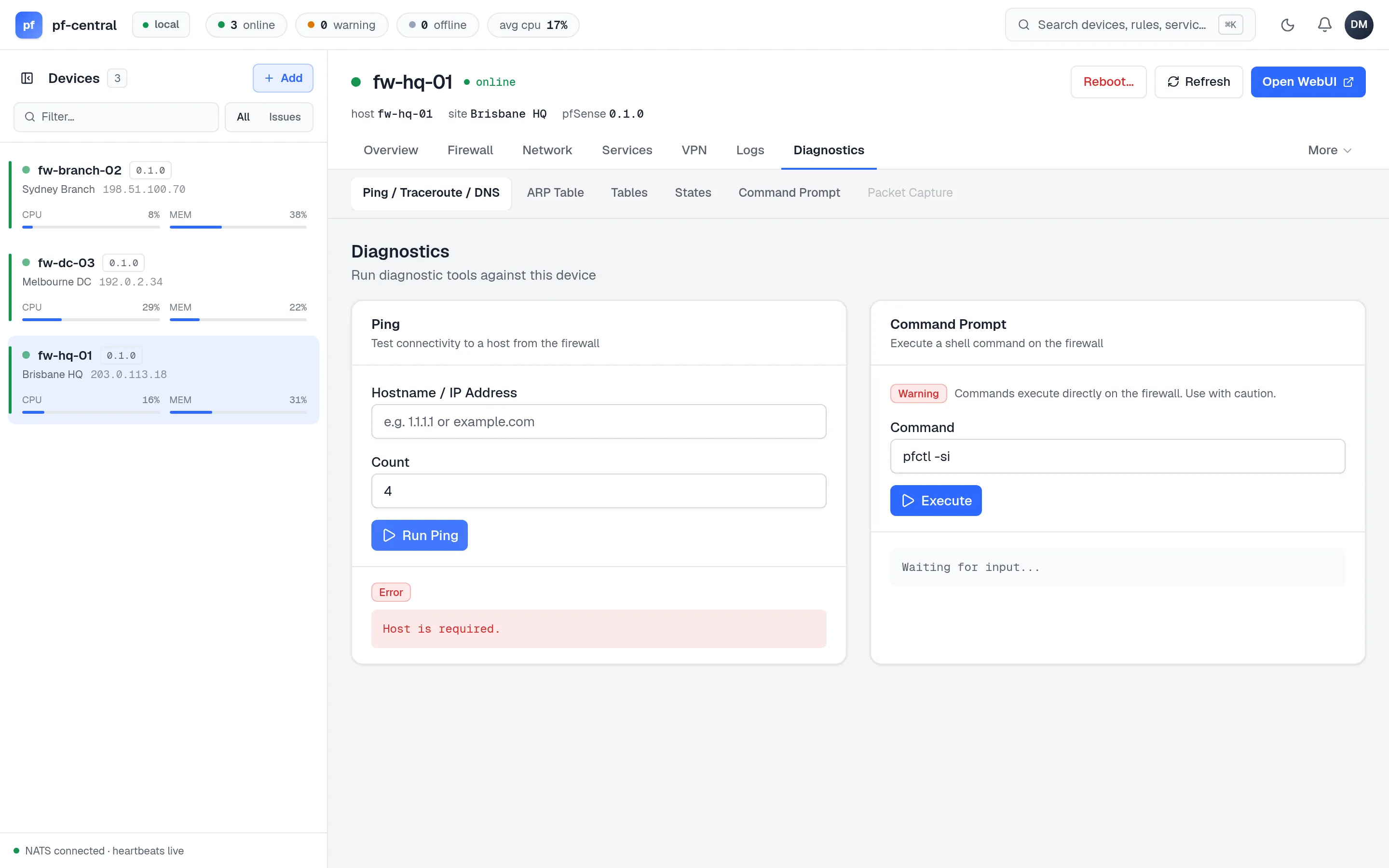
Section titled “Ping and command prompt”Diagnostics → Ping / Traceroute / DNS has dedicated Ping, Traceroute and DNS Lookup forms, plus a Command Prompt for other tasks. Prefer the dedicated tools for route tracing and DNS: their arguments and execution are bounded, unlike arbitrary shell commands.
-
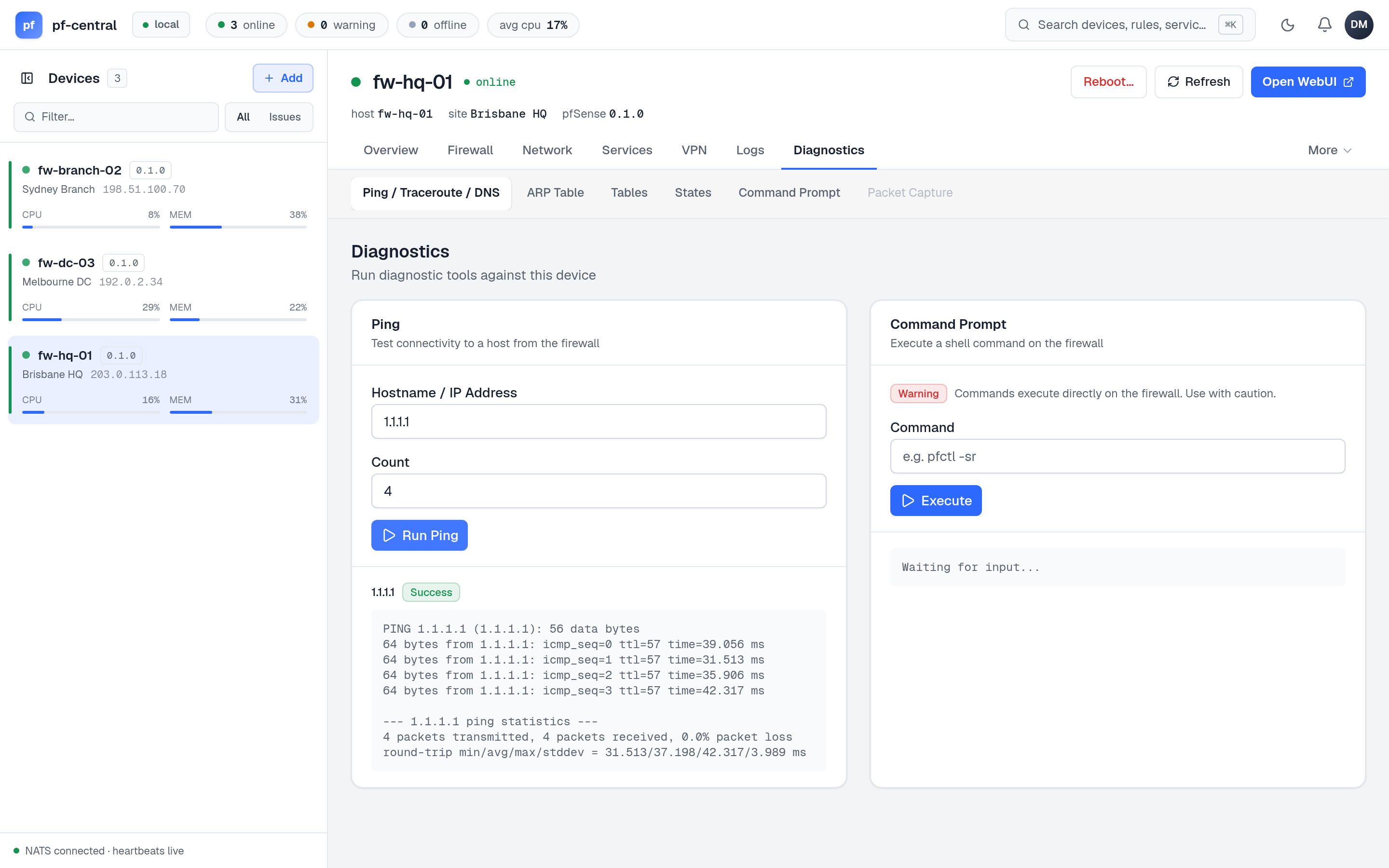
Full size ↗ Step 1 of 2 Ping from the firewallEnter a host or address and a count (default 4), then Run Ping. The agent runs
ping -con the firewall, so the result shows what the firewall itself can reach. -
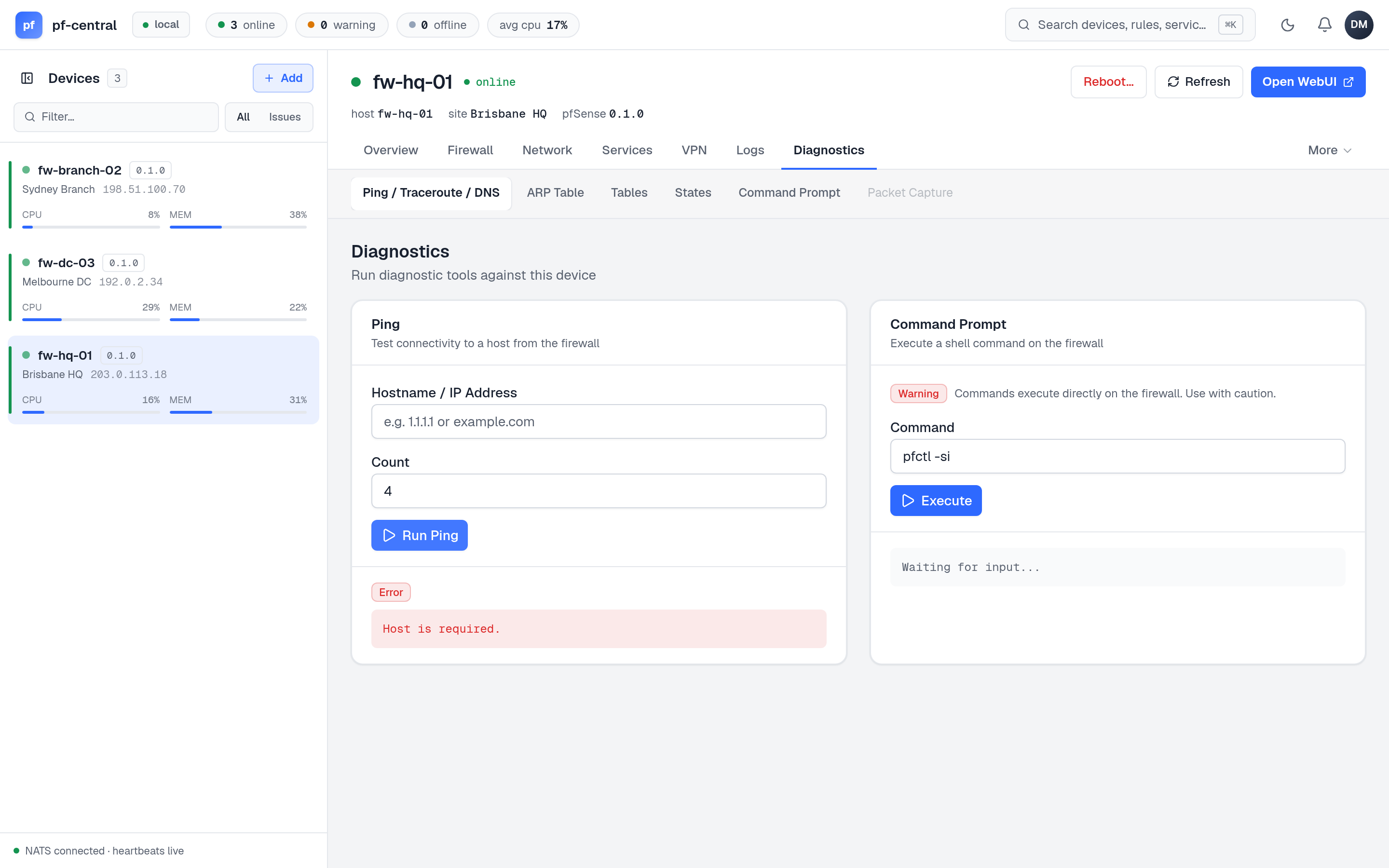
Full size ↗ Step 2 of 2 Run one commandEnter a shell command and click Execute. It runs as root with
sh -c. It is not interactive: no prompts, no pagers, no long-running commands. Only standard output is shown.
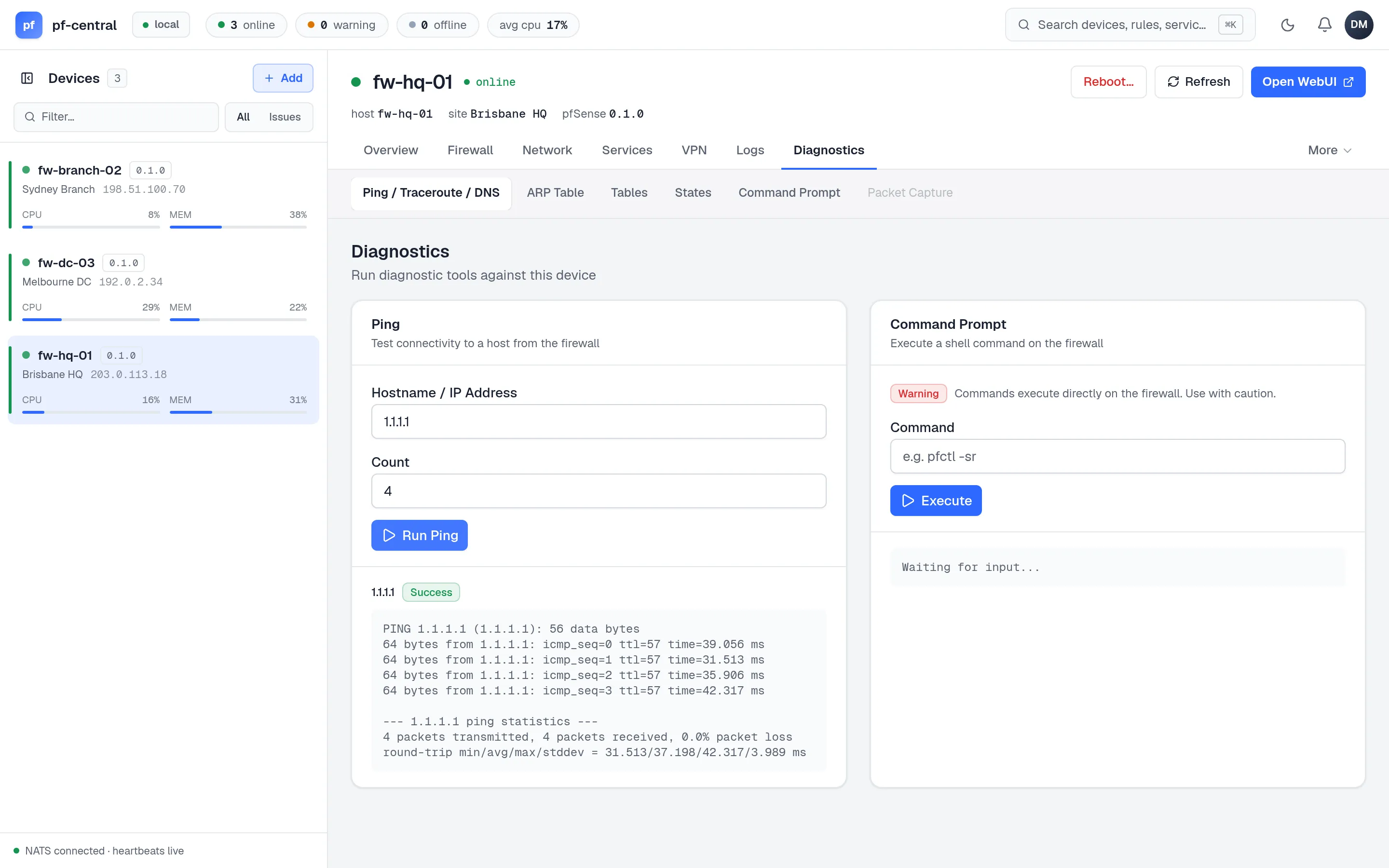
Useful commands:
| Task | Command |
|---|---|
| Packet filter summary | pfctl -si |
| Check the agent | service nats_agent status |
| Last agent log lines | tail -n 30 /var/log/nats_agent.log |
| Gateway monitor state | pfSsh.php playback gatewaystatus |
Trace a route
Section titled “Trace a route”Use this when a firewall can reach its gateway but not a remote host. Sign in as an admin or owner and open Diagnostics → Ping / Traceroute / DNS.
-
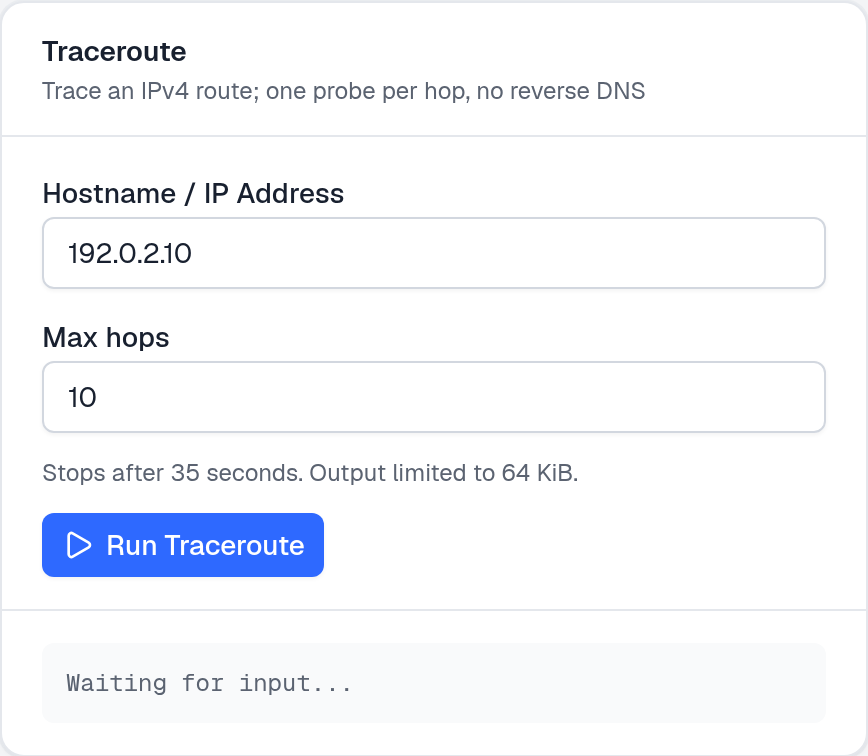
Full size ↗ Step 1 of 2 Choose a destination and traceIn Traceroute, enter an IPv4 address or hostname. Keep Max hops at 10 for a short check, or set 1–30. Select Run Traceroute. The button shows Running… until the result arrives.
-
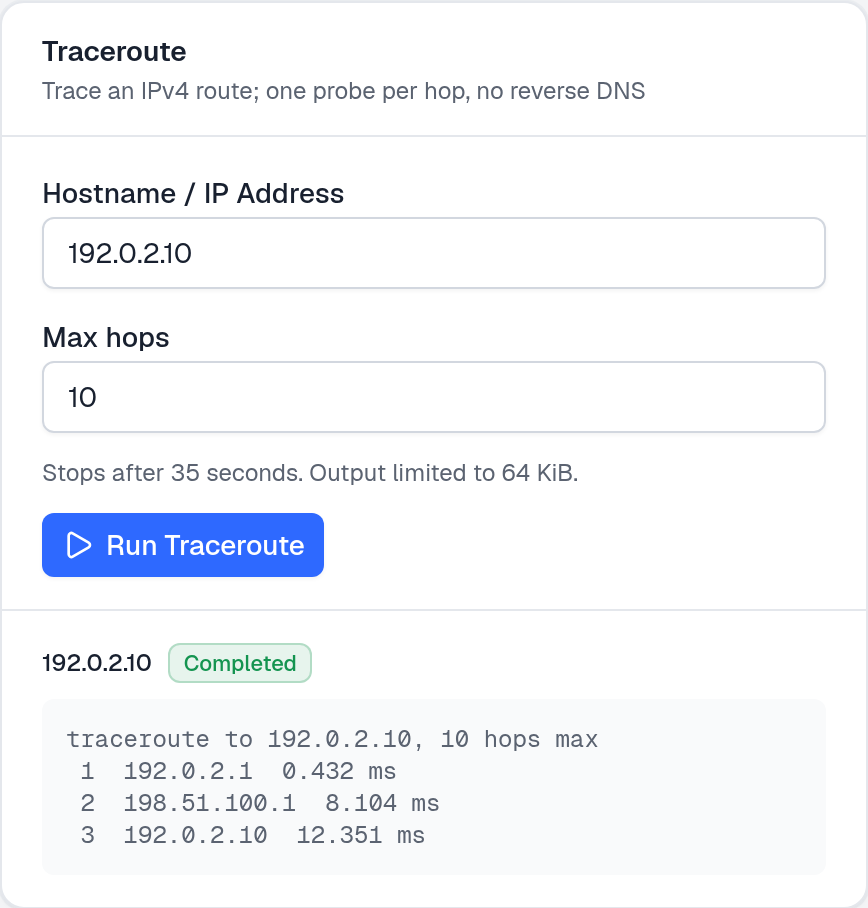
Full size ↗ Step 2 of 2 Read the hop outputRead from hop 1 outward. An address and time show a reply;
*means that probe did not receive a reply. A completed command does not prove the destination was reached. Compare the final hop with your destination before drawing a conclusion.
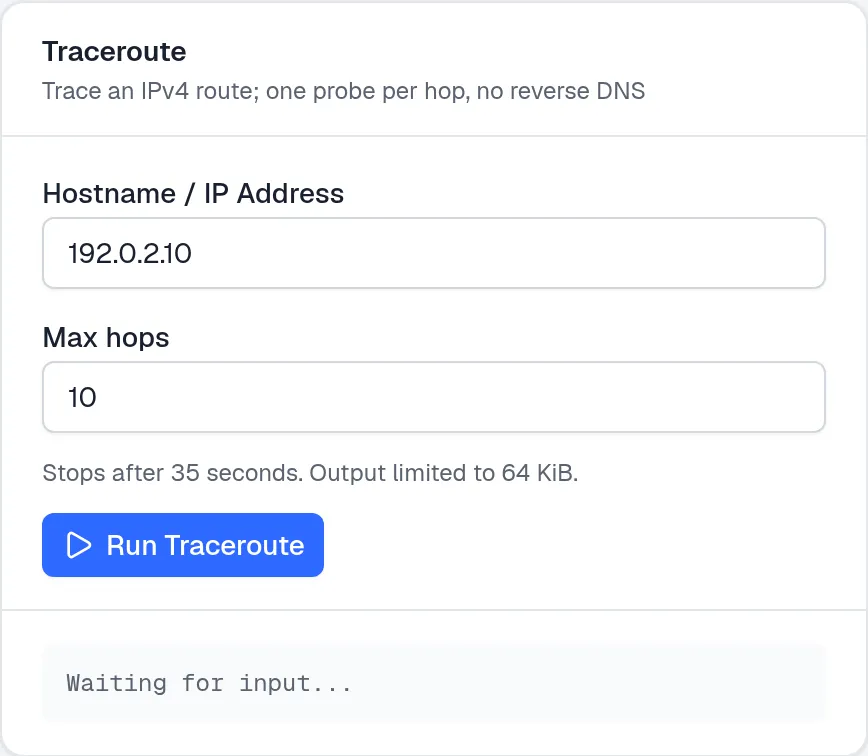
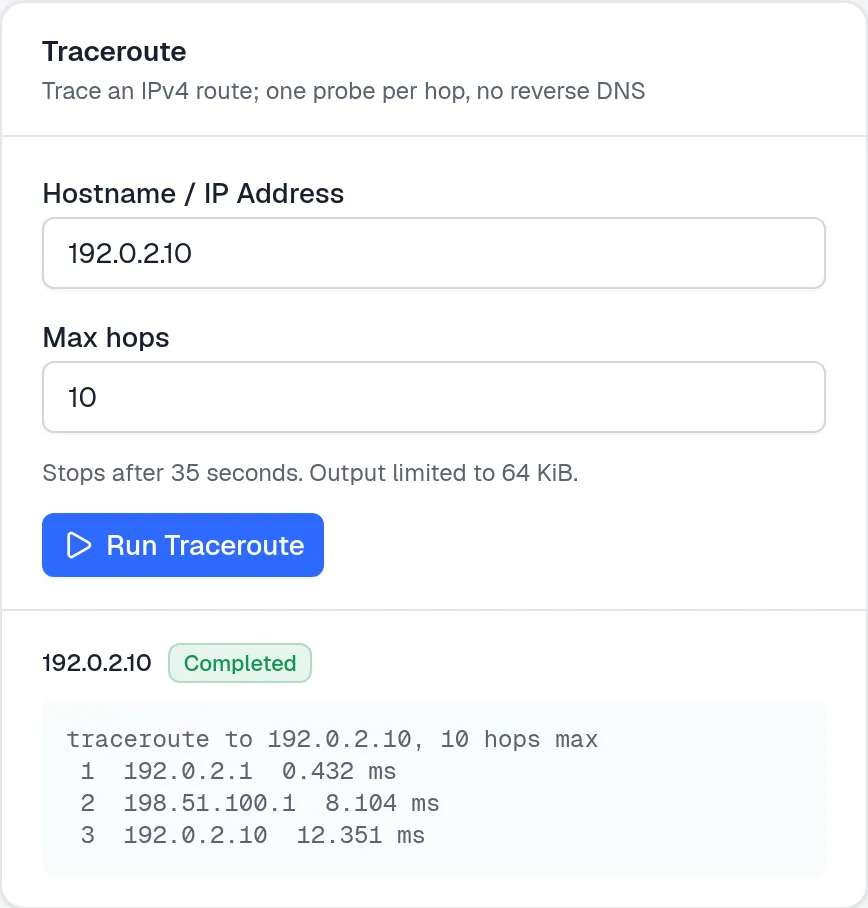
The tool uses numeric hop addresses, one probe per hop and a one-second probe wait. It traces IPv4 only. There is no source-interface selector, IPv6 trace, live output stream or stop button. Upgrade the agent as well as the server before using these tools; an older agent has no matching endpoint.
Look up a DNS record
Section titled “Look up a DNS record”Use this to separate a DNS problem from a connectivity problem. Queries run on the firewall, not in your browser or on the pfCentral server.
-
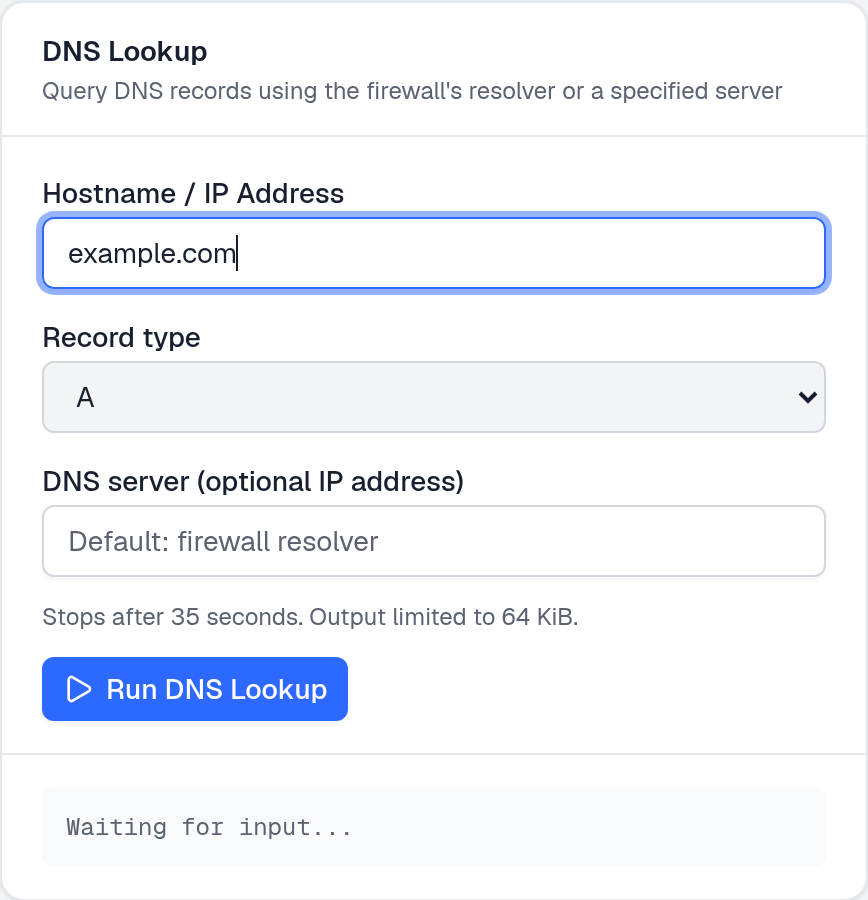
Full size ↗ Step 1 of 2 Query the firewall's resolverEnter a name such as
example.com, choose a Record type (A by default), and leave DNS server empty. Select Run DNS Lookup. -
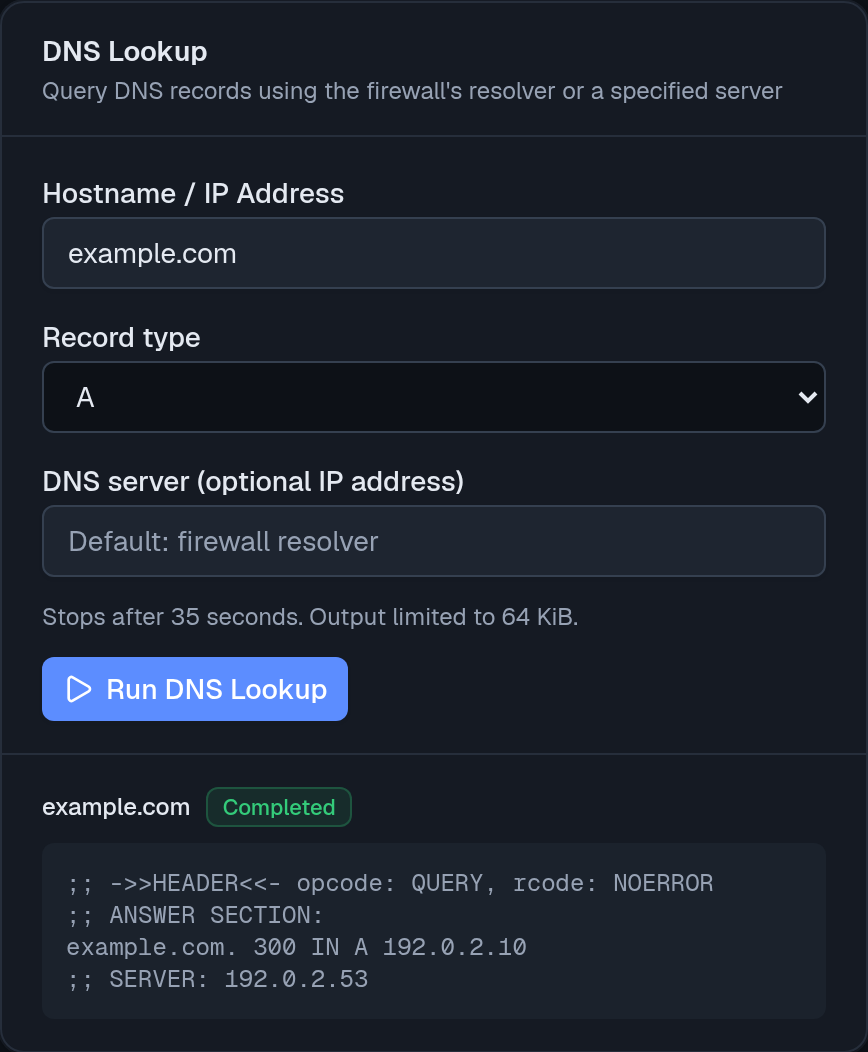
Full size ↗ Step 2 of 2 Read the answer and compare resolversRead the DNS response code and answer section. To compare a specific resolver, enter its IP address in DNS server, then run the same query again. IPv4 and IPv6 resolver addresses are accepted. Differences can reveal split DNS or resolver reachability issues. The screenshot uses fixture answers, not a live firewall.
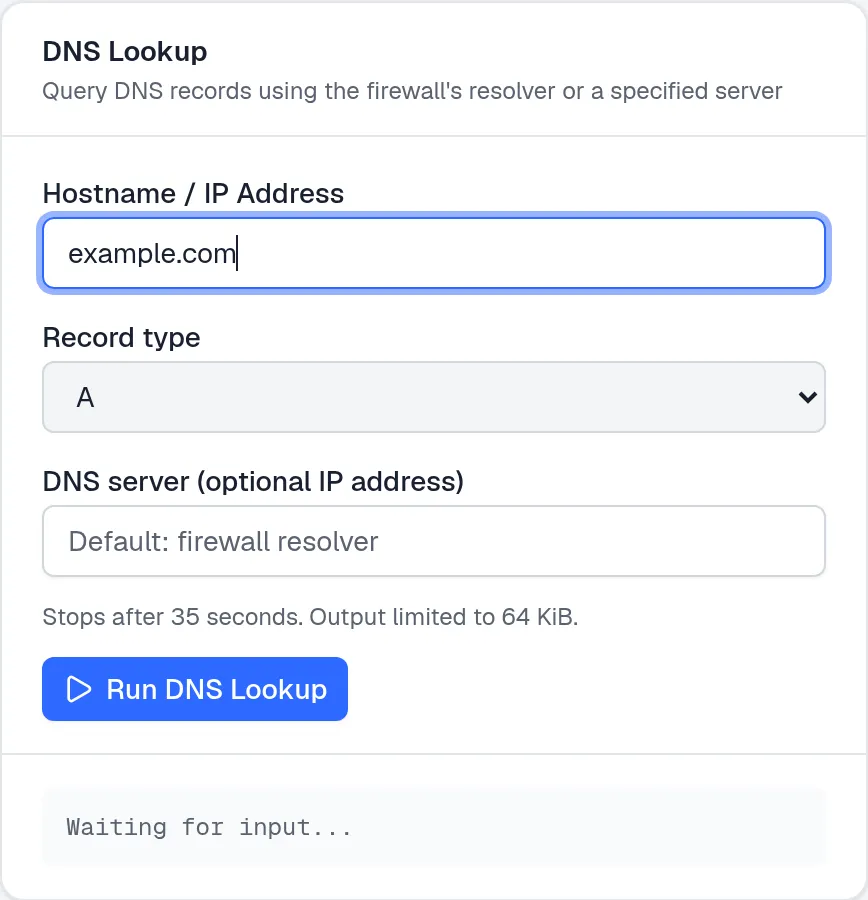
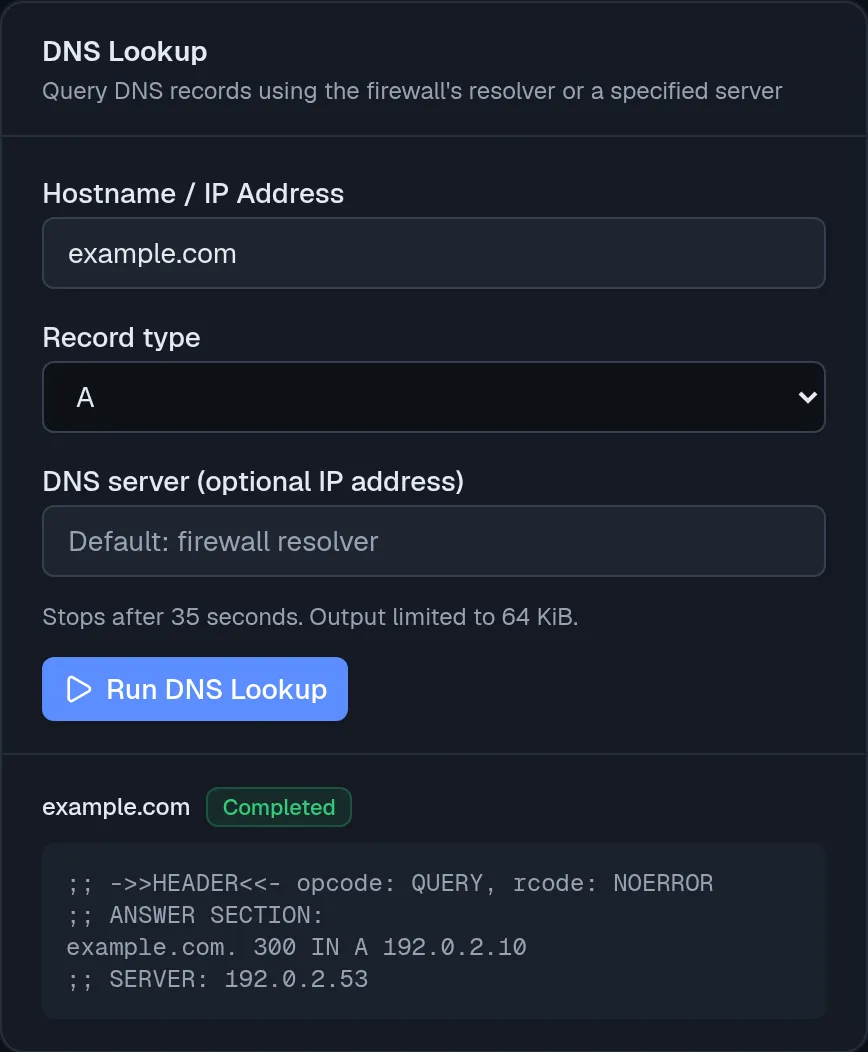
Supported types are A, AAAA, MX, NS, TXT, CNAME, SOA, PTR, SRV and CAA. For a PTR lookup, enter the reverse name, such as 10.2.0.192.in-addr.arpa; the tool does not convert an address to a reverse name. Use ASCII names or punycode for international names.
Completed means the process exited with code zero, not that DNS returned an address. Inspect NOERROR, NXDOMAIN or SERVFAIL and the answer section. Failed shows a tool error or deadline message; correct the name/resolver or check connectivity and try again. Error means invalid input, an offline device, an unavailable endpoint or no usable reply. The result retains partial output on timeout and marks truncated output.
The screenshots above show the real UI with representative fixture results. See the exact request contracts and limits for automation.
ARP table
Section titled “ARP table”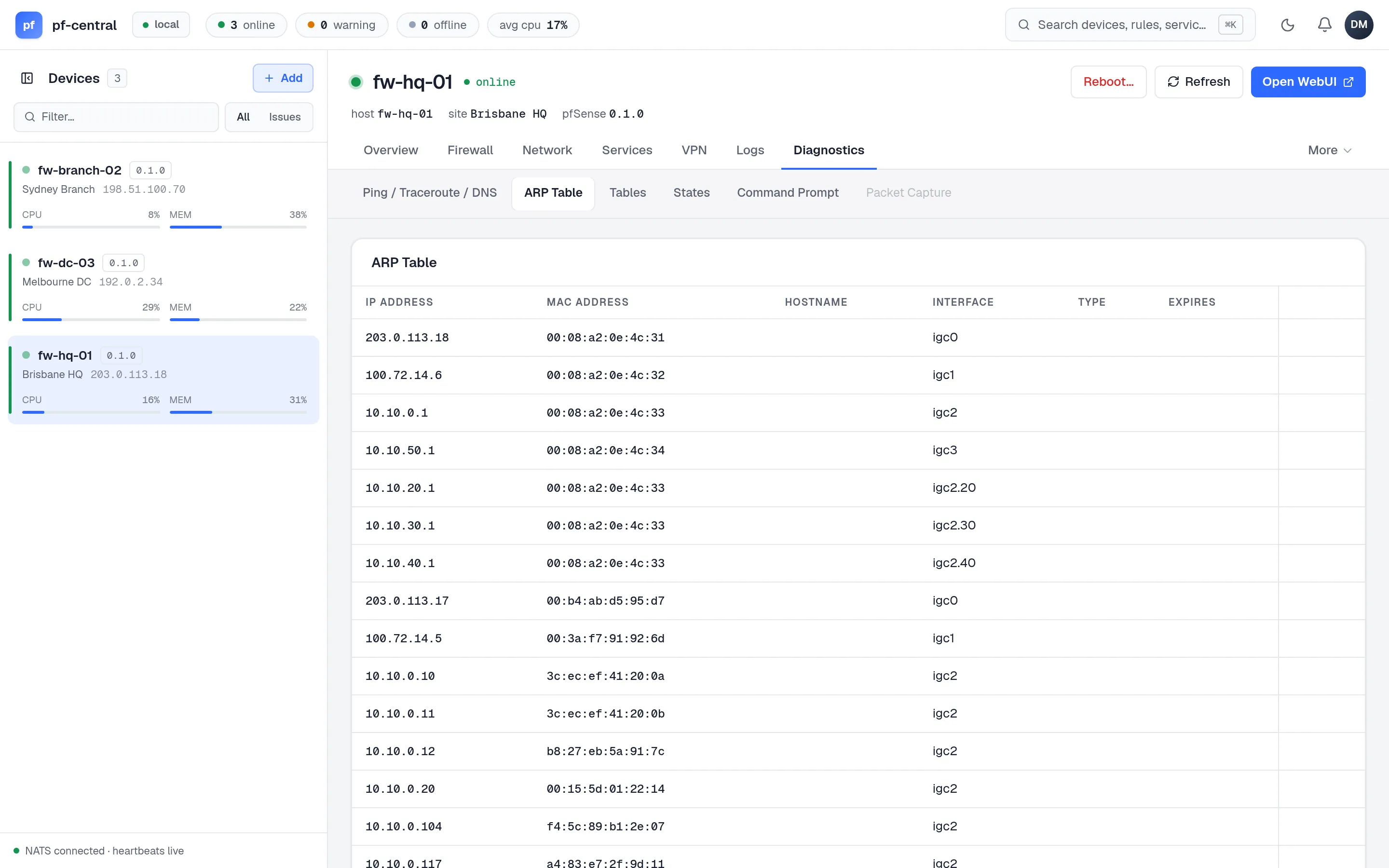
The firewall’s ARP table: IP address, MAC address and interface. The delete button removes one entry at once (arp -d), with no confirmation. The firewall learns it again on the next packet from that host.
Tables
Section titled “Tables”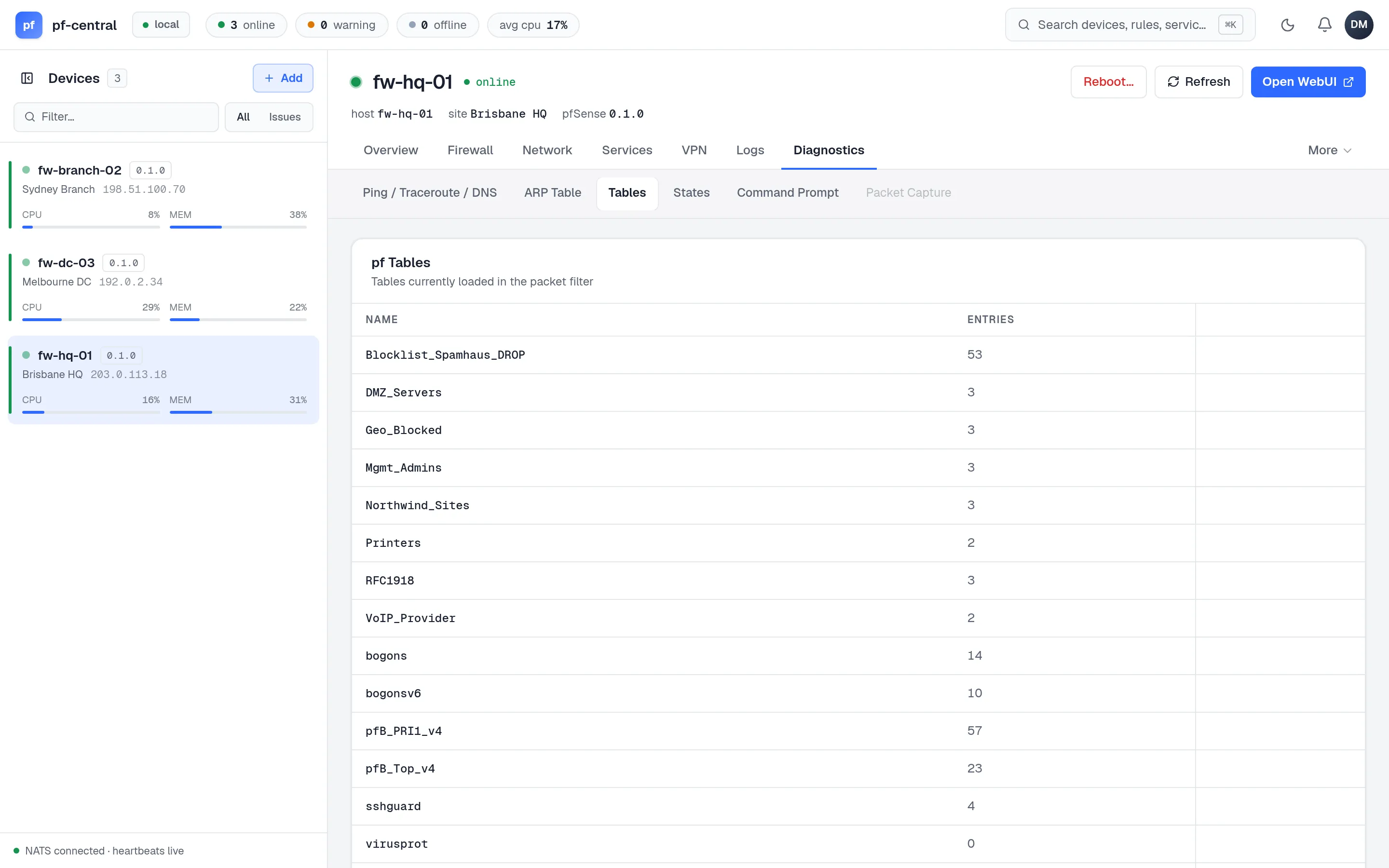
The packet filter’s tables and how many entries each has. Aliases appear here as tables, along with pfSense’s own tables such as bogons, sshguard and virusprot. Open a table to see its entries, and delete one entry (for example, to unblock an address that sshguard locked out). You cannot add entries or flush a table from here.
States
Section titled “States”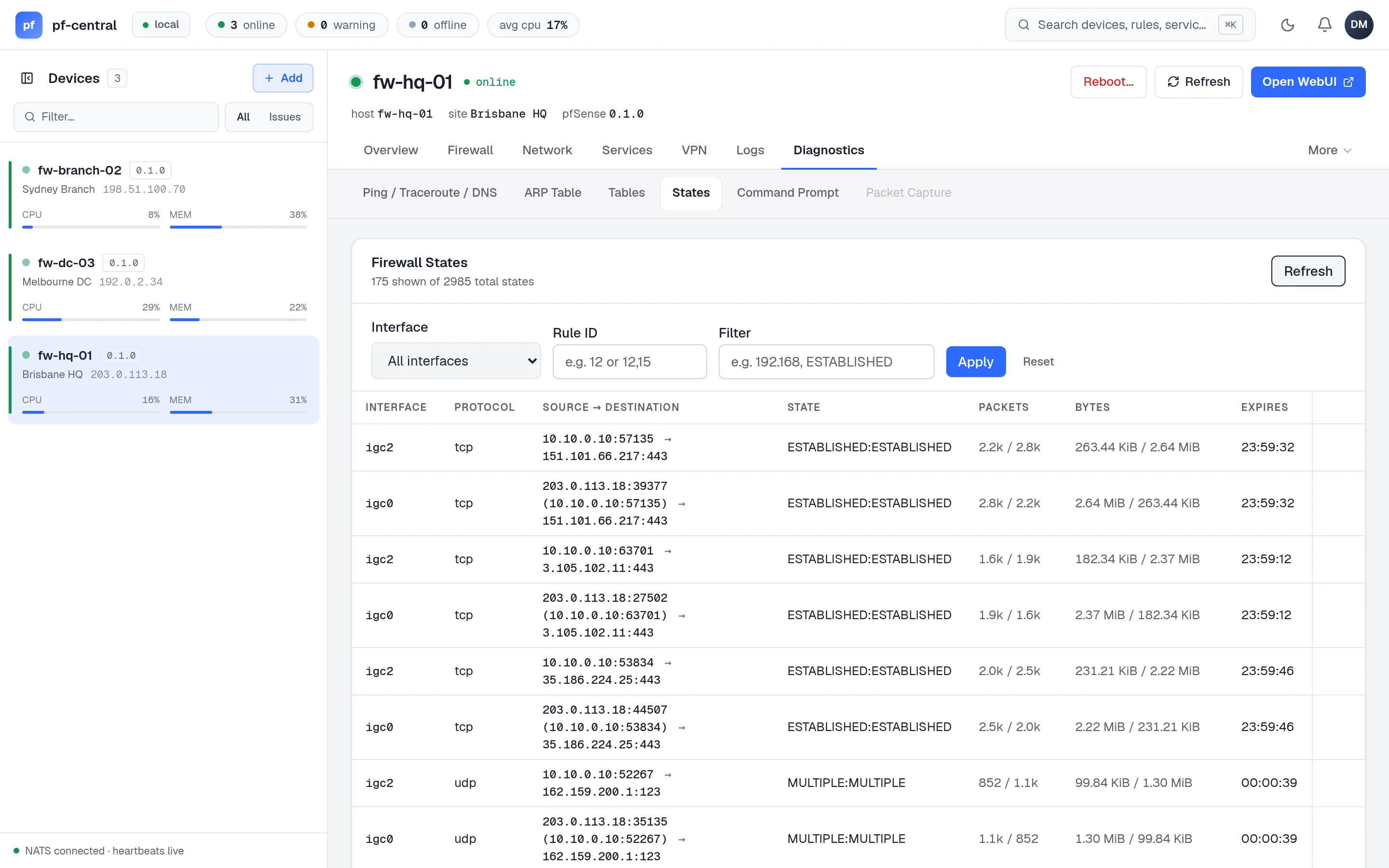
The state table: each open connection with its interface, protocol, source and destination, state, packets, bytes and expiry. The header shows how many states are shown out of the total.
Filter by interface, by rule ID (one or more, comma-separated), or by free text such as an address. You can use interface or rule ID, not both.
The delete button on a row kills every state between that source and that destination, after a confirmation. Use it to force a client to reconnect, for example after a rule change.
Packet capture
Section titled “Packet capture”Open Diagnostics → Packet Capture as an admin or owner. The agent captures traffic on the selected interface without promiscuous mode. It stops when the duration or packet limit is reached. Bytes per packet limits how much of each packet is kept; it does not stop the capture.
-
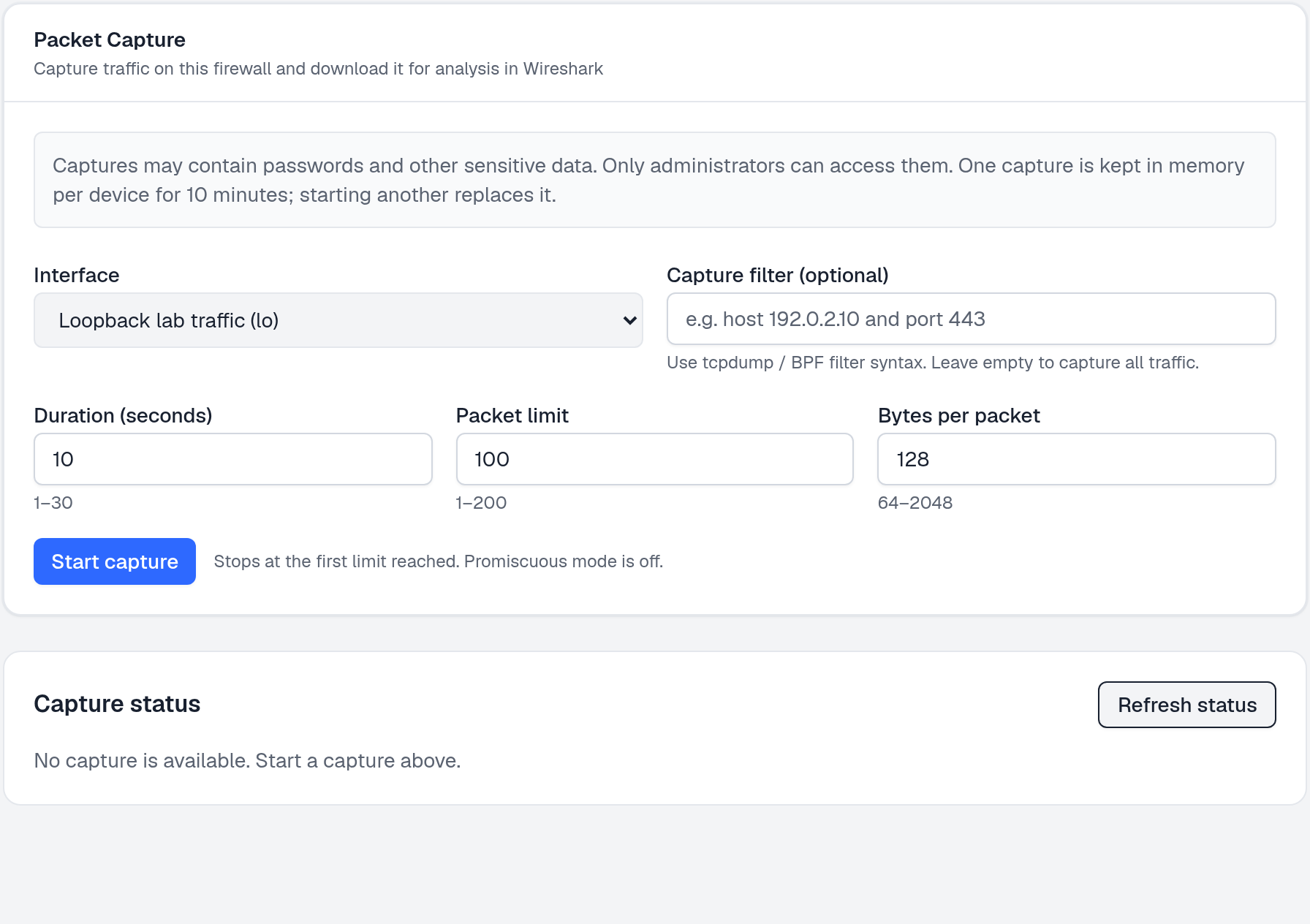
Full size ↗ Step 1 of 2 Choose what to captureSelect an interface. Add an optional tcpdump filter such as
host 192.0.2.10 and port 443, or leave it empty for all traffic. Set the limits, then select Start capture. The form defaults to 10 seconds, 100 packets and 128 bytes per packet. -
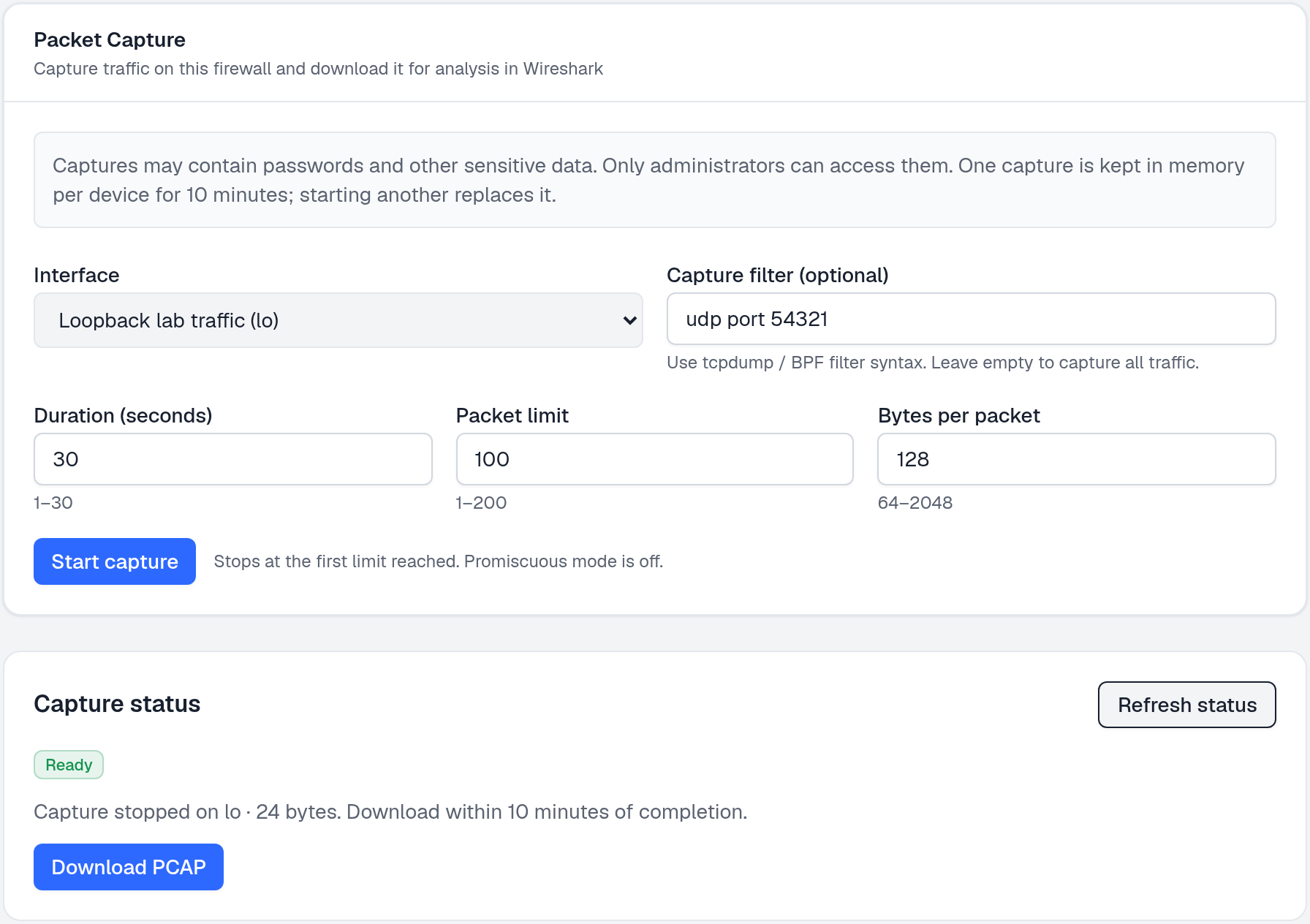
Full size ↗ Step 2 of 2 Stop and downloadWhile the status is Capturing, select Stop capture to finish early and keep the packets collected so far. When the status is Ready, select Download PCAP and open the file in Wireshark. You can leave the page while a capture runs; the device still stops at its limit.
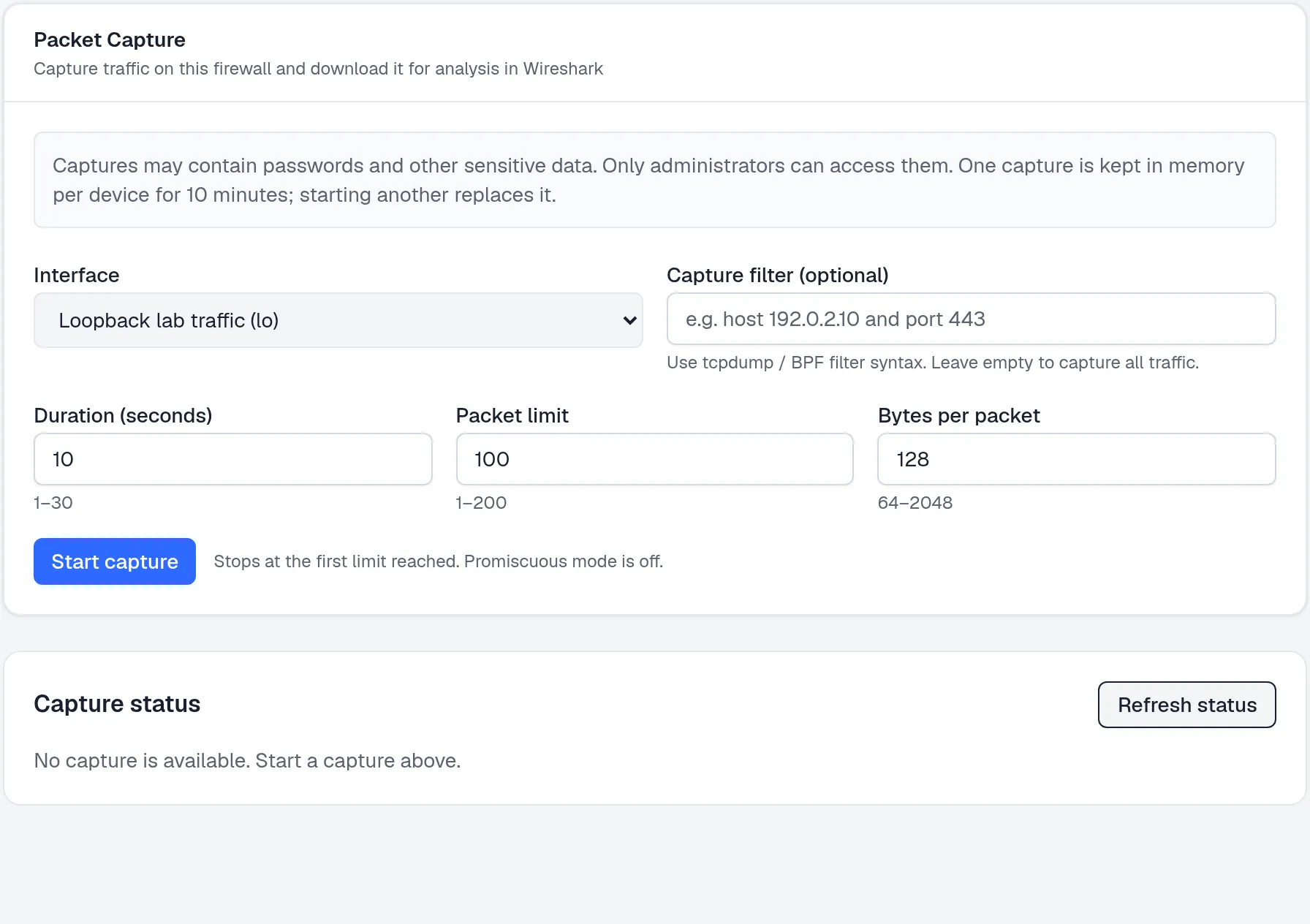
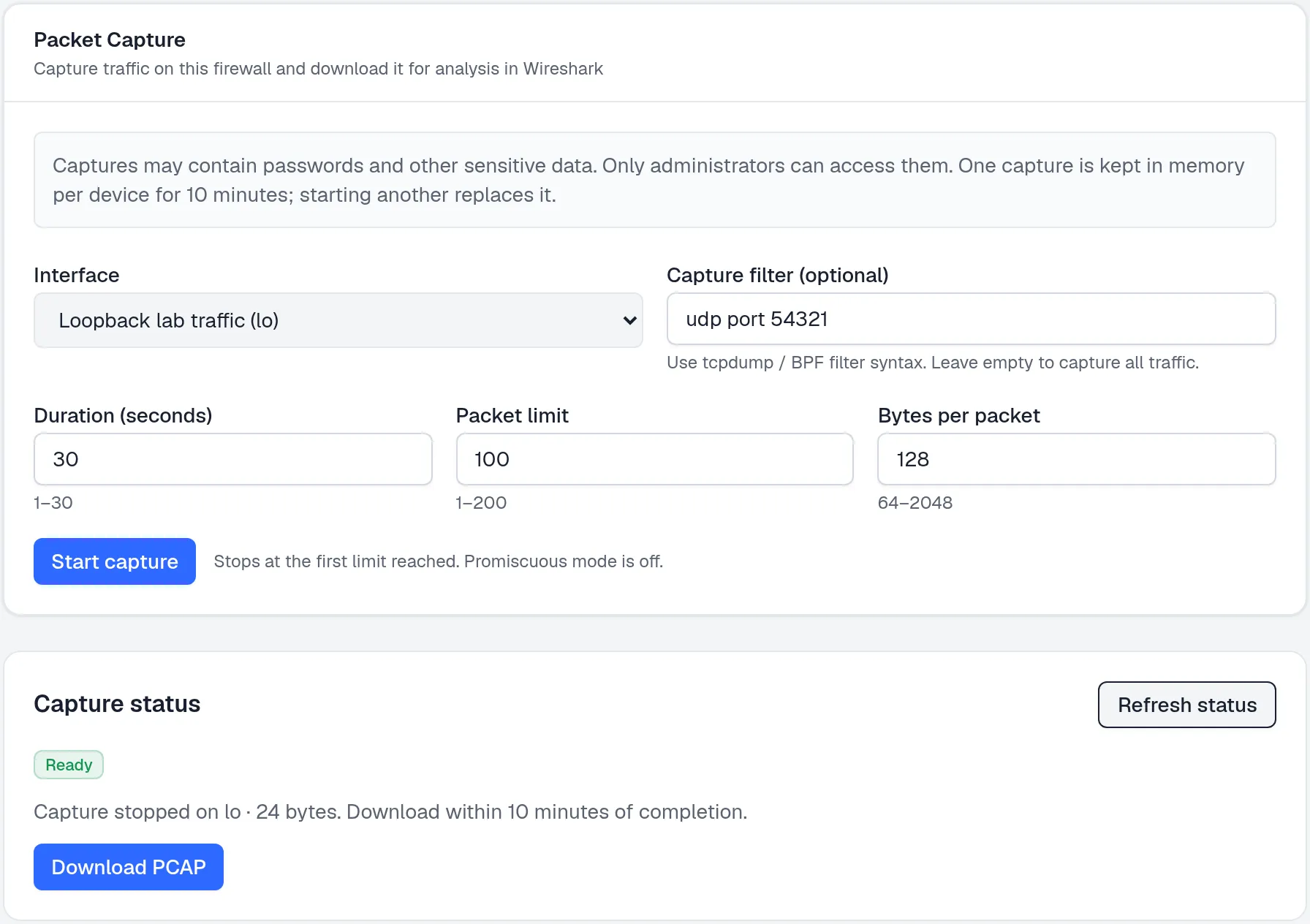
The maximum limits are 30 seconds, 200 packets and 2048 bytes per packet. The agent keeps one capture in memory for 10 minutes after completion. Starting another replaces it. A failed filter shows the tcpdump error; correct the filter and start again. Use Refresh status if the device connection is interrupted.
Config history
Section titled “Config history”Open Diagnostics → Config History to list pfSense’s existing configuration backups. This does not create a new backup or restore the active configuration.

- Find the revision by its UTC timestamp and description.
- Select Download XML to save it. Backups contain secrets; store them securely.
- An admin or owner can select Delete and confirm to remove that backup. Deletion cannot be undone and does not change the active configuration.
- Select Refresh to load the current list. If there are no backups, pfCentral shows an empty-state message.
To restore a backup, use pfSense’s own Diagnostics → Backup & Restore page. See Back up and restore for server backups.