

System, packages and users
The More menu at the right of the device tabs holds the pages from the pfSense System menu. Viewers can open them. Operators can change settings. Admins are needed for active-config export, reboot, shutdown, delete, the agent update, packages, and trusted CAs.
Advanced, High Availability and Update are listed but not built yet.
General Setup
Section titled “General Setup”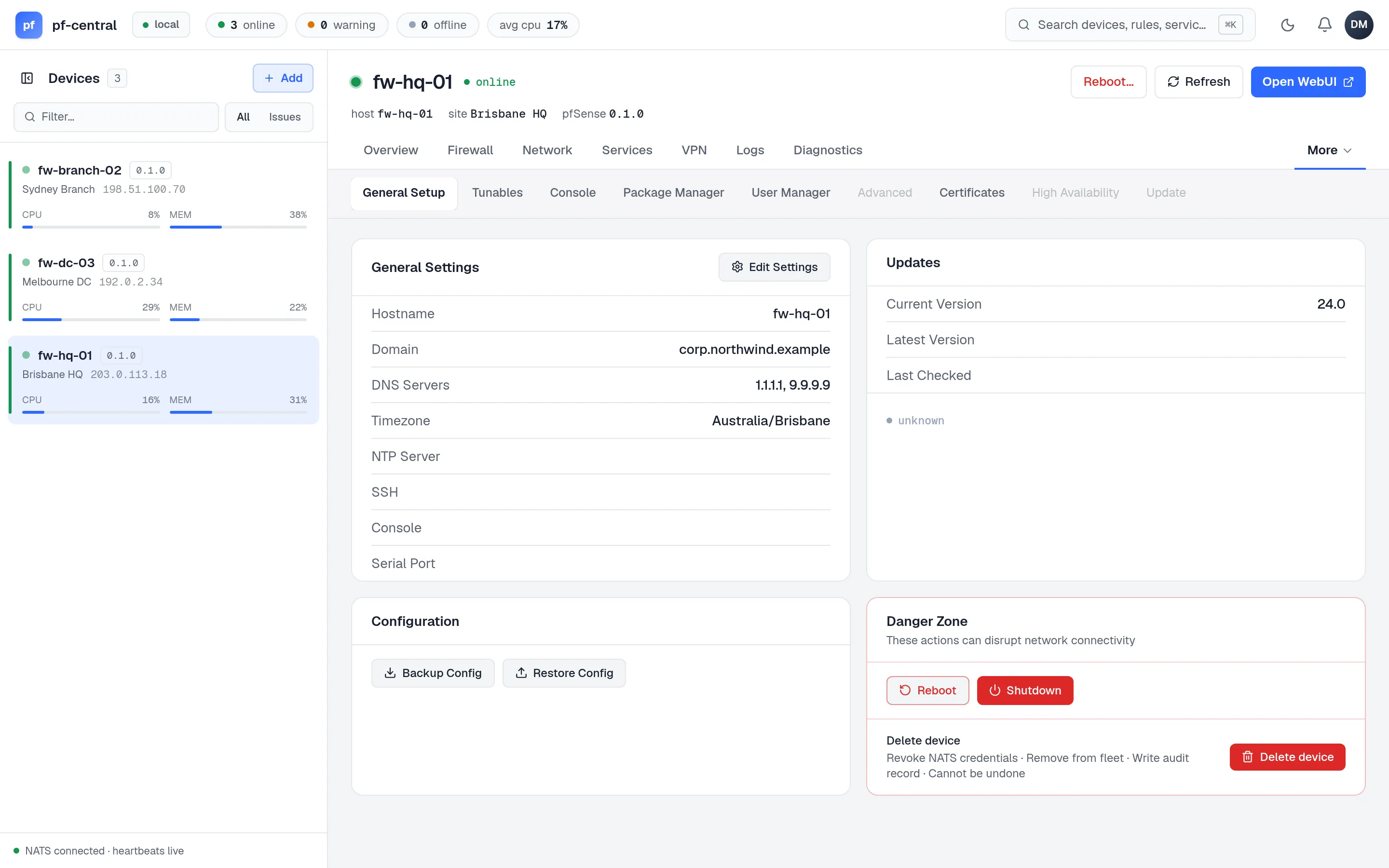
The cards show the hostname, domain, DNS servers, timezone, NTP, SSH and console settings, and the pfSense version.
Edit Settings opens three small forms, each with its own Save:
- hostname and domain;
- DNS servers (comma-separated) and Allow DNS Override (let DHCP on WAN replace the DNS servers);
- timezone, as a name such as
Australia/Brisbane.
These are saved to the configuration. pfSense uses a new hostname or DNS list after its next reconfigure or reboot.
Download the active configuration
Section titled “Download the active configuration”Before a large change, save a copy of the firewall’s current configuration. You need admin or owner, an online firewall, and an agent with active-config export support.
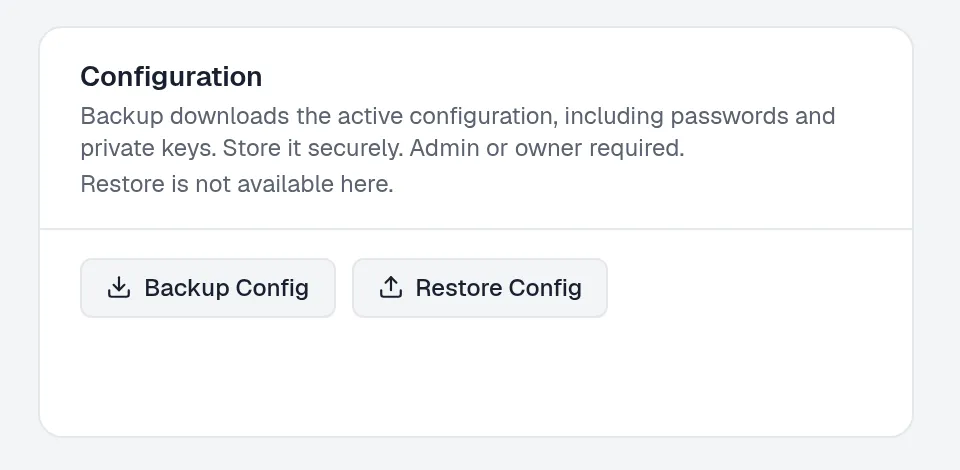
- Open the firewall, then More → General Setup.
- Read the warning in Configuration, then select Backup Config.
- Save
config-active.xmlto a protected location. Encrypt it before you store or share it. The download is not encrypted or redacted by pfCentral.
This copies the complete saved active configuration from the firewall. It does not apply pending settings, create a Config History entry, or change the device. Running services can still use older settings until you apply or reboot.
To download an older revision, use Config History instead. For automation, see the active-config HTTP contract.
If the download fails, check that the firewall is online and update an older agent. A viewer or operator receives 403 Not permitted. Large configurations must fit in one NATS reply; there is no chunked export.
Danger zone
Section titled “Danger zone”| Button | What it does | Role |
|---|---|---|
| Reboot | Asks, then runs shutdown -r now. The firewall goes offline in pfCentral and comes back when the agent reconnects. | admin |
| Shutdown | Asks, then powers the firewall off (shutdown -p now). Someone must turn it on again. | admin |
| Delete device | Asks, then removes the firewall from pfCentral and revokes its credentials. See Suspend or retire a firewall. | admin |
The Reboot… button in the device header does the same as the one here.
Tunables
Section titled “Tunables”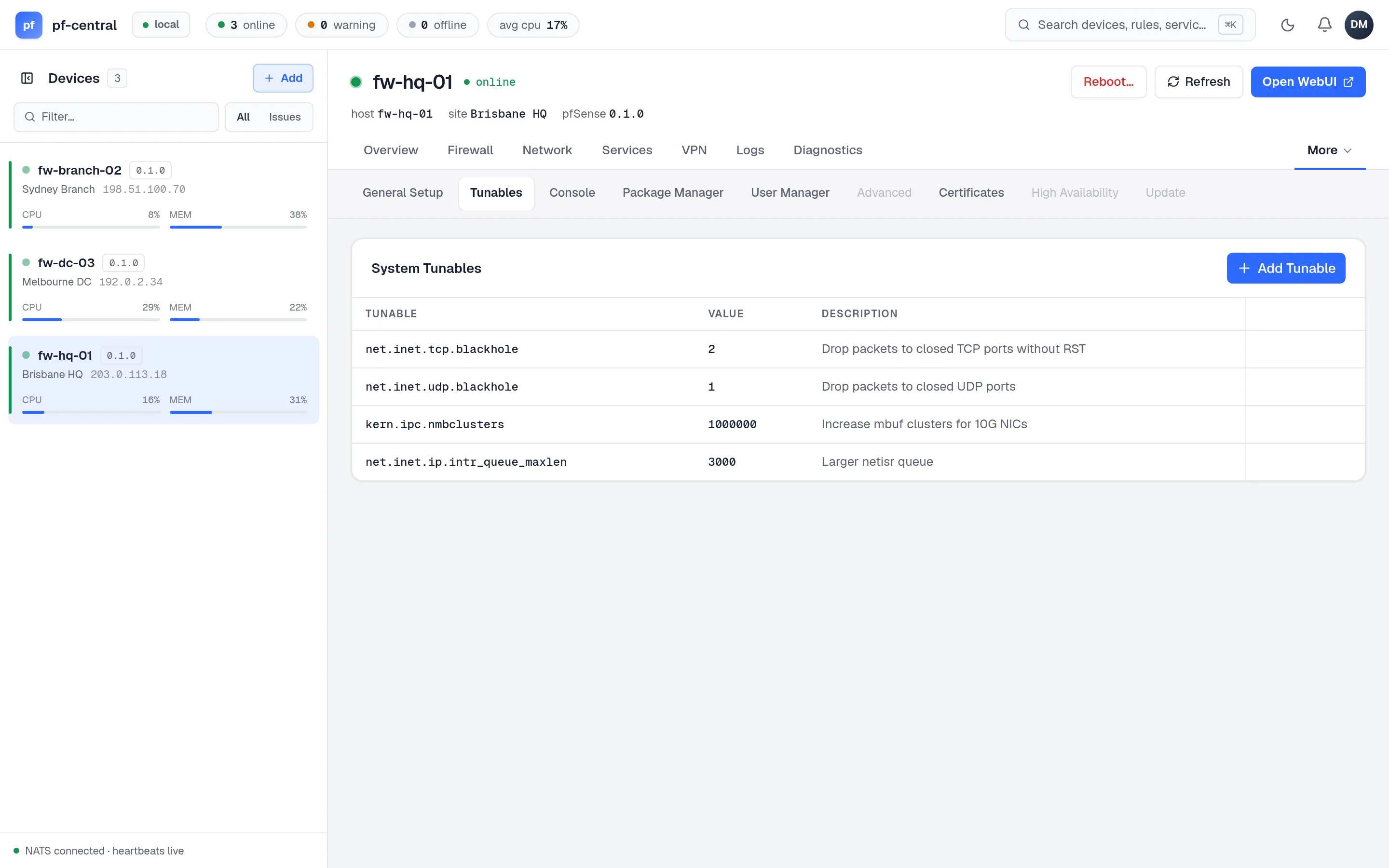
sysctl tunables with value and description. Changes are saved to the configuration. pfSense sets them at the next boot; they are not applied at once.
Console
Section titled “Console”Console options: password-protect the console menu, enable the serial console, serial speed, and the primary console (default, serial or video). They are applied when you save.
Package Manager
Section titled “Package Manager”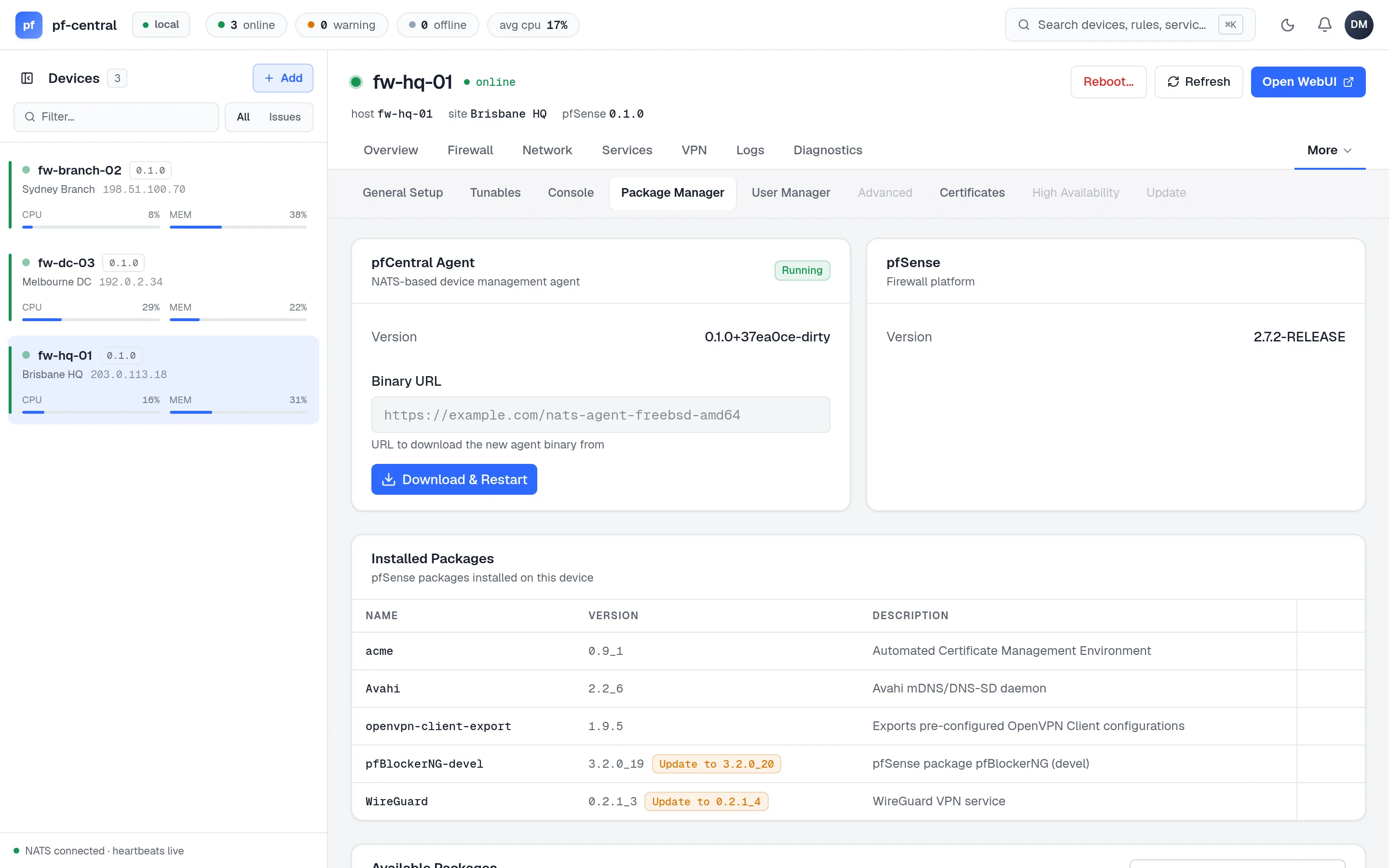
pfCentral Agent. The agent’s status and version, and Download & Restart, which updates the agent from the Binary URL. See Upgrade agents.
Installed packages. Name, version and description. An Update to … badge shows when a newer version is available; pfCentral cannot update packages yet, so use the pfSense GUI. Delete removes a package after a confirmation.
Available packages. Load the catalogue, filter by name, and Install. Installs and removals can take several minutes. Only one can run at a time on each firewall.
Package install and delete need the admin role.
User Manager
Section titled “User Manager”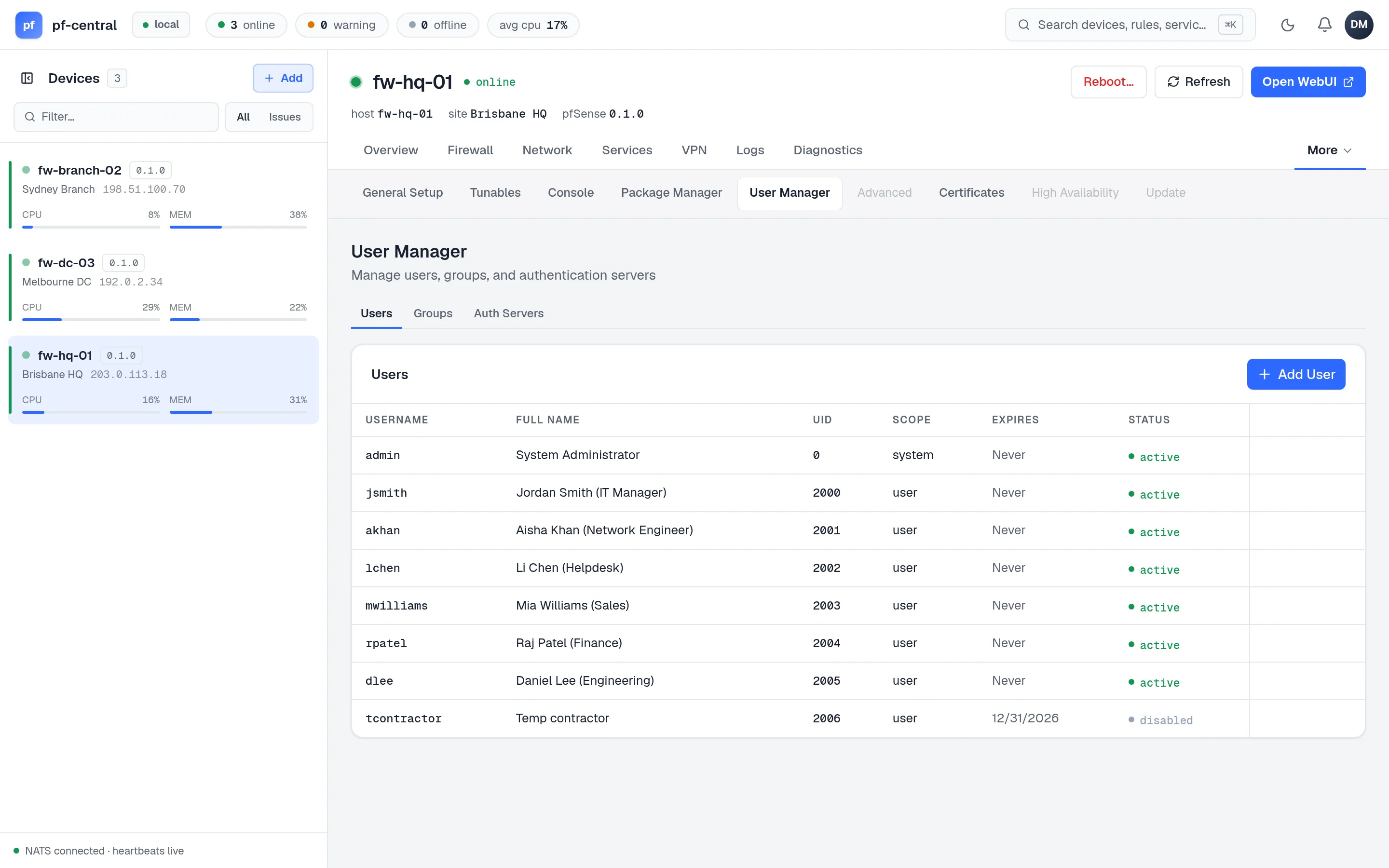
These are the firewall’s local users, for its own GUI, SSH and VPN logins. They are not pfCentral members; see Invite your team for those.
| Tab | What you set |
|---|---|
| Users | Username, password, full name, expiry, privileges, SSH keys, IPsec pre-shared key, disabled |
| Groups | Name, description, members, privileges, scope (local or remote) |
| Auth Servers | LDAP (host, port, transport, base DN, containers, bind account, attributes, CA) or RADIUS (host, ports, shared secret, timeout) |
Certificates
Section titled “Certificates”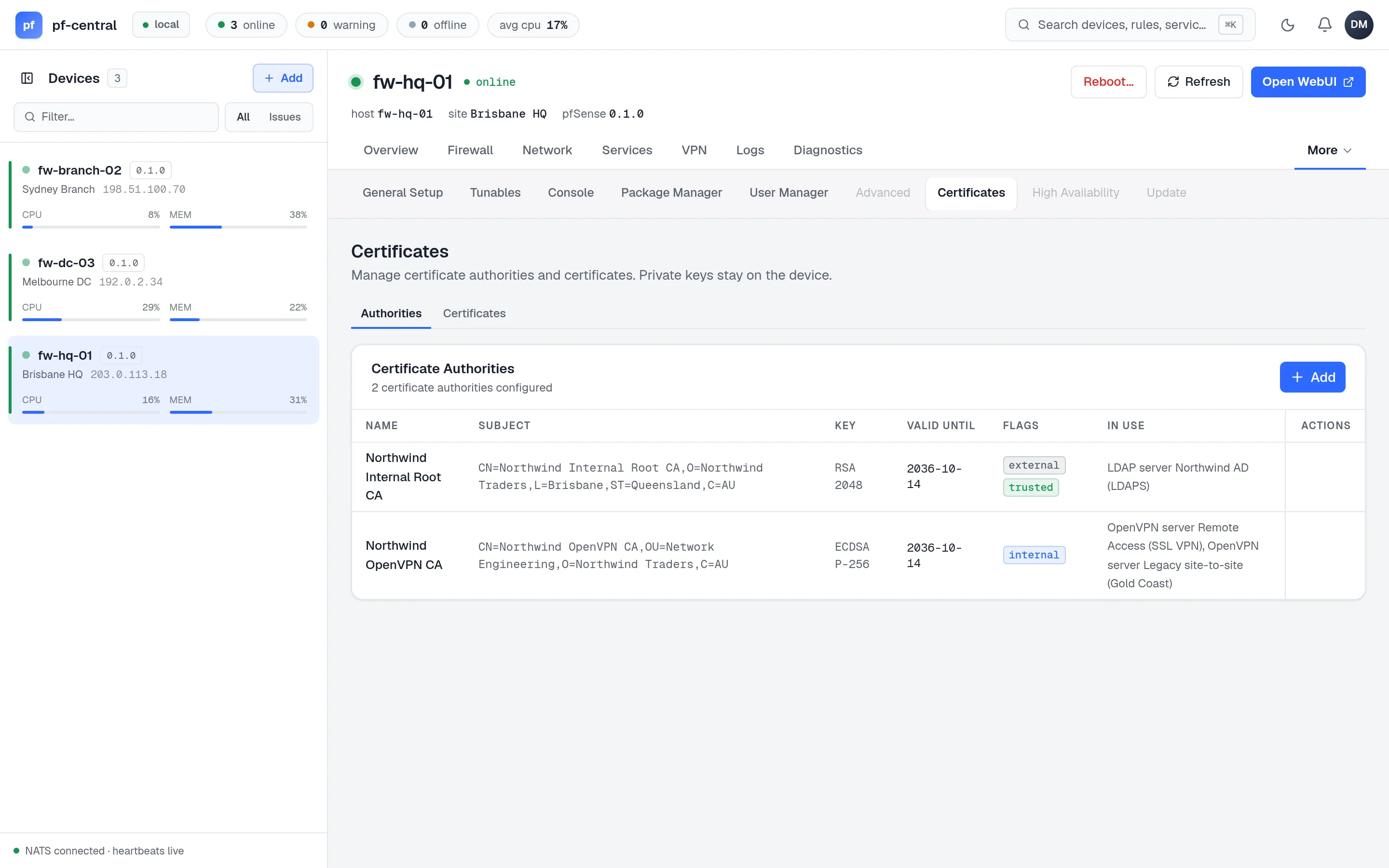
Two tabs:
- Authorities: create an internal CA, an intermediate CA, or import one. Choose RSA (2048–4096) or ECDSA (P-256 to P-521), a digest, a lifetime and the subject. Add to OS trust store needs the admin role.
- Certificates: create a server or user certificate signed by one of the CAs, or import one. Enter one SAN per line; pfCentral sorts them into DNS names, IPs, URIs and emails.
View shows the details. You cannot edit or renew a CA or certificate; create a new one. Deleting a CA keeps the certificates it signed.
Certificate list and view operations do not return private keys. A full configuration export can include them.