

Tutorial 3: Make your first change
In this tutorial you let a monitoring server poll the firewall over SNMP. You create an alias for the monitoring host, a firewall rule that uses it, and apply both. Then you undo the change. It takes about 10 minutes.
You will learn:
- how the device pages map to the pfSense GUI you know;
- the difference between Save and Apply;
- how to check a change on the firewall.
You need: the firewall from Tutorial 2, online, and an account with the operator role or higher.
1. Create an alias
Section titled “1. Create an alias”An alias is a named list of addresses or ports. Rules that use an alias update when the alias changes.
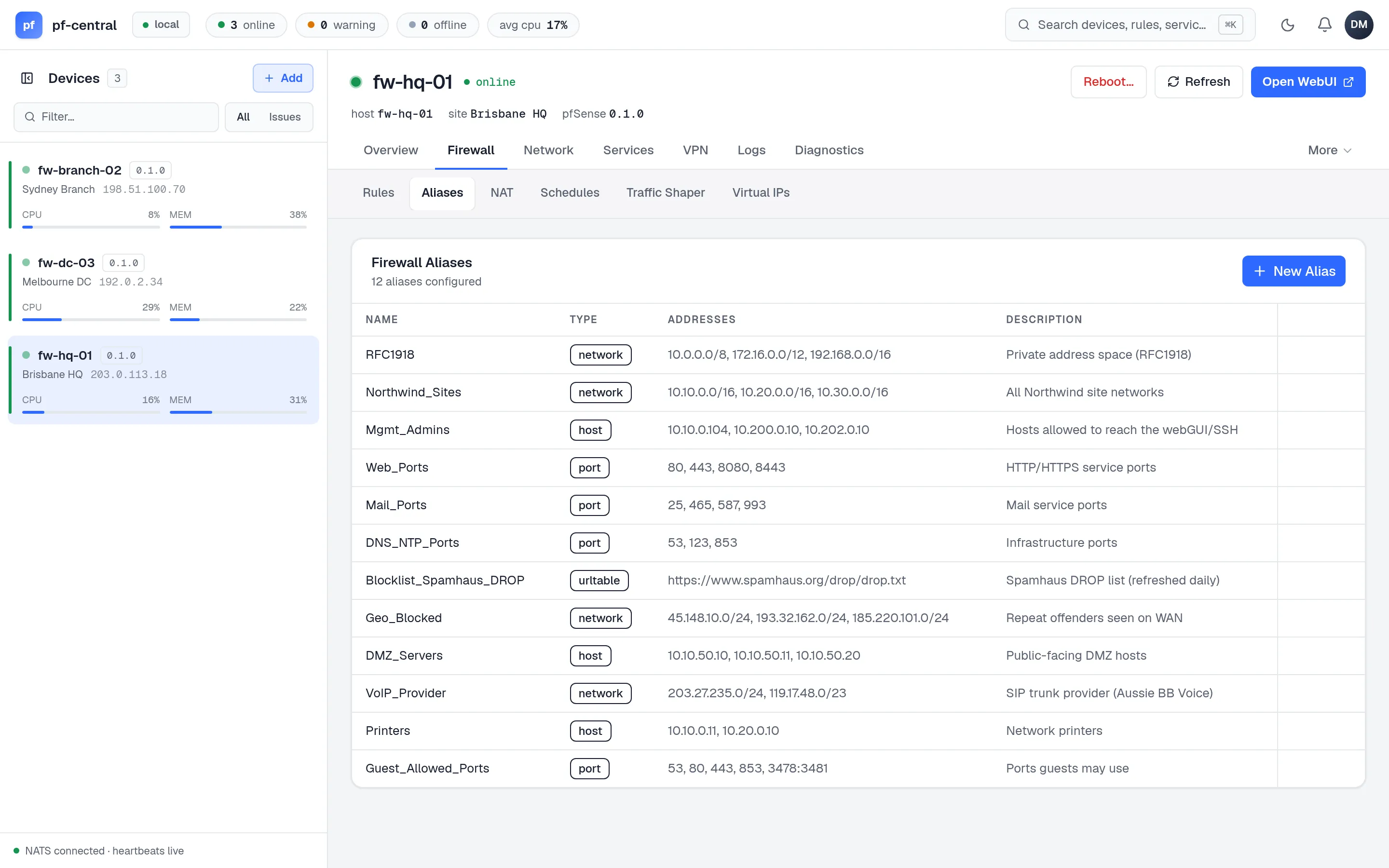
Open the firewall from the left rail, then Firewall → Aliases.
-
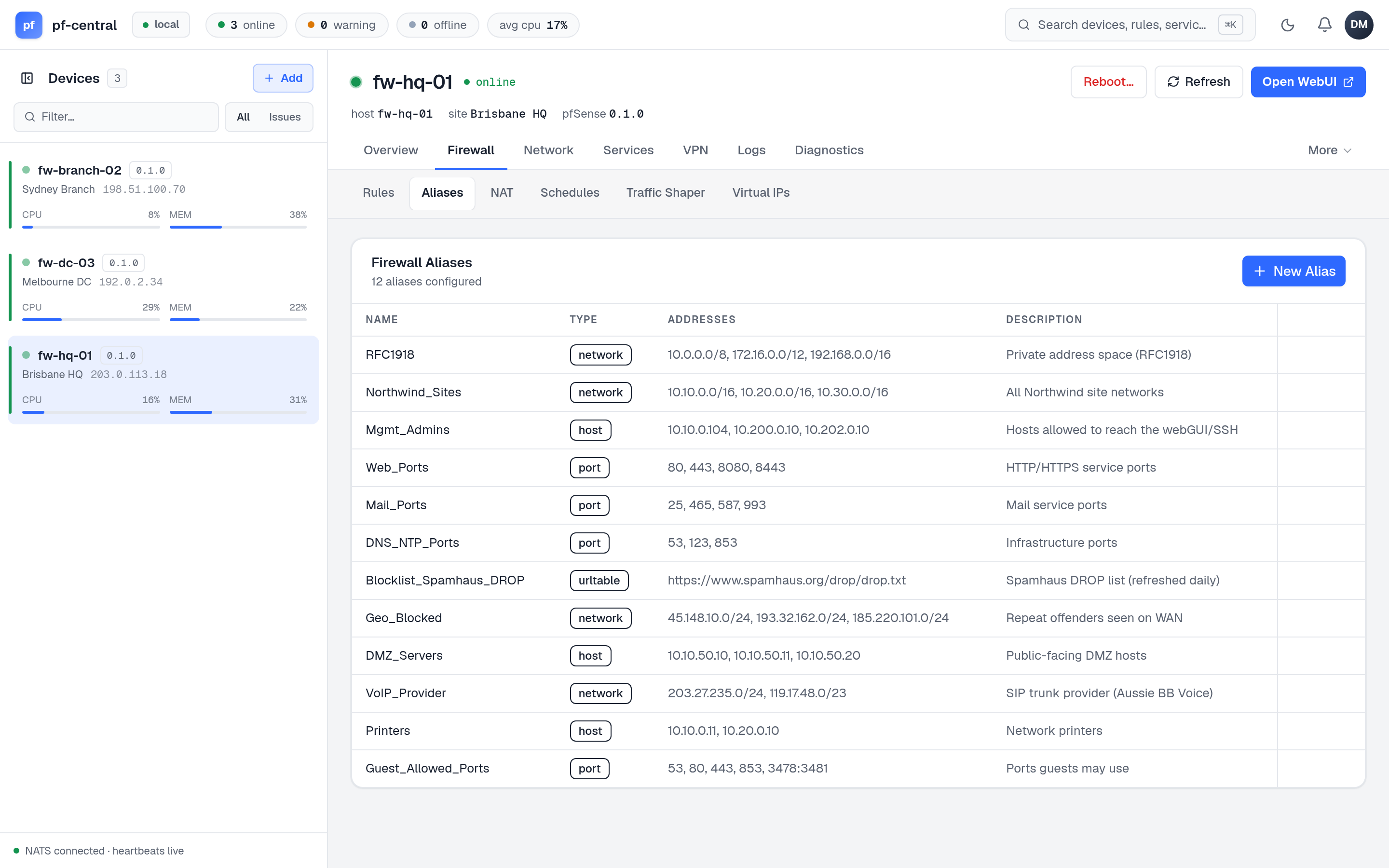
Full size ↗ Step 1 of 4 Open the aliases listpfCentral asks the agent for the aliases and shows them as the firewall has them. Click New Alias.
-
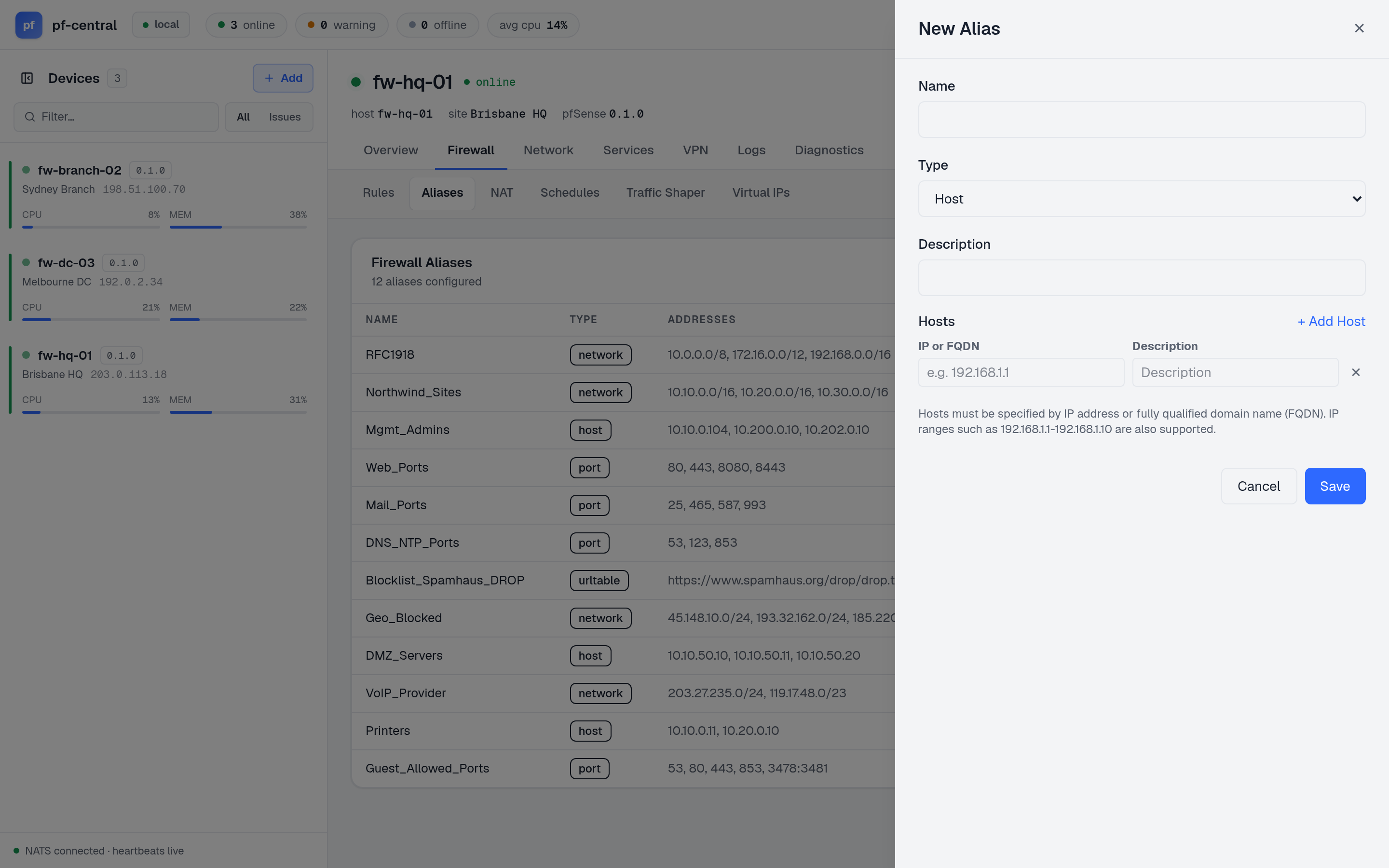
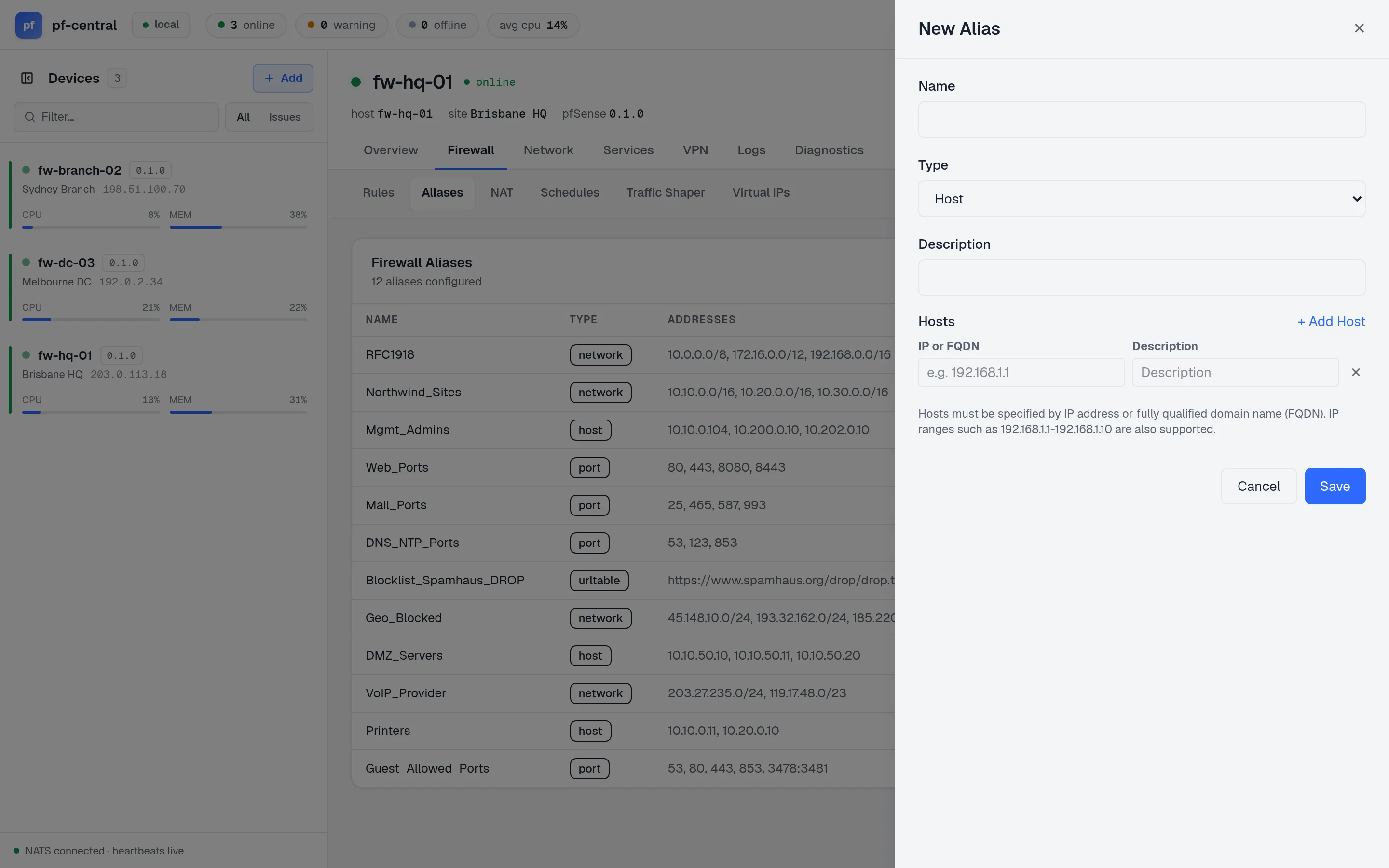
Full size ↗ Step 2 of 4 The alias formThe form has the same fields as Firewall → Aliases → Add in pfSense: a name, a type (Host, Network, Port, URL…) and the entries.
-
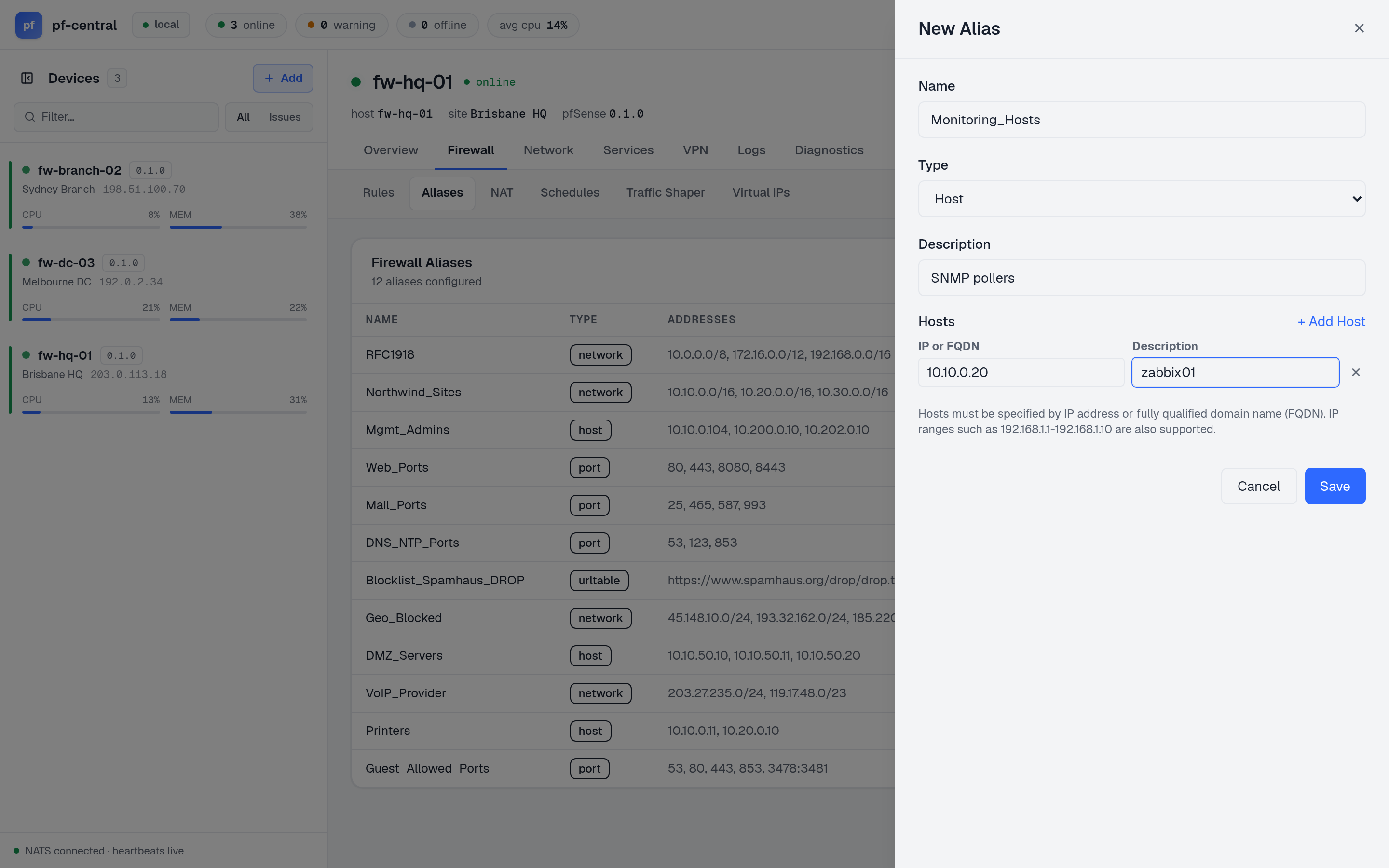
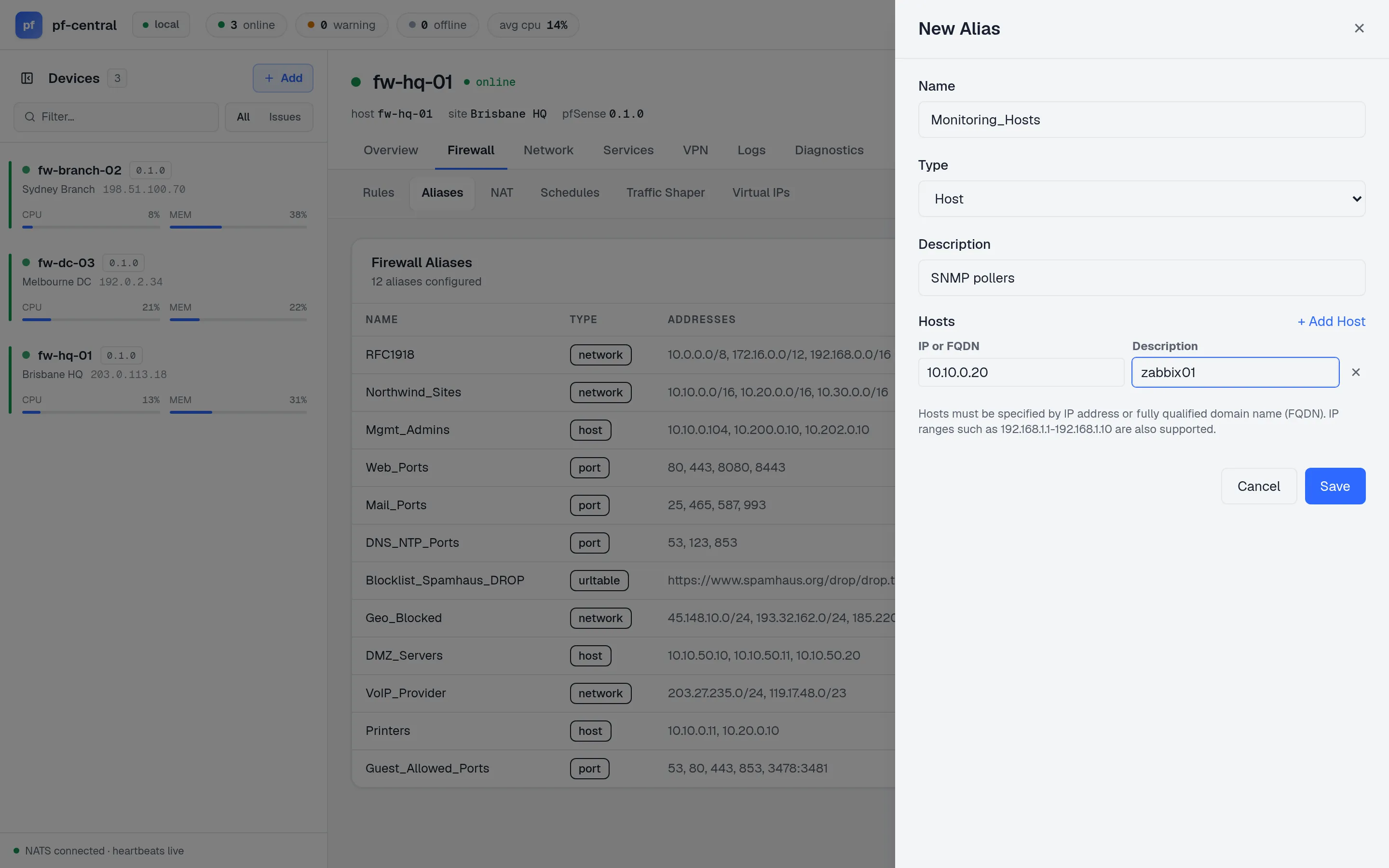
Full size ↗ Step 3 of 4 Fill it inName:
Monitoring_Hosts. Type: Host. Description:SNMP pollers. Host:10.10.0.20, descriptionzabbix01. Click Save. -
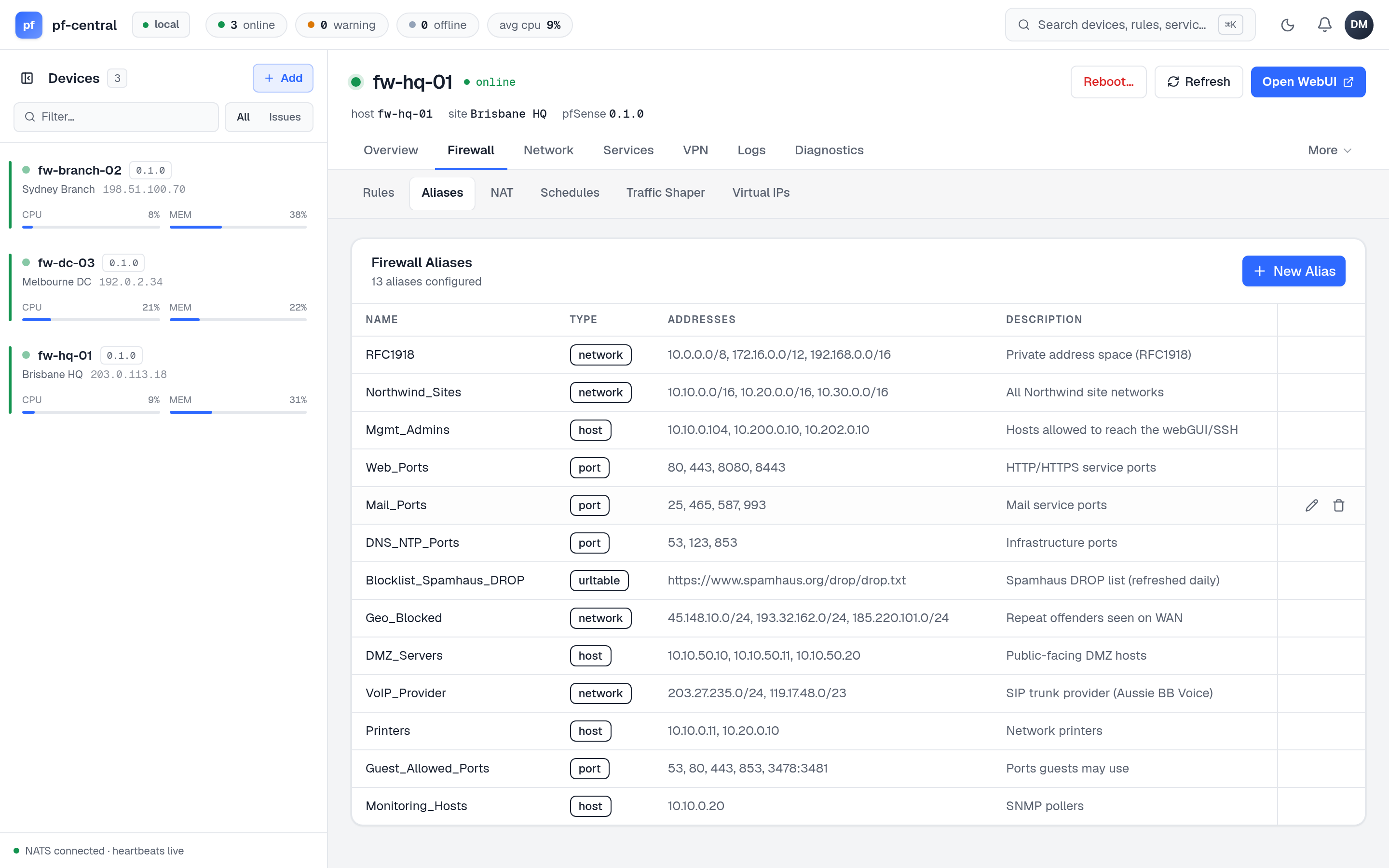
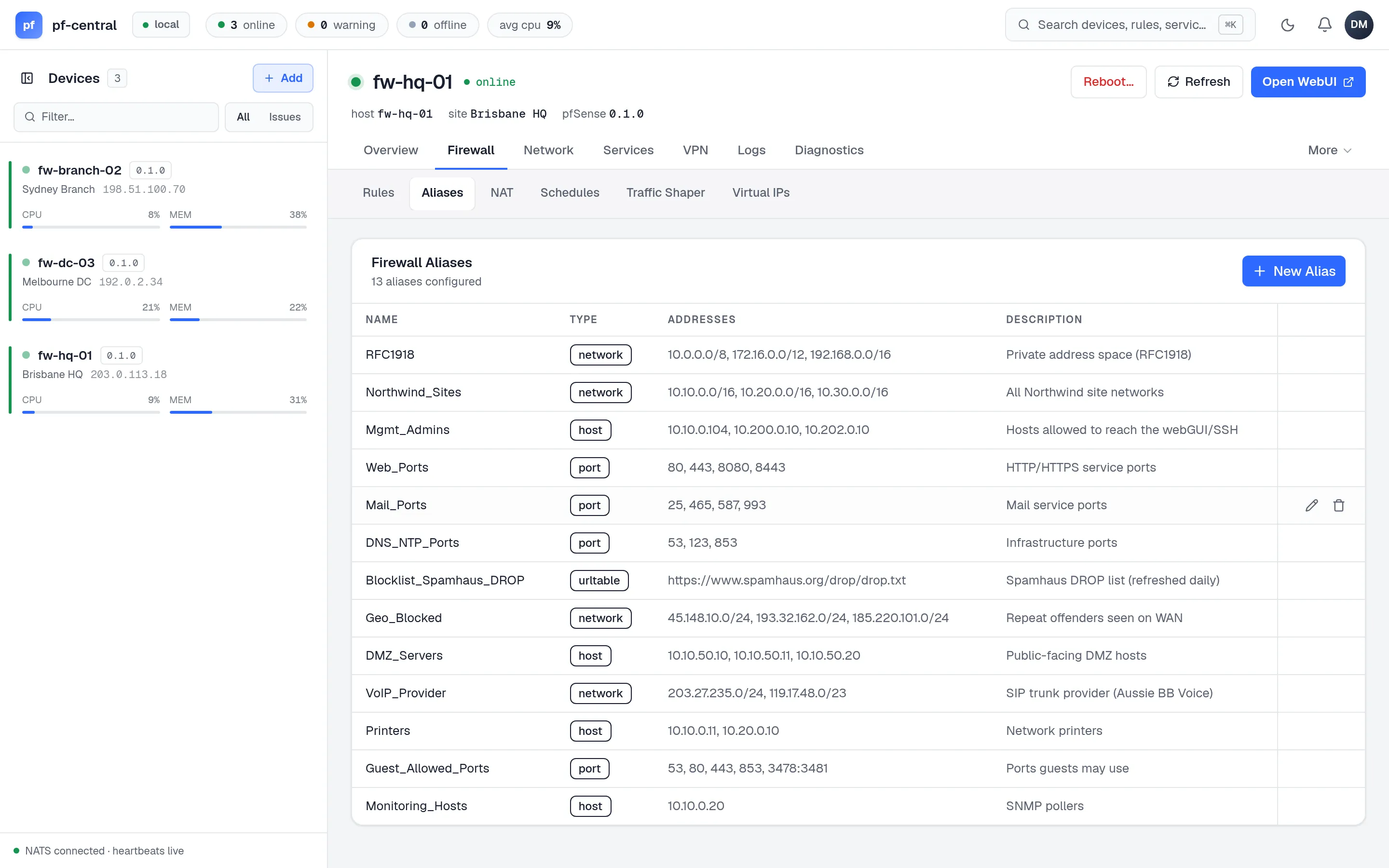
Full size ↗ Step 4 of 4 Saved, not yet appliedThe alias is in the firewall's configuration. Click Apply Aliases on the rules page (next step) to load it into the running firewall.
2. Create the rule
Section titled “2. Create the rule”Open Firewall → Rules and click New Rule.
-
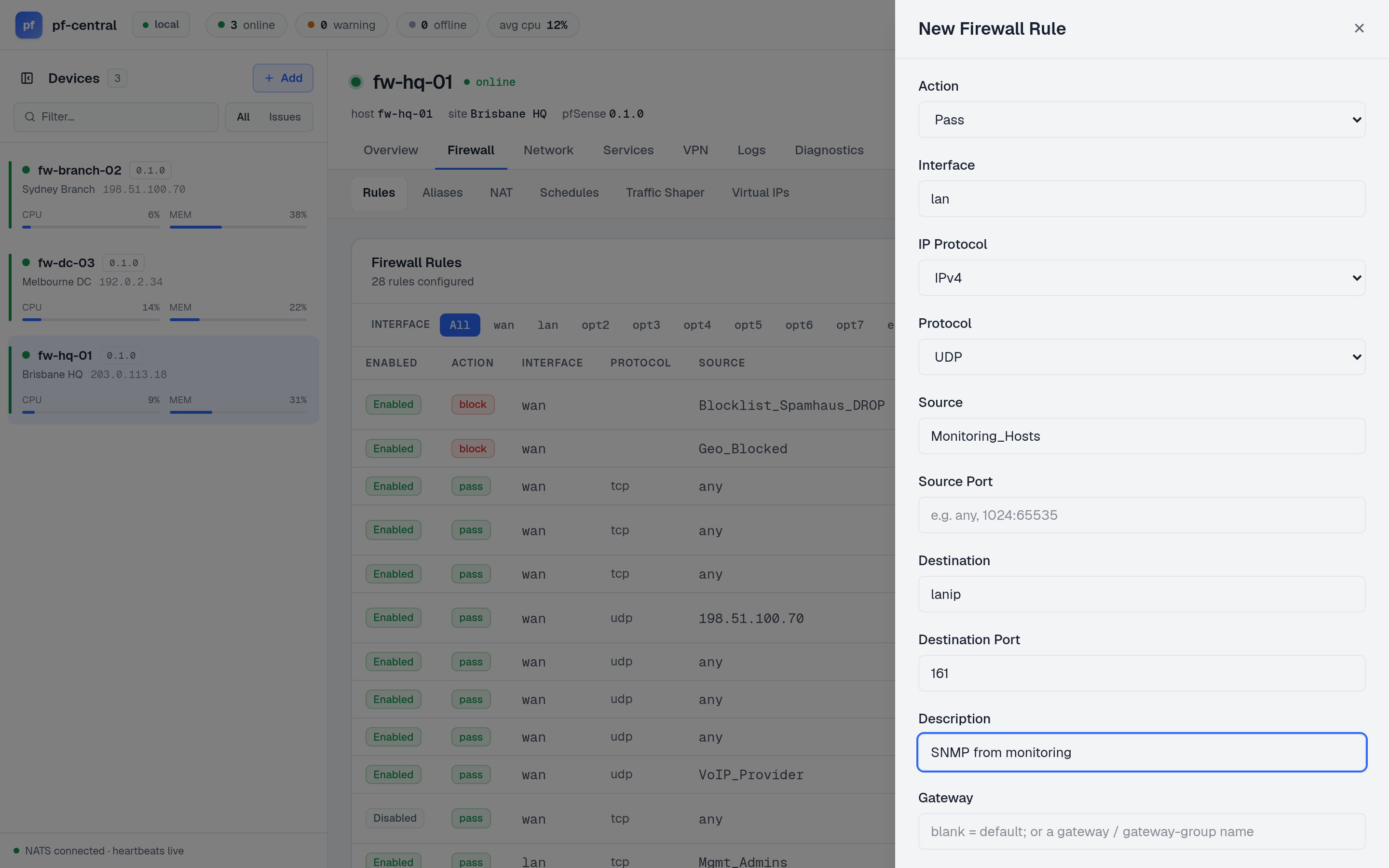
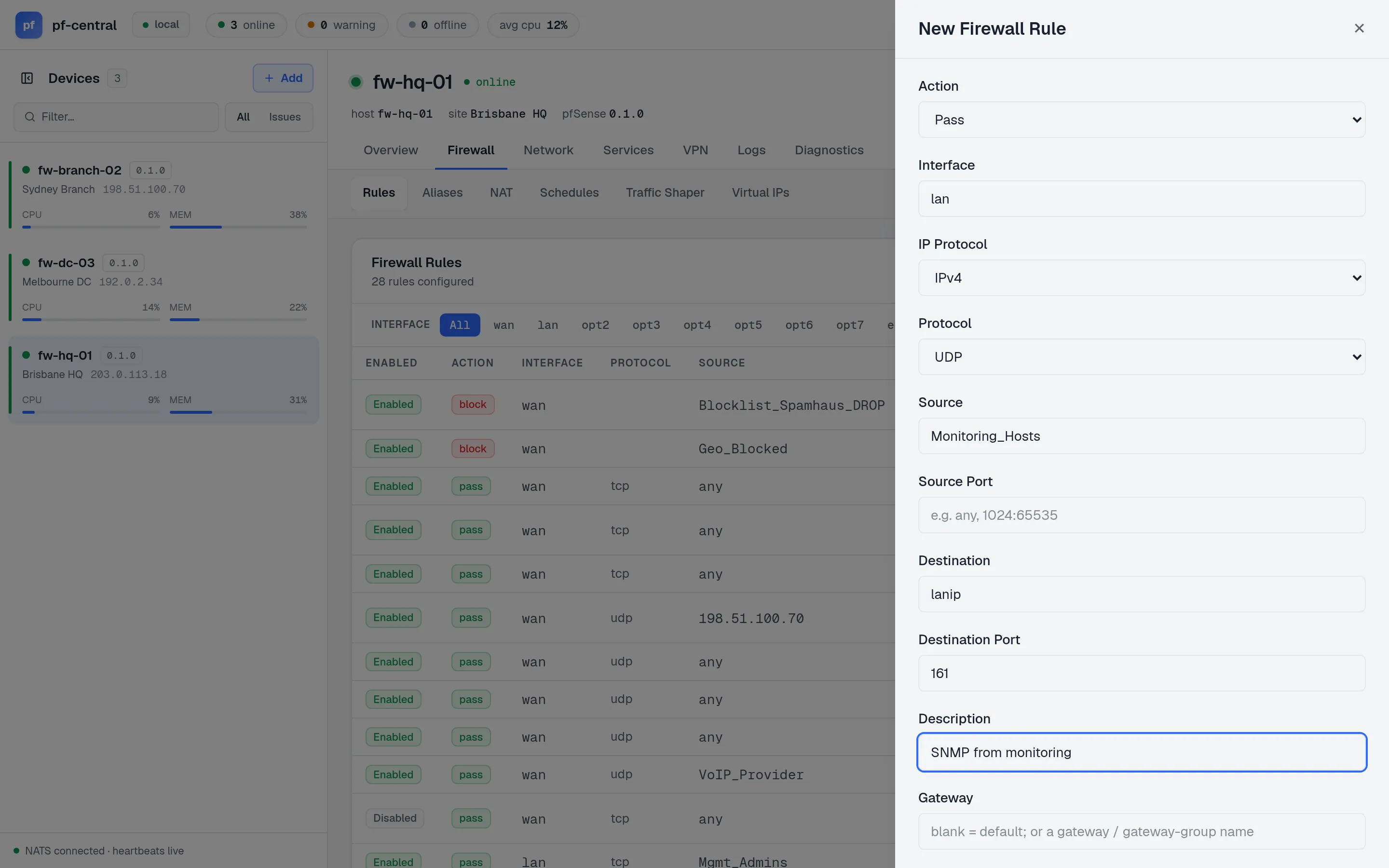
Full size ↗ Step 1 of 2 Fill in the ruleAction Pass. Interface
lan. Protocol UDP. SourceMonitoring_Hosts. Destinationlanip, port161. DescriptionSNMP from monitoring. Click Save. -
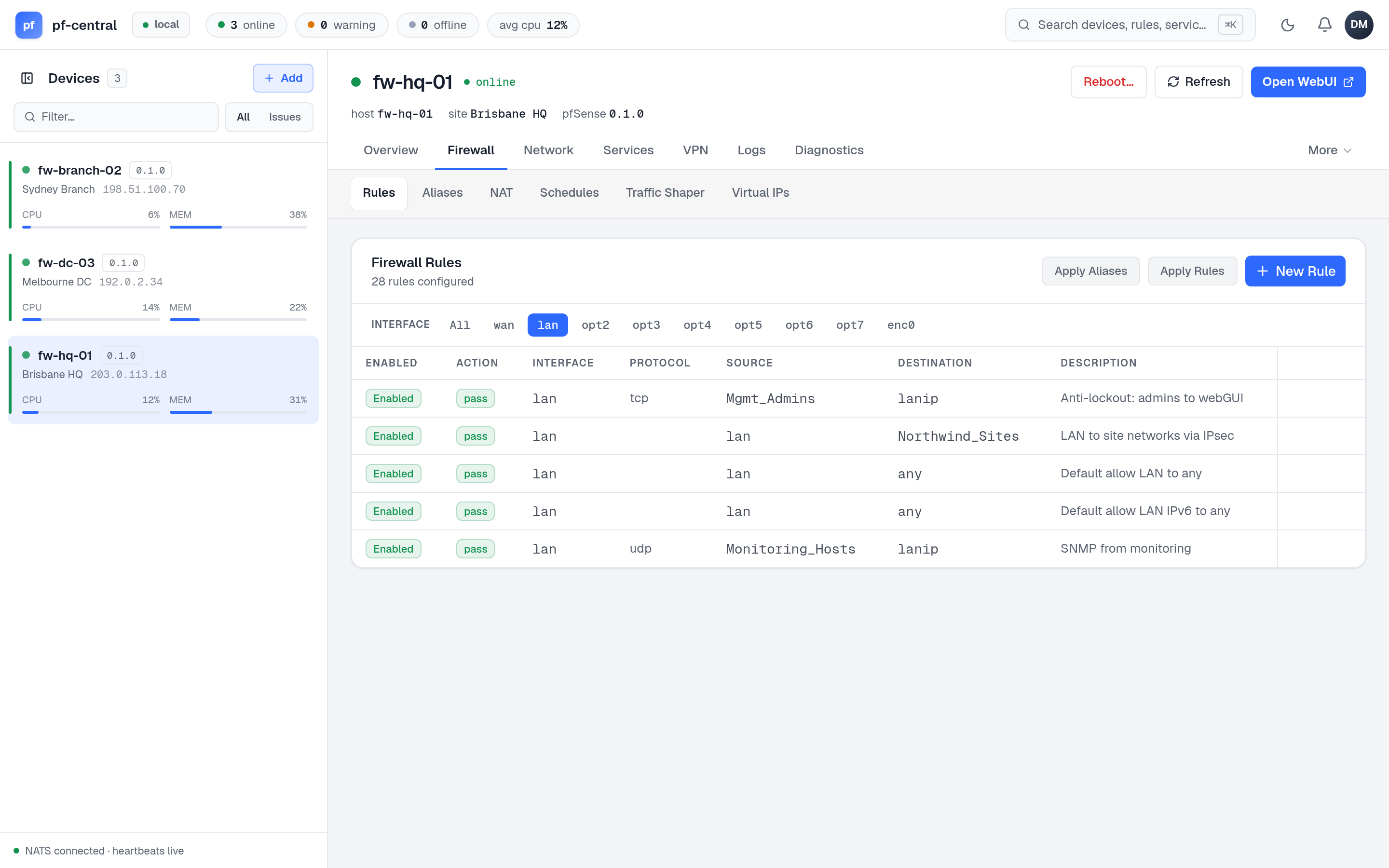
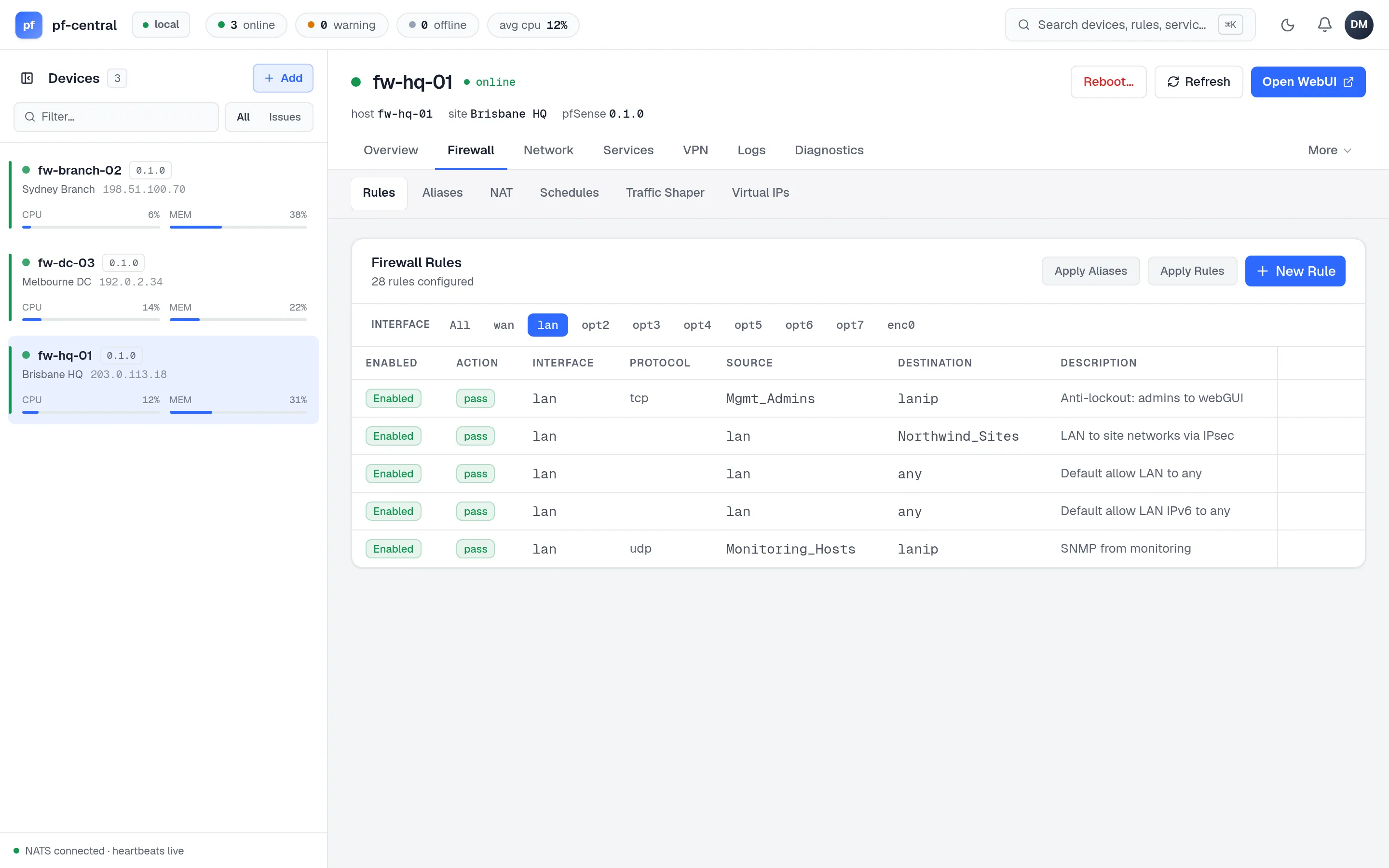
Full size ↗ Step 2 of 2 ApplyThe rule appears in the list. Click Apply Rules. The agent runs pfSense's own filter reload, exactly like Apply Changes in the pfSense GUI, and reports success or the error.
What just happened
Section titled “What just happened”You ── Save ──▶ pfCentral ── pfsense.<uuid>.firewall.rules.create ──▶ agent ──▶ config.xmlYou ── Apply ─▶ pfCentral ── pfsense.<uuid>.firewall.rules.apply ──▶ agent ──▶ filter reloadEach click is one request over the agent’s open connection. pfCentral checked your role first: a viewer gets “Not permitted” and nothing reaches the firewall.
3. Check it on the firewall
Section titled “3. Check it on the firewall”Open the pfSense GUI (the Open WebUI button on the device page links to it) and go to Firewall → Rules → LAN. The rule is there with your description. Firewall → Aliases lists Monitoring_Hosts.
You can also check from pfCentral: Diagnostics → Tables shows the Monitoring_Hosts pf table with 10.10.0.20 once the aliases are applied.
4. Undo the change
Section titled “4. Undo the change”- In Firewall → Rules, delete the
SNMP from monitoringrule and confirm. Click Apply Rules. - In Firewall → Aliases, delete
Monitoring_Hostsand confirm.
Always delete the rule before the alias. pfCentral does not stop you from deleting an alias that a rule still uses, and pfSense cannot load a rule that names a missing alias.
What you learned
Section titled “What you learned”- Device pages mirror the pfSense GUI. Lists come live from the firewall.
- Save writes the configuration; Apply makes the firewall use it.
- Every change is a request to one firewall, checked against your role.