

Users and roles
One pfCentral deployment serves a whole team. Every person is a member with exactly one role. The server checks the role on every page and every API call. For a guided first run, see Tutorial 4.
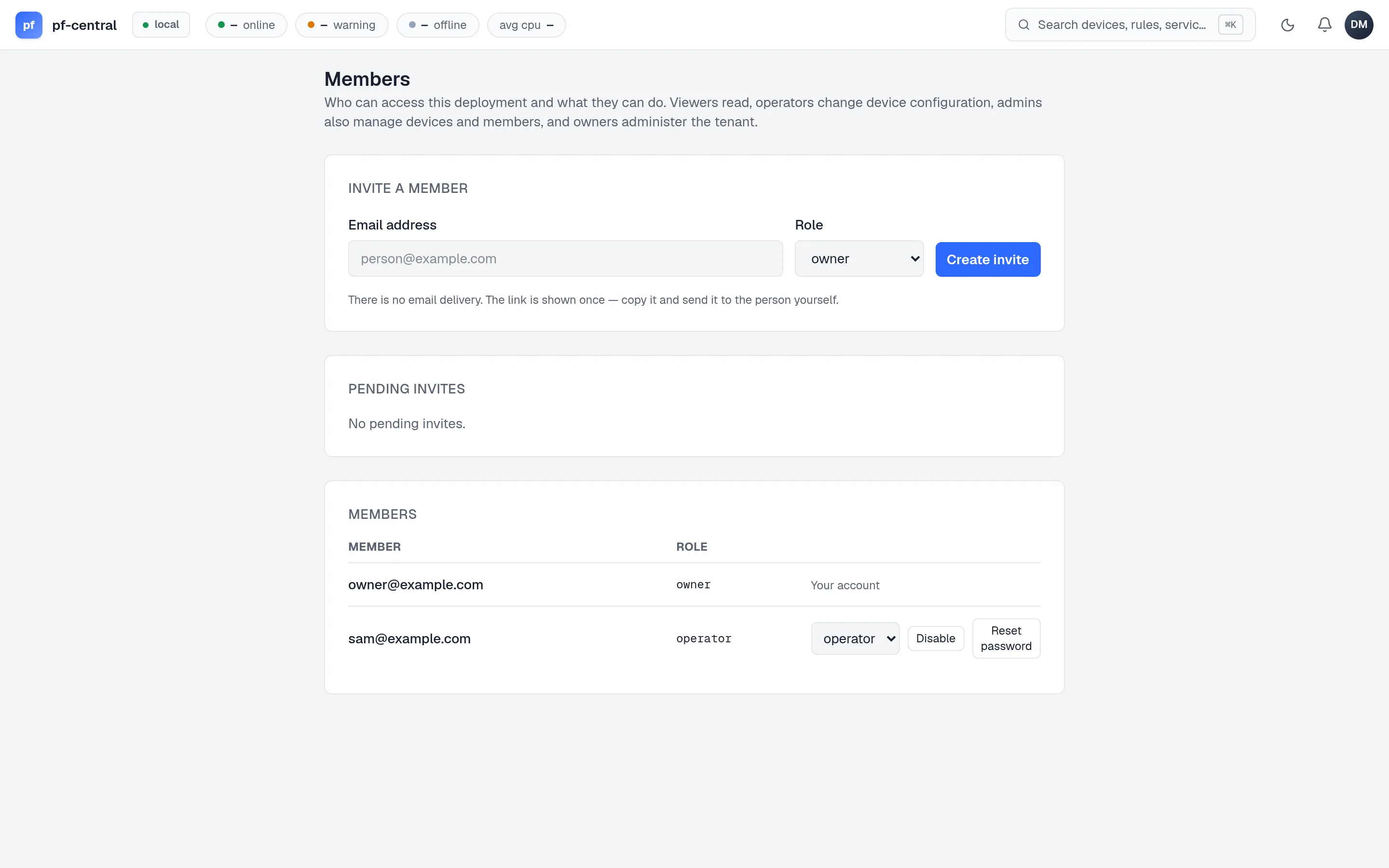
Open Members from the avatar menu. Only admins and owners see it.
| Role | Read | Change device config | Devices, power, commands, packages, members | Manage admins and owners |
|---|---|---|---|---|
| viewer | ✓ | |||
| operator | ✓ | ✓ | ||
| admin | ✓ | ✓ | ✓ | |
| owner | ✓ | ✓ | ✓ | ✓ |
The exact permission for each action is in Roles and permissions.
Choosing. First-line staff who watch the fleet get viewer. Engineers who change rules get operator. People who onboard firewalls or run commands on them get admin. Keep owner for two people, so one can always recover the other.
Rules that always apply
Section titled “Rules that always apply”- Nobody can change their own role or disable their own account.
- Admins can invite and manage operators and viewers only.
- Only owners can grant or remove admin and owner, or act on an admin or owner.
- The last active owner cannot be demoted or disabled.
Invite
Section titled “Invite”- Enter the email address and choose a role. The menu only offers roles you may grant.
- Click Create invite. pfCentral shows a one-time link, valid for 72 hours.
- Send the link. With email delivery on, pfCentral also emails it.
The invitee sees the address (read-only) and sets a password of 12 characters or more. The address and role come from the invite, not from the form.
Pending invites are listed with Revoke. Inviting the same address again replaces the old link.
Change a role
Section titled “Change a role”Pick the new role in the member’s row. It takes effect on the member’s next request; they do not need to sign out.
Disable or enable
Section titled “Disable or enable”Disable blocks sign-in and ends the member’s sessions on their next request. Their API tokens stop working too. Enable restores access. Use Disable when someone leaves or an account may be compromised. There is no delete; disabled accounts stay for the record.
Reset a password
Section titled “Reset a password”Reset password makes a one-time link valid for 1 hour. Using it sets a new password, signs the member out everywhere, and revokes their API tokens.
With email delivery on, members can also use Forgot password? on the sign-in page. It always answers the same way, so nobody can use it to find out which addresses have accounts.
Sessions
Section titled “Sessions”- A session lasts up to 24 hours and ends after 30 minutes without activity.
- Sessions are stored in PostgreSQL, so they survive server restarts and work across replicas.
- To end your own session, clear the site’s cookies. A sign-out button is not in the UI yet; the endpoint is
POST /logout.
Recover from a lockout
Section titled “Recover from a lockout”| Problem | Fix |
|---|---|
| The only owner forgot their password and email is off | Run pf-central admin setup token on the server. It prints a new setup link that creates another owner. |
| A policy change blocks everyone | Set PFCENTRAL_AUTHZ_ENFORCE=false, restart, fix the roles, then set it back to true and restart. While it is false, every signed-in account can do everything, and the server logs a warning. |
Invites, role changes, status changes, password resets and every refused request are written to the audit_events table with the actor, the action and the reason. There is no audit viewer in the UI yet; see Security model → Audit trail.