

API tokens and automation
Everything in the web UI is also an HTTP API call. You can explore it in the browser and script it with a personal access token.
Create a token
Section titled “Create a token”Open the avatar menu → API Tokens. Give the token a name, optionally a lifetime in days, and click Create.
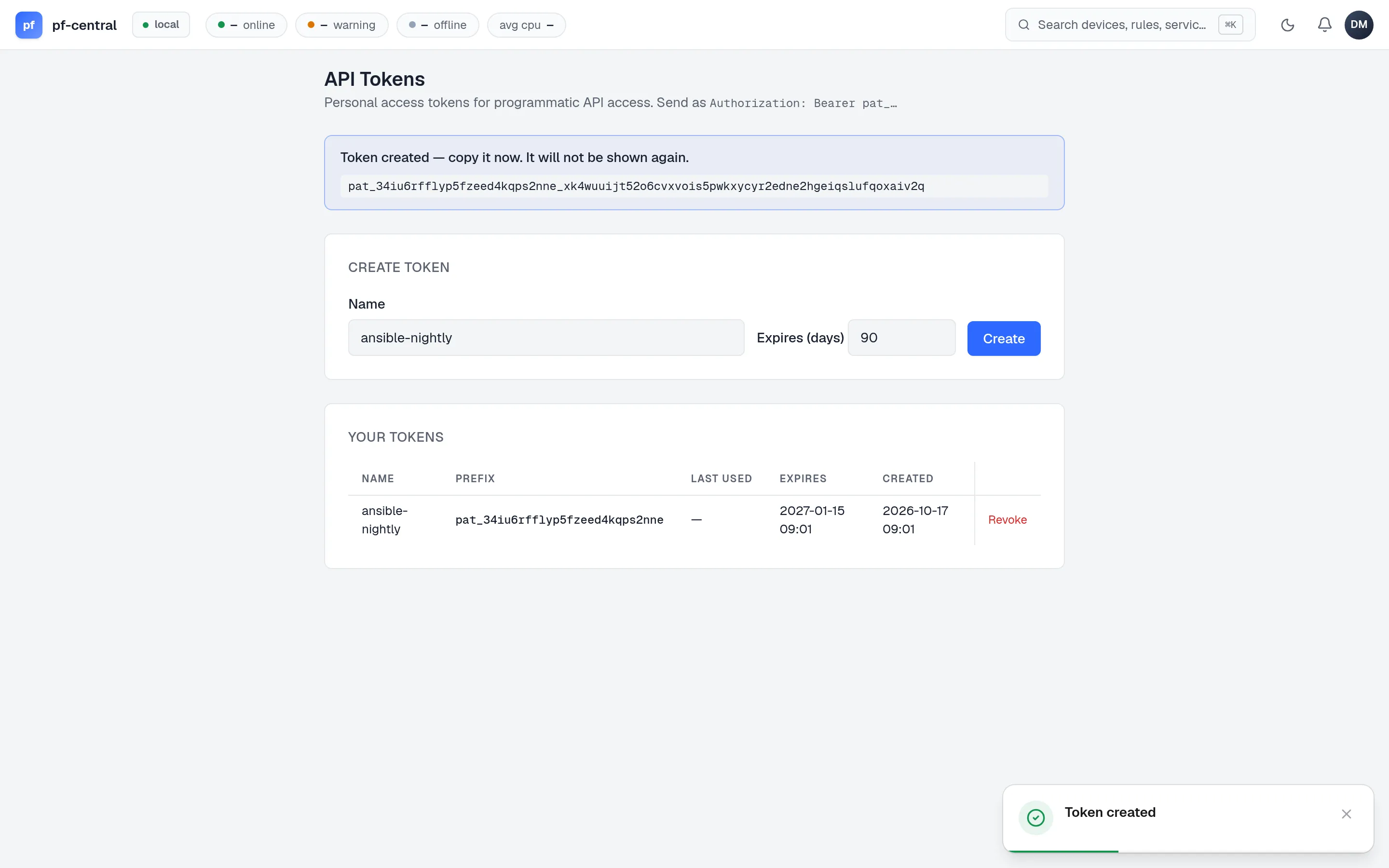
- The token (
pat_…) is shown once. Store it in your secret manager. - It acts as you, with your current role. If your role changes, the token’s power changes with it. If your account is disabled or your password is reset, the token stops working.
- Leave Expires (days) empty for a token that never expires. Prefer an expiry, and use a separate token per script so you can revoke one without breaking others.
- Revoke in the list stops a token at once.
For a long-lived integration, create a dedicated member (for example automation@example.com) with the smallest role that works, and make the token as that member.
Use it
Section titled “Use it”Send the token as a bearer token. Tokens only work on /api/… paths.
export PFC=https://pf.example.comexport PFCENTRAL_TOKEN=pat_…
curl -fsS -H "Authorization: Bearer $PFCENTRAL_TOKEN" "$PFC/api/devices"
[ { "id": "9f1c2b7e-3d44-4a8e-b6f1-2c5d7e9a0b13", "name": "fw-branch-02", "site": "Sydney Branch", "ip_address": "198.51.100.70", "online": true, "approved": true, "last_seen": "2026-10-17T09:10:04Z" }]Example: add an alias to every online firewall
Section titled “Example: add an alias to every online firewall”for id in $(curl -fsS -H "Authorization: Bearer $PFCENTRAL_TOKEN" "$PFC/api/devices" \ | jq -r '.[] | select(.online) | .id'); do curl -fsS -X POST "$PFC/api/devices/$id/firewall/aliases" \ -H "Authorization: Bearer $PFCENTRAL_TOKEN" -H "Content-Type: application/json" \ -d '{"name":"Monitoring_Hosts","type":"host","description":"SNMP pollers", "address":["10.10.0.20"],"detail":["zabbix01"]}' curl -fsS -X POST "$PFC/api/devices/$id/firewall/rules/apply" \ -H "Authorization: Bearer $PFCENTRAL_TOKEN"doneEach create returns the new object, and each apply returns {"applied": true}. Errors use RFC 9457 problem details with a title, status and detail.
Explore the API in the browser
Section titled “Explore the API in the browser”Open the avatar menu → API Explorer, or go to /ui/api. It lists every operation, builds a form from the schema, offers a device picker for deviceId, and runs the request with your session.
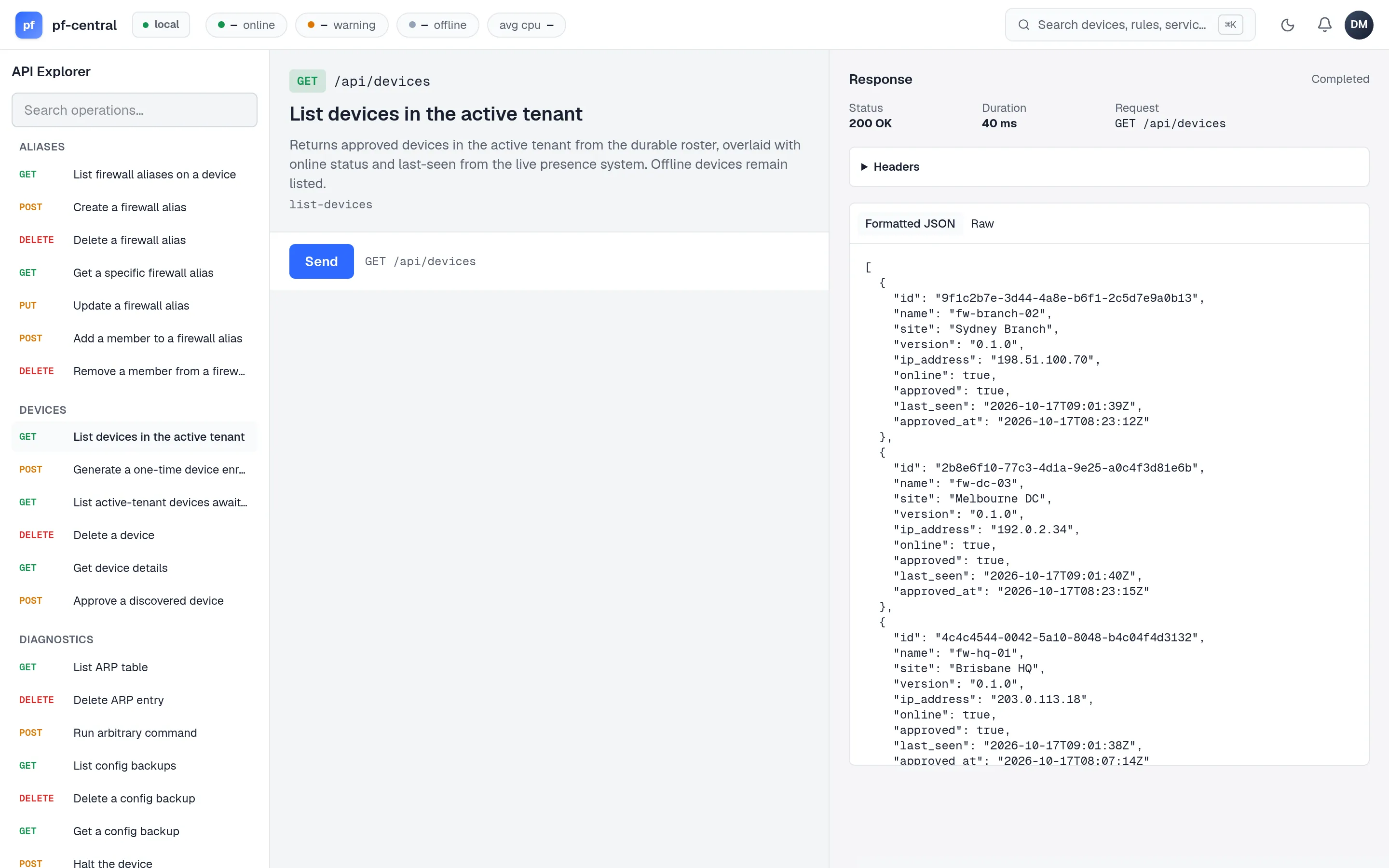
Use it to find an operation and check its request body before you script it.
OpenAPI and reference docs
Section titled “OpenAPI and reference docs”| Path | What |
|---|---|
/openapi.json, /openapi.yaml | OpenAPI 3.1 document for every operation |
/openapi-3.0.json, /openapi-3.0.yaml | The same, as OpenAPI 3.0, for older tools |
/docs | Interactive API reference |
Generate a client from the OpenAPI document with your usual tool. These paths need no login; see HTTPS → restrict the public paths.
Limits and behaviour
Section titled “Limits and behaviour”- Timeouts. Device operations wait up to 5 seconds for the firewall. An offline firewall returns an error quickly.
- Caching. Reads such as rule lists may come from a short-lived cache (up to 5 minutes old; refreshed in the background after 30 seconds). Changes clear the cache for that area.
- Rate limit. One shared limit for the server, 600 requests per minute by default (
PFCENTRAL_RATELIMIT_GLOBAL_RPM). Excess requests get HTTP 429. Pace bulk scripts. - Roles. The API checks the same roles as the UI. Some diagnostics that need admin in the UI only need operator through the API; see Roles and permissions.