

Firewall and NAT
The Firewall tab holds the pages from the pfSense Firewall menu. You need the viewer role to open them and the operator role to change them.
Save and Apply
Section titled “Save and Apply”| Page | Save writes config | Apply button | What Apply does |
|---|---|---|---|
| Rules | yes | Apply Rules | Reloads the filter (filter_configure) |
| Aliases | yes | Apply Aliases, on the Rules page | Reloads the filter |
| NAT (all three kinds) | yes | Apply Changes | Reloads the filter |
| Schedules | yes | Apply | Reloads the filter |
| Traffic Shaper | yes | Apply, one per section | Reloads the filter |
| Virtual IPs | yes | Apply | Reloads the filter |
pfCentral does not show a “pending changes” banner. After you save, click Apply. The firewall keeps using the old rules until you do.
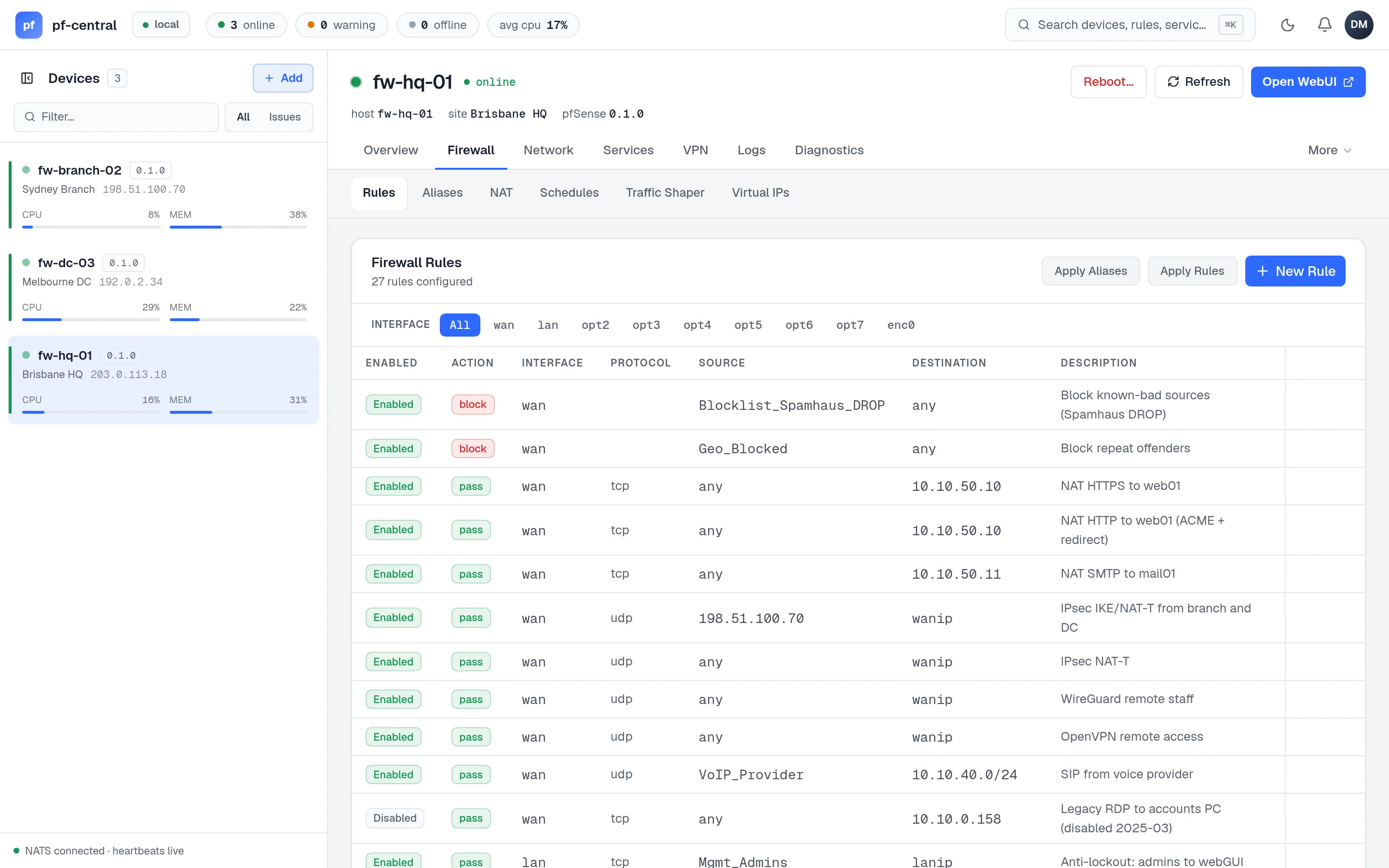
The list shows every rule on the firewall, in pfSense order. The chips above the table (All, wan, lan…) filter the list in your browser. They do not change the rules.
- New Rule opens the form in a side panel.
- The pencil icon edits a rule. The trash icon deletes it after a confirmation.
- Apply Rules reloads the filter.
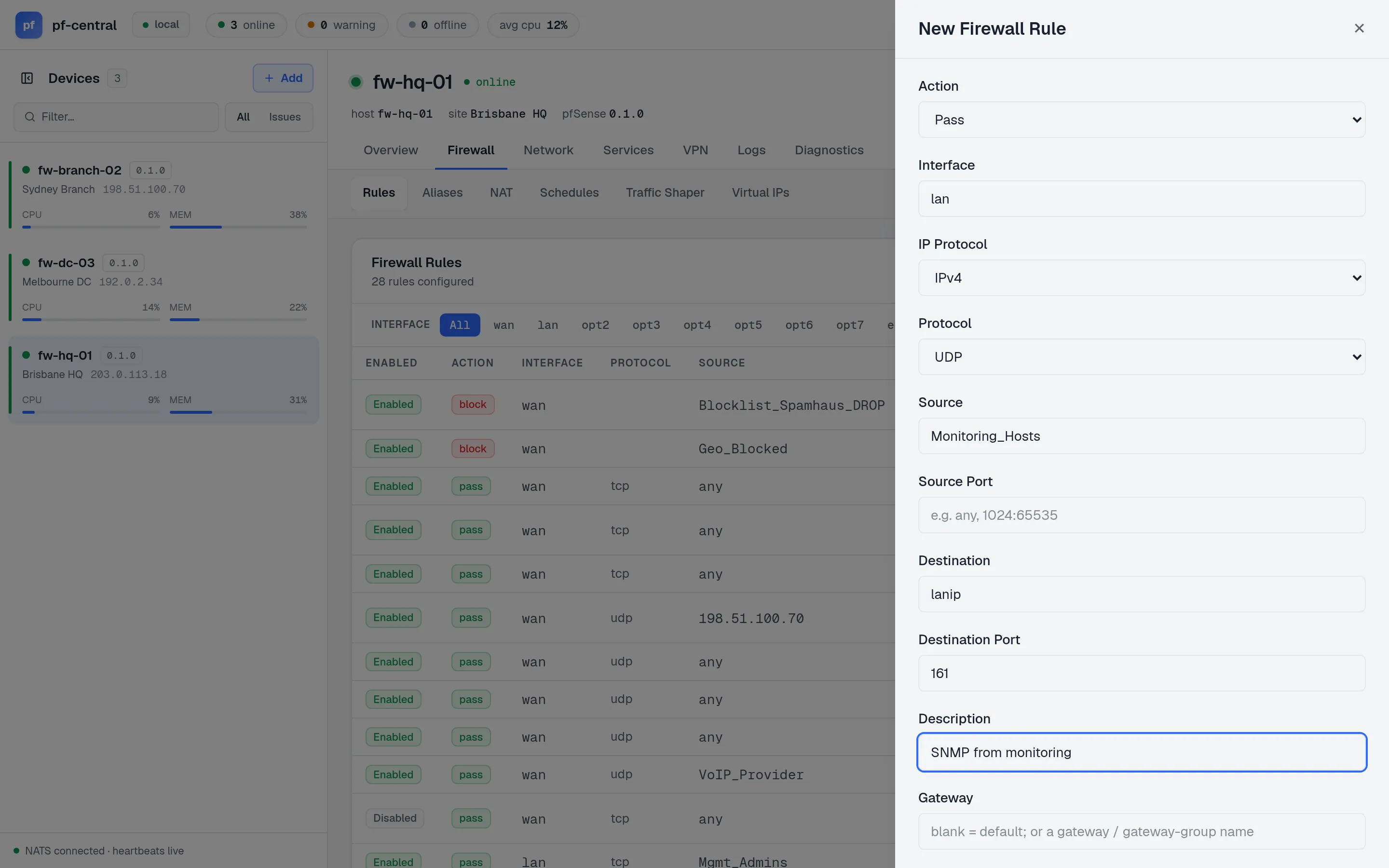
| Field | Values |
|---|---|
| Action | pass, block, reject |
| Interface | The pfSense interface name, for example wan, lan, opt1 |
| IP protocol | IPv4, IPv6, both |
| Protocol | any, tcp, udp, tcp/udp, icmp |
| Source, Destination | any, an address, a network, or an alias name; each with an optional port |
| Gateway | Empty for the default gateway, or a gateway name for policy routing |
| Schedule | A schedule name, to make the rule time-based |
| Disabled | Keeps the rule but does not use it |
Aliases
Section titled “Aliases”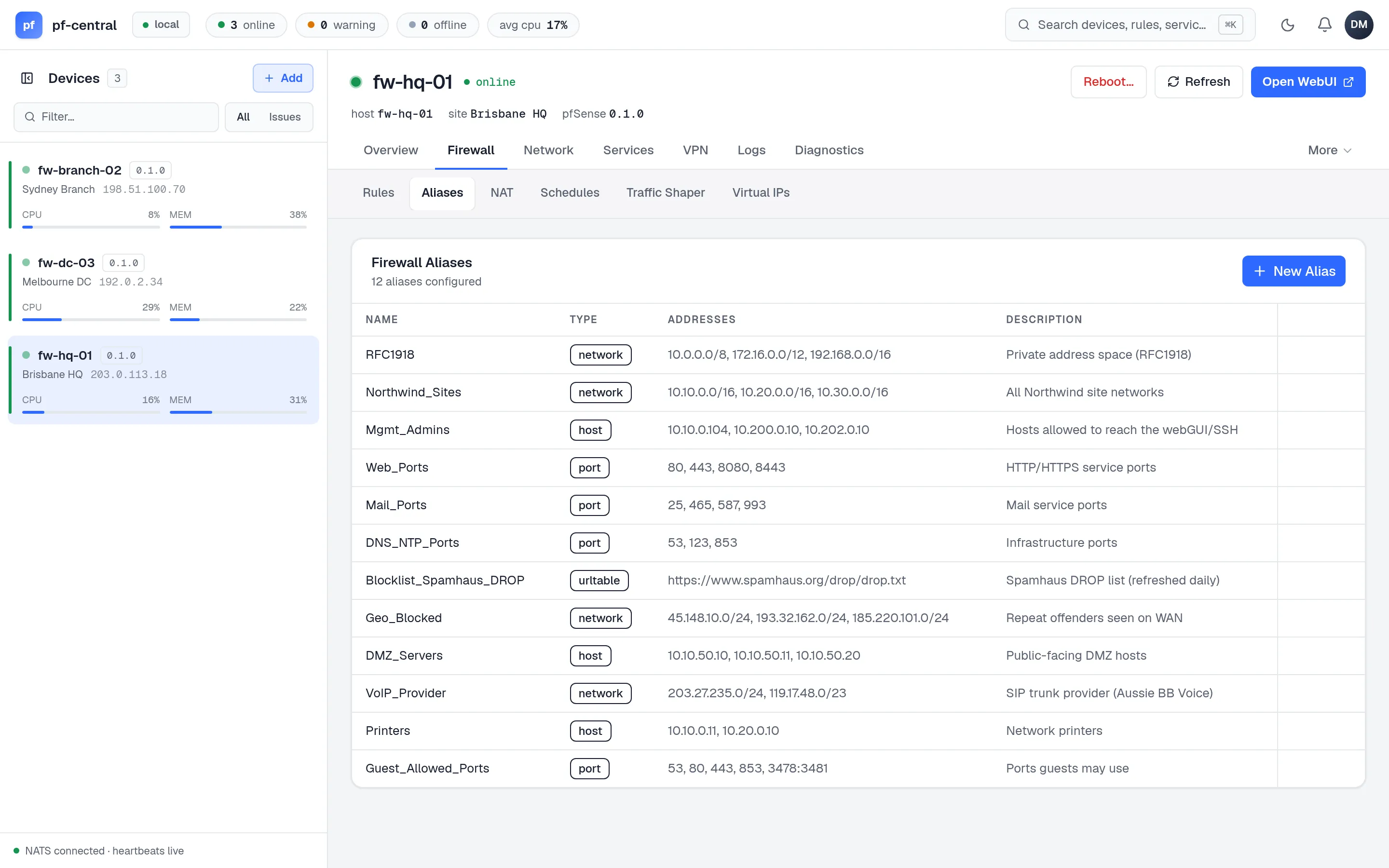
An alias is a named list. Rules and NAT entries that use the alias name change when the alias changes.
- Types: Host, Network and Port. URL and URL-table aliases are not supported yet.
- Name: letters, digits and underscores, up to 31 characters. You cannot rename an alias after you create it.
- Each entry has its own description.
After you save, click Apply Aliases on the Rules page. The Aliases page has no Apply button of its own.
Tutorial 3 walks through an alias and a rule step by step.
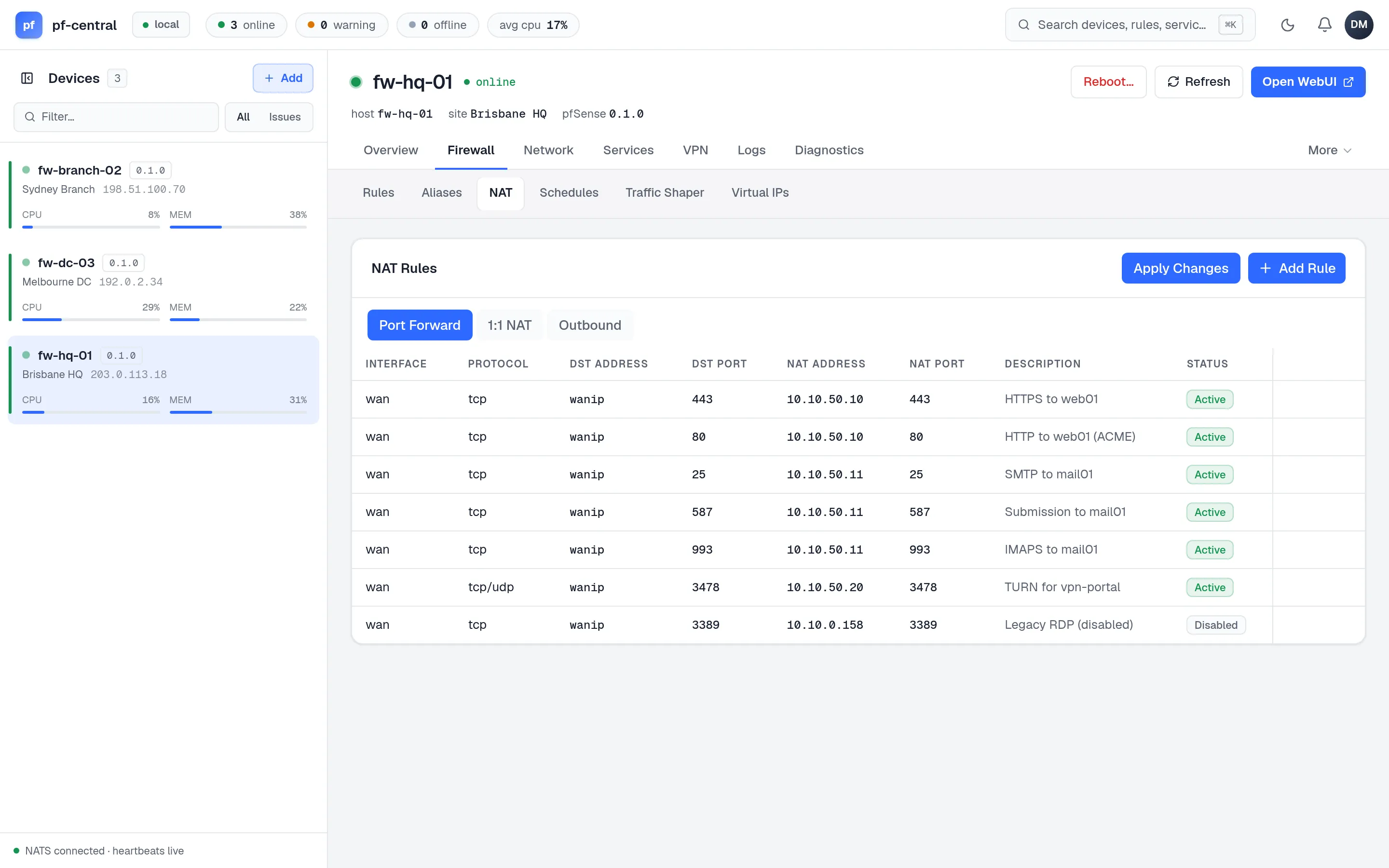
NAT has three tabs. Each has a list, New, edit and delete. One Apply Changes button applies all three.
Sends traffic that arrives on a public address and port to an inside host.
Fields: interface, protocol, source and source port, destination and destination port, NAT address (the inside host), NAT port, description, and associated rule (create a matching pass rule, pass without a rule, or none). Options: disabled, no redirect (no rdr), no XMLRPC sync.
Maps one public address to one inside address in both directions.
Fields: interface, external IP, internal source, destination, description. Options: disabled, exclude.
Controls how inside addresses are translated when they leave the firewall.
Fields: interface, protocol, source and destination with ports, translation target, target subnet, NAT port, description. Options: disabled, no NAT, no sync, static port.
The outbound NAT mode (automatic, hybrid, manual) cannot be changed from pfCentral yet. Your entries only take effect when the firewall is in hybrid or manual mode.
Schedules
Section titled “Schedules”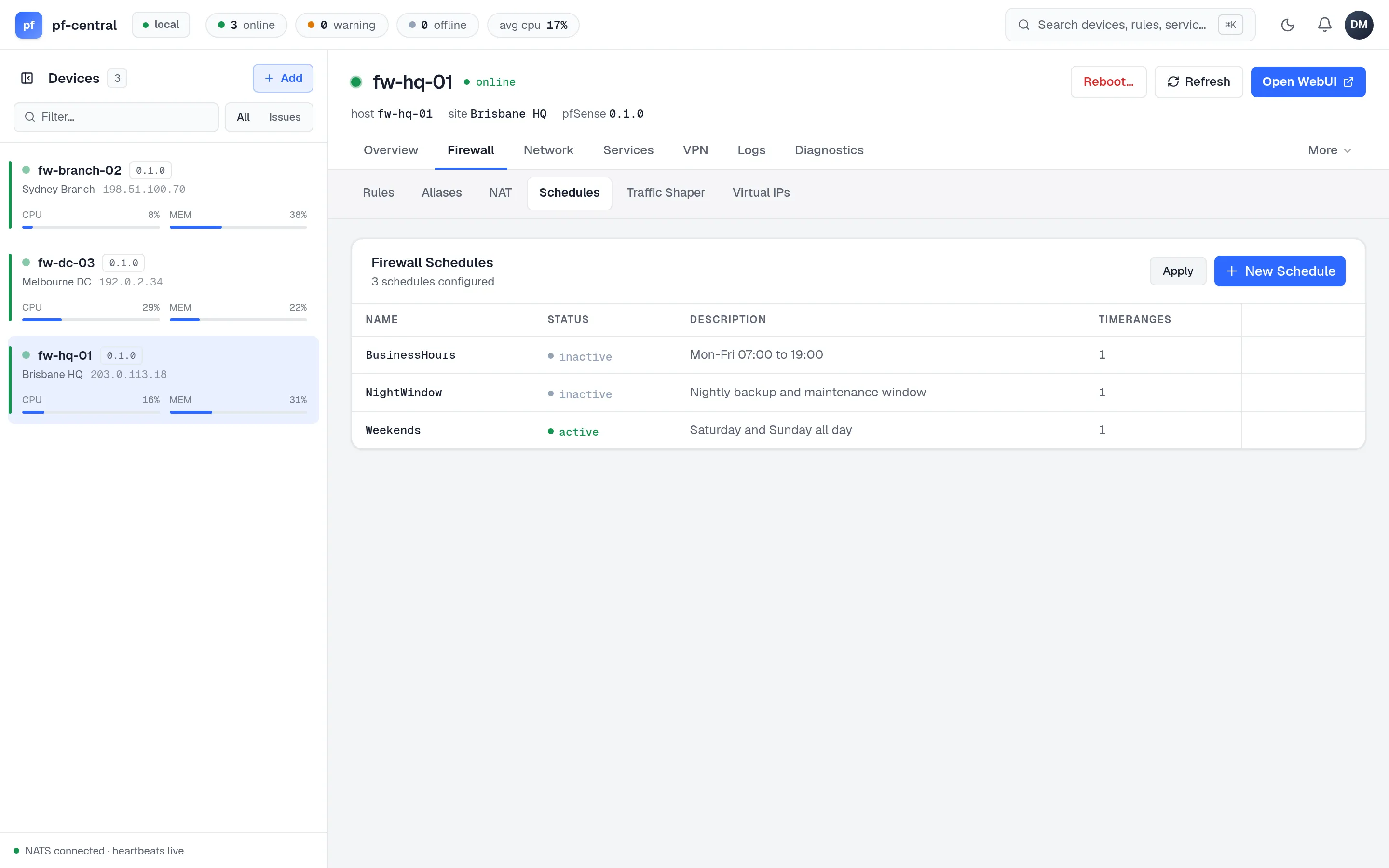
A schedule is a set of time ranges. A rule that names the schedule is only active during those times. The Active column shows whether each schedule is active right now.
Each range is either a set of weekdays or a set of dates, plus hours in HH:MM-HH:MM. Minutes must be 00, 15, 30, 45 or 59, as in pfSense. One range cannot mix weekdays and dates.
Traffic shaper
Section titled “Traffic shaper”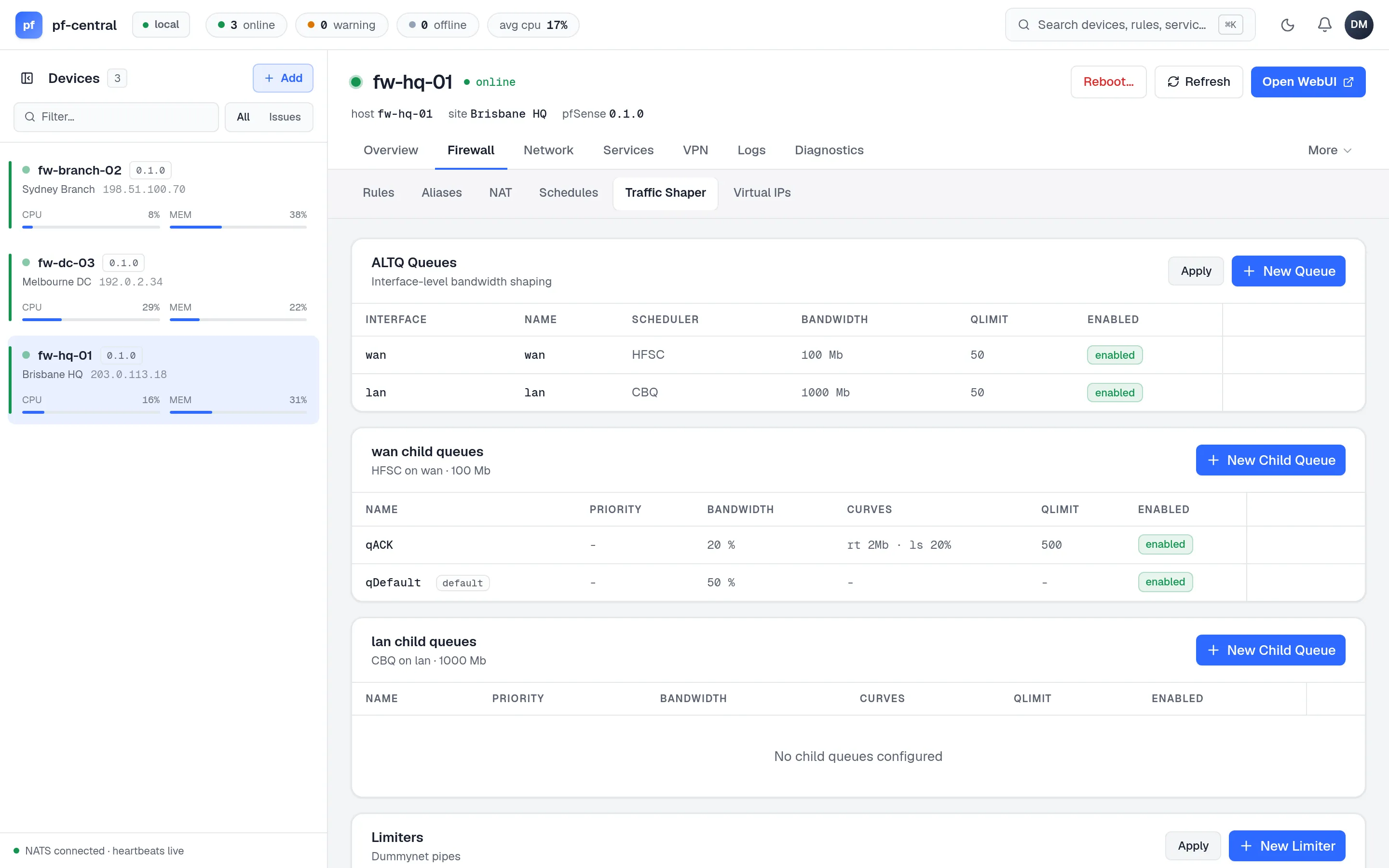
The page has two sections, each with its own Apply button.
ALTQ queues. One root queue per interface, with a scheduler (HFSC, CBQ, FAIRQ, CODELQ or PRIQ), bandwidth and queue limit. Below each root you can add one level of child queues with priority, bandwidth, RED/RIO/ECN/CoDel options, and HFSC service curves. A child cannot have more bandwidth than its parent. CODELQ roots have no children.
Limiters. Dummynet pipes with a bandwidth list (each line can have its own schedule), a mask, delay, packet loss and AQM. Each limiter can have queues of its own.
The pfSense shaper wizard is not available. Build the queues by hand, or run the wizard in the pfSense GUI and manage the result here.
Virtual IPs
Section titled “Virtual IPs”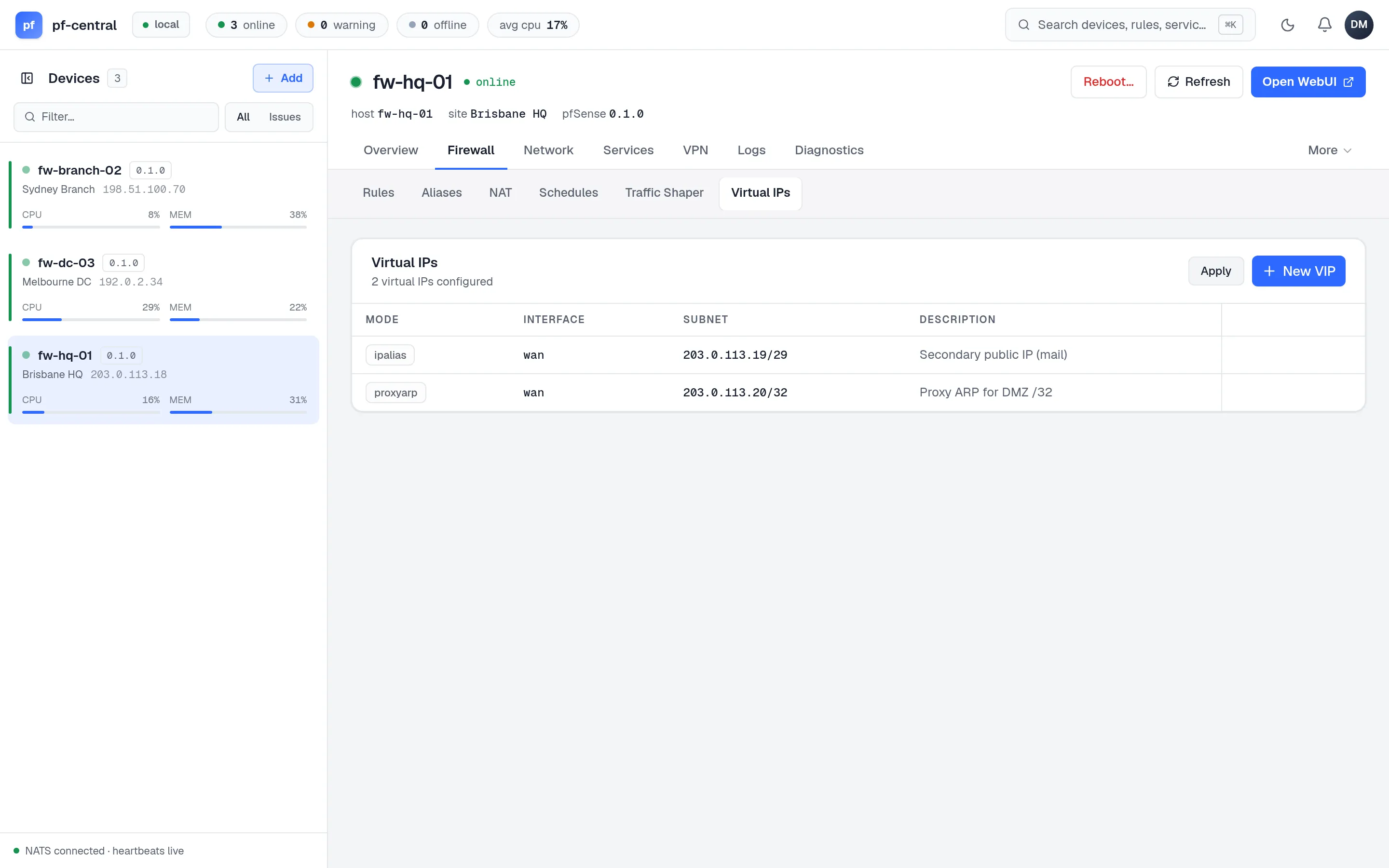
Add extra addresses to an interface.
| Mode | Use |
|---|---|
| IP Alias | An extra address on the interface |
| CARP | A shared address for a high-availability pair. Needs a VHID (1–255, unique on the interface), a password, and the advertising base and skew |
| Proxy ARP | Answer ARP for an address without binding it |
| Other | An address used only by NAT, with no ARP |
- Interfaces and routing
- Diagnostics: check states and pf tables after a change.