

Tutorial 2: Connect your first firewall
In this tutorial you connect one pfSense firewall to the server from Tutorial 1. It takes about 15 minutes.
You will learn:
- how to find a firewall’s hardware ID;
- how a one-time token turns into the firewall’s own credentials;
- how to tell “enrolled” from “online”.
You need:
- the server from Tutorial 1, at
http://192.168.1.50:2808; - a pfSense 2.7.0 or later firewall (amd64) with shell access: SSH as root, or Diagnostics → Command Prompt in the pfSense GUI;
- a route from the firewall to the server on TCP 2808 and 24222. Test it from the firewall with
nc -vz 192.168.1.50 24222.
The plan
Section titled “The plan”Before you start, here is everything that will happen. You do steps 1 to 3; the agent does the rest.
- 1. You add the device
In Devices → Add device you enter the firewall's hardware ID (SMBIOS UUID) and a name. The device now exists, waiting for enrollment.
- 2. pfCentral gives you a one-time token
The token works once, expires, and only works for that UUID. pfCentral stores a hash of it, never the token itself.
- 3. You give the token to the firewall
Paste it in Services → pfCentral → Settings, or pass it to the install script. This is the only secret a person ever handles.
- 4. The agent trades the token in
Over HTTPS the agent sends the token and its UUID to /enroll. pfCentral checks both and burns the token so nobody can use it again.
- 5. The agent gets its long-term credentials
pfCentral returns a per-device connect-secret and the shared sentinel credentials. The agent saves them on the firewall with owner-only permissions.
- 6. The agent dials NATS
It connects outbound to port 24222 and presents the sentinel credentials, its UUID and its connect-secret.
- 7. NATS asks pfCentral
NATS does not decide by itself. It forwards the login to pfCentral (the authorization callout), which checks the secret and that the device is approved and not suspended.
- 8. pfCentral signs a short-lived pass
The pass (a JWT) allows only this device's own subjects and expires. Nothing durable to steal or revoke on the broker.
- 9. The firewall is online
From now on every reconnect repeats only the last four steps. The token is never needed again.
1. Find the firewall’s hardware ID
Section titled “1. Find the firewall’s hardware ID”Each firewall is identified by its SMBIOS UUID, a hardware ID that survives reinstalls. On the firewall, run:
kenv smbios.system.uuid4c4c4544-0042-5a10-8048-b4c04f4d3132Copy the output.
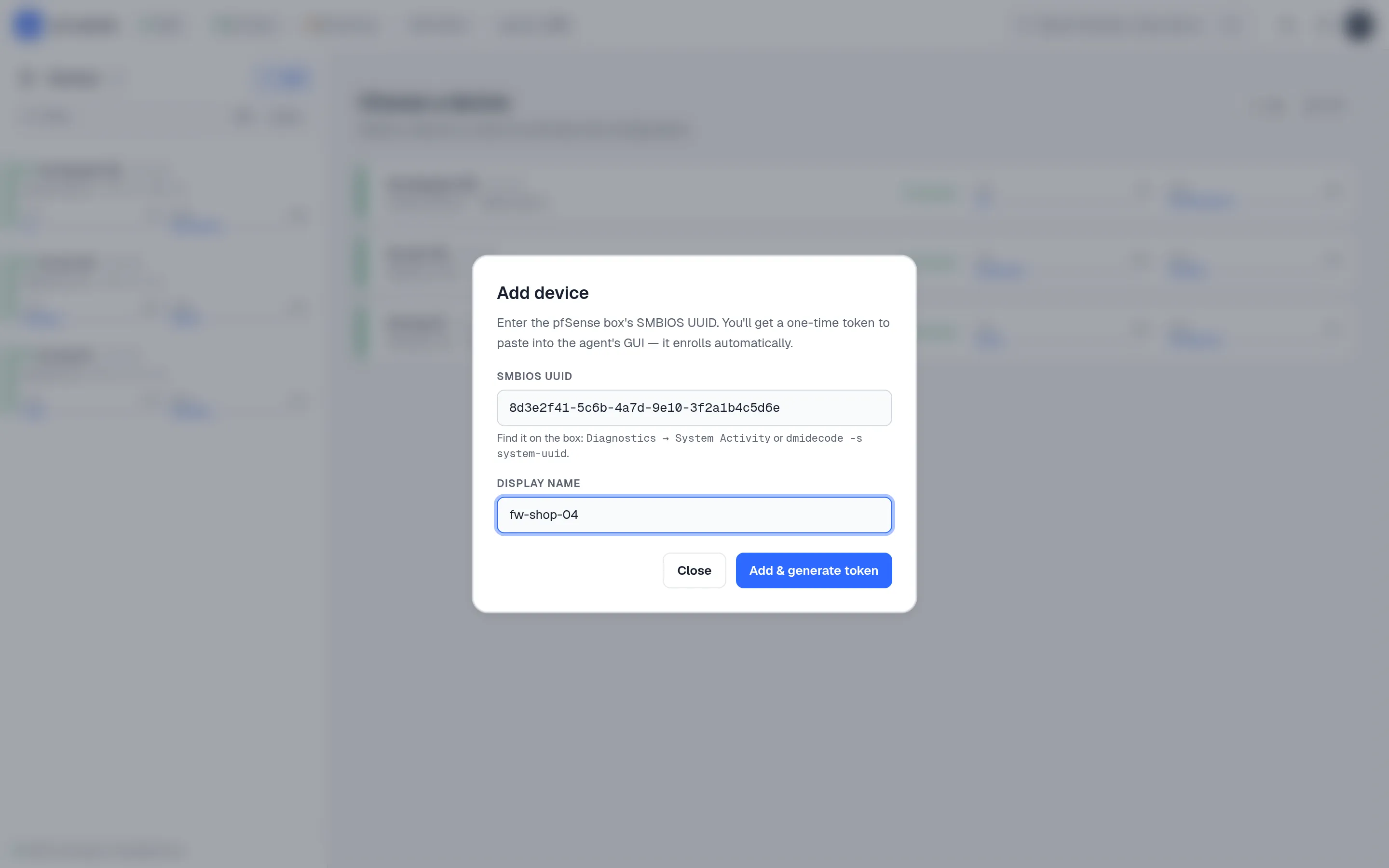
2. Add the device and get a token
Section titled “2. Add the device and get a token”-
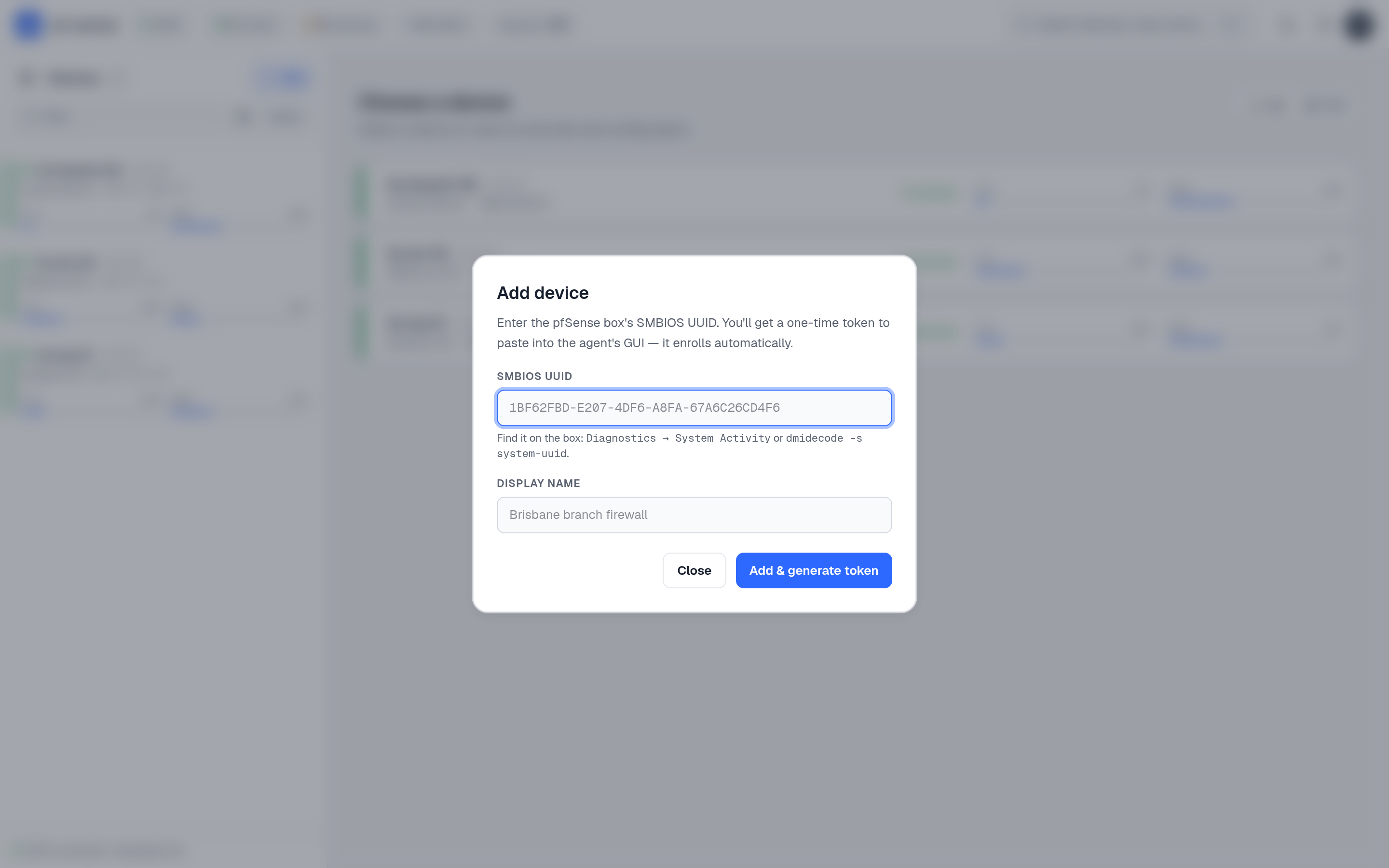
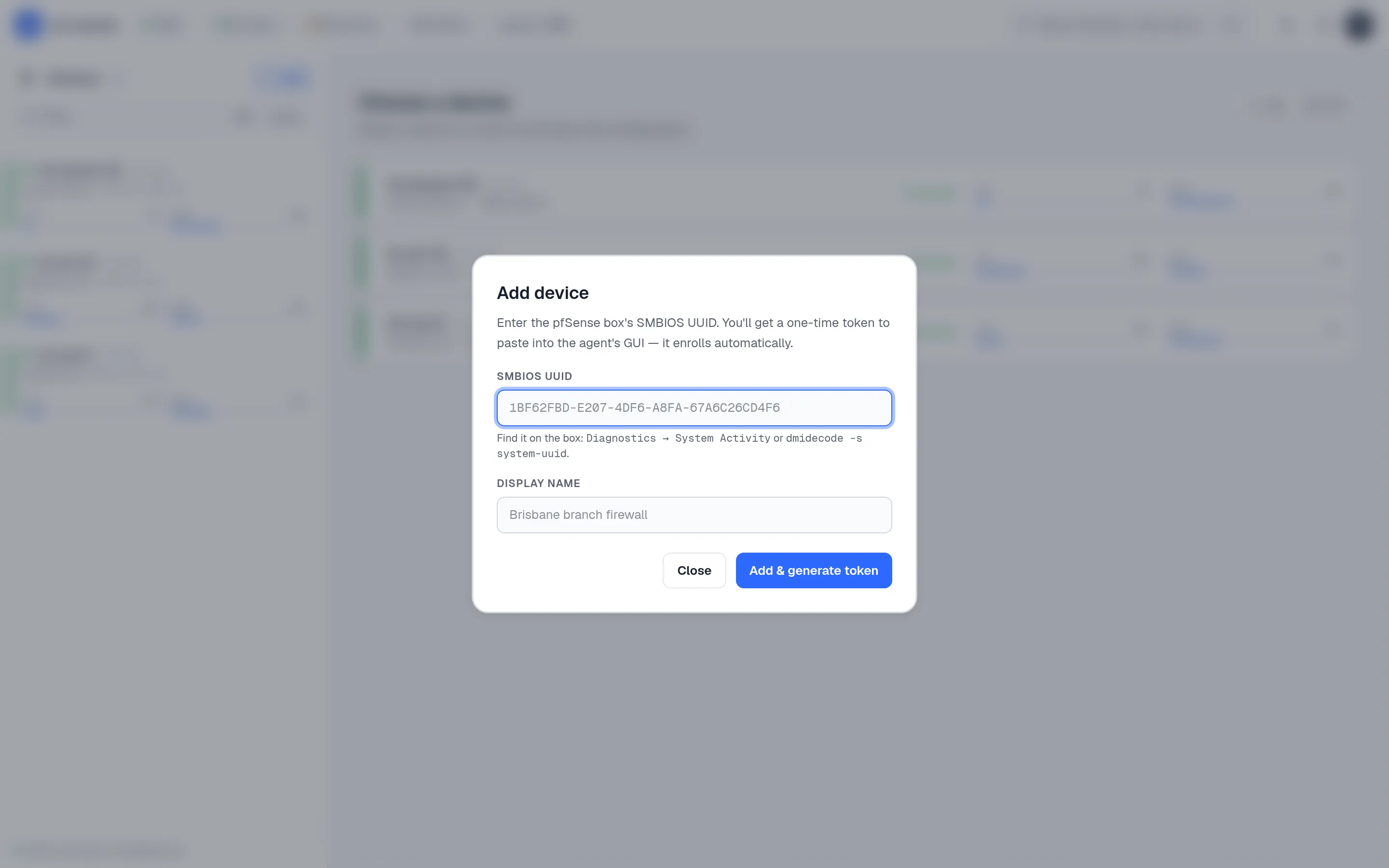
Full size ↗ Step 1 of 3 Open Add deviceOn the fleet page click Add device, or Add at the top of the left rail. You need the admin or owner role.
-
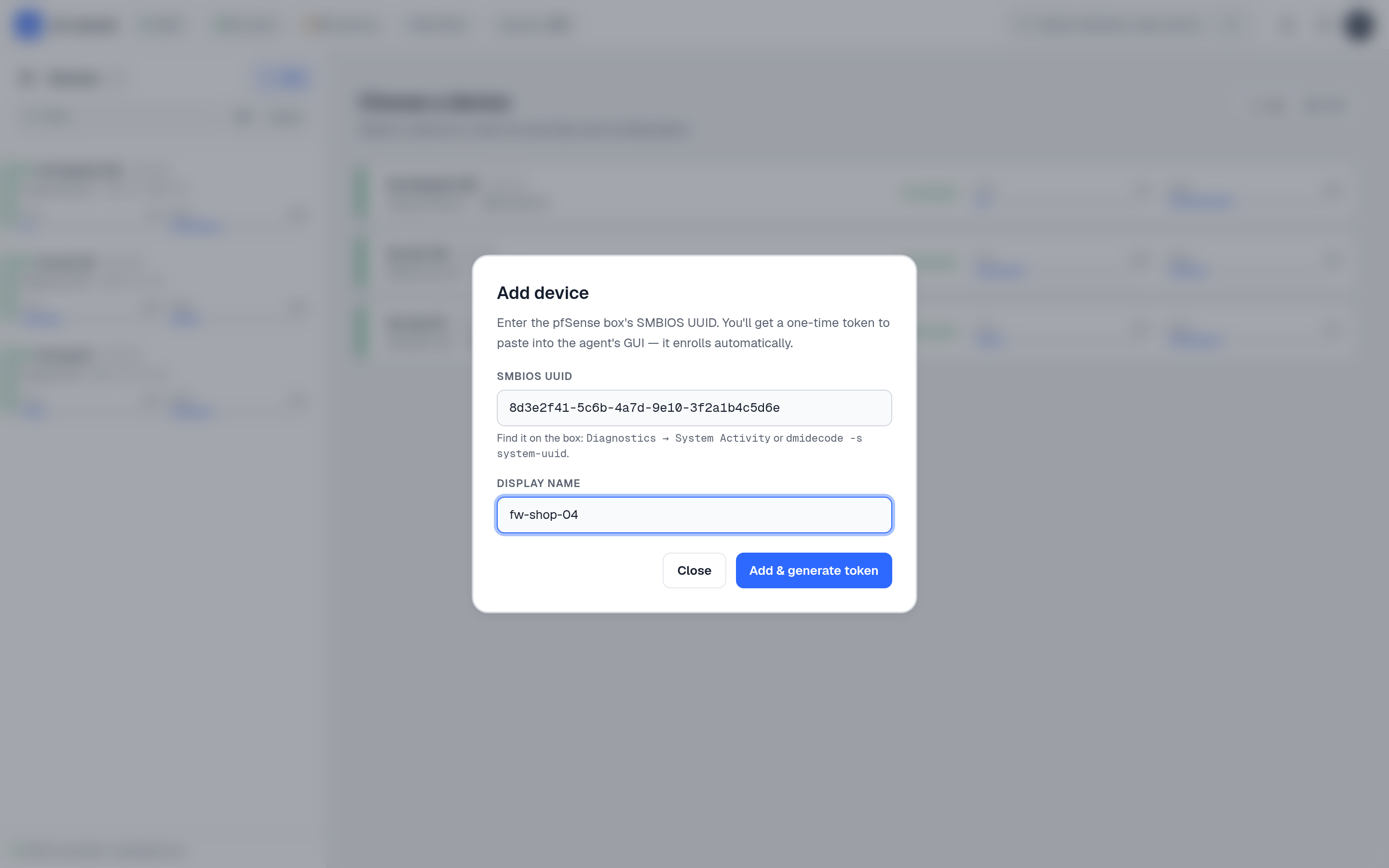
Full size ↗ Step 2 of 3 Paste the UUID and name itPaste the UUID. The display name is optional; the agent reports the firewall's hostname when it connects, and that name replaces this one.
-
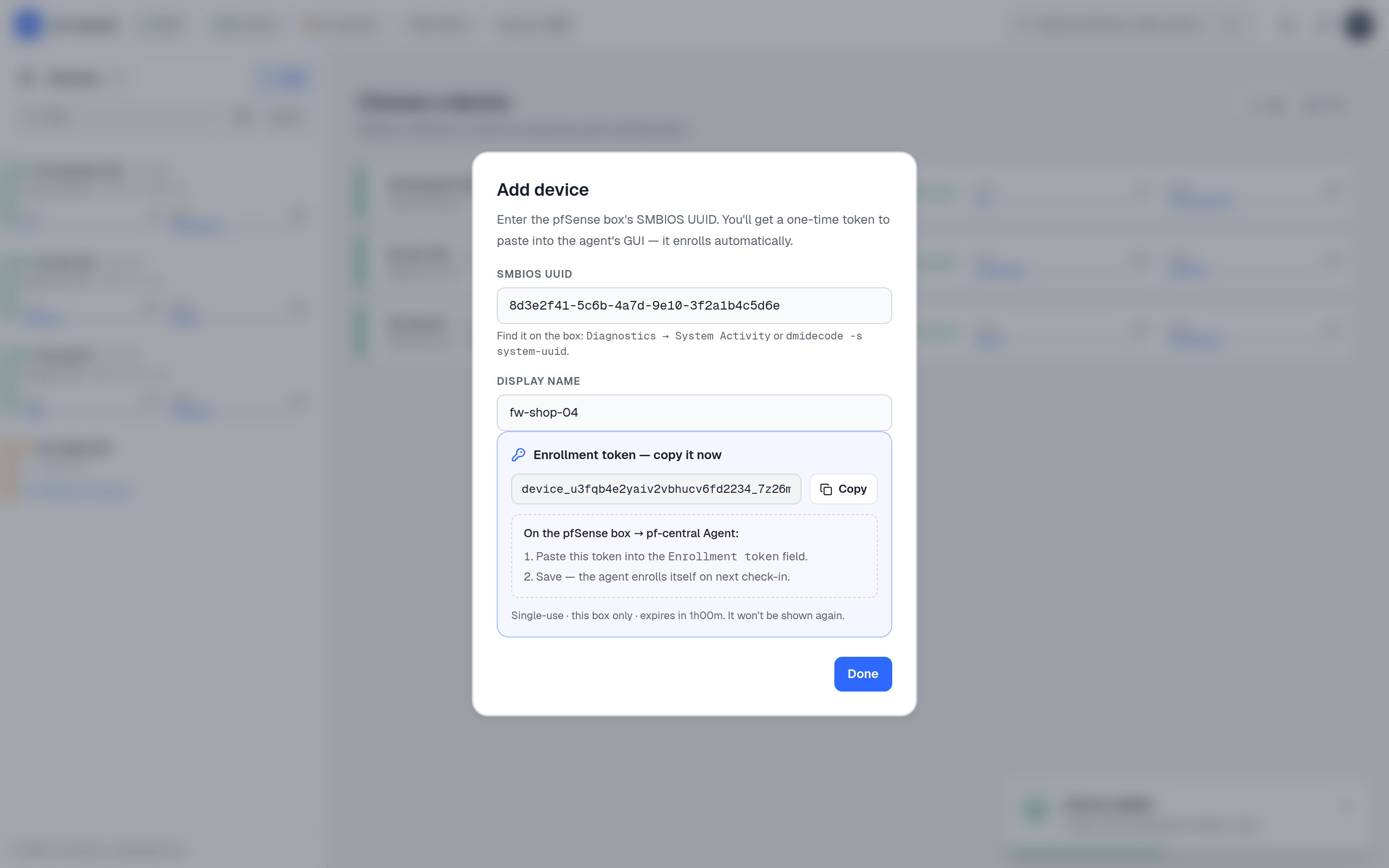
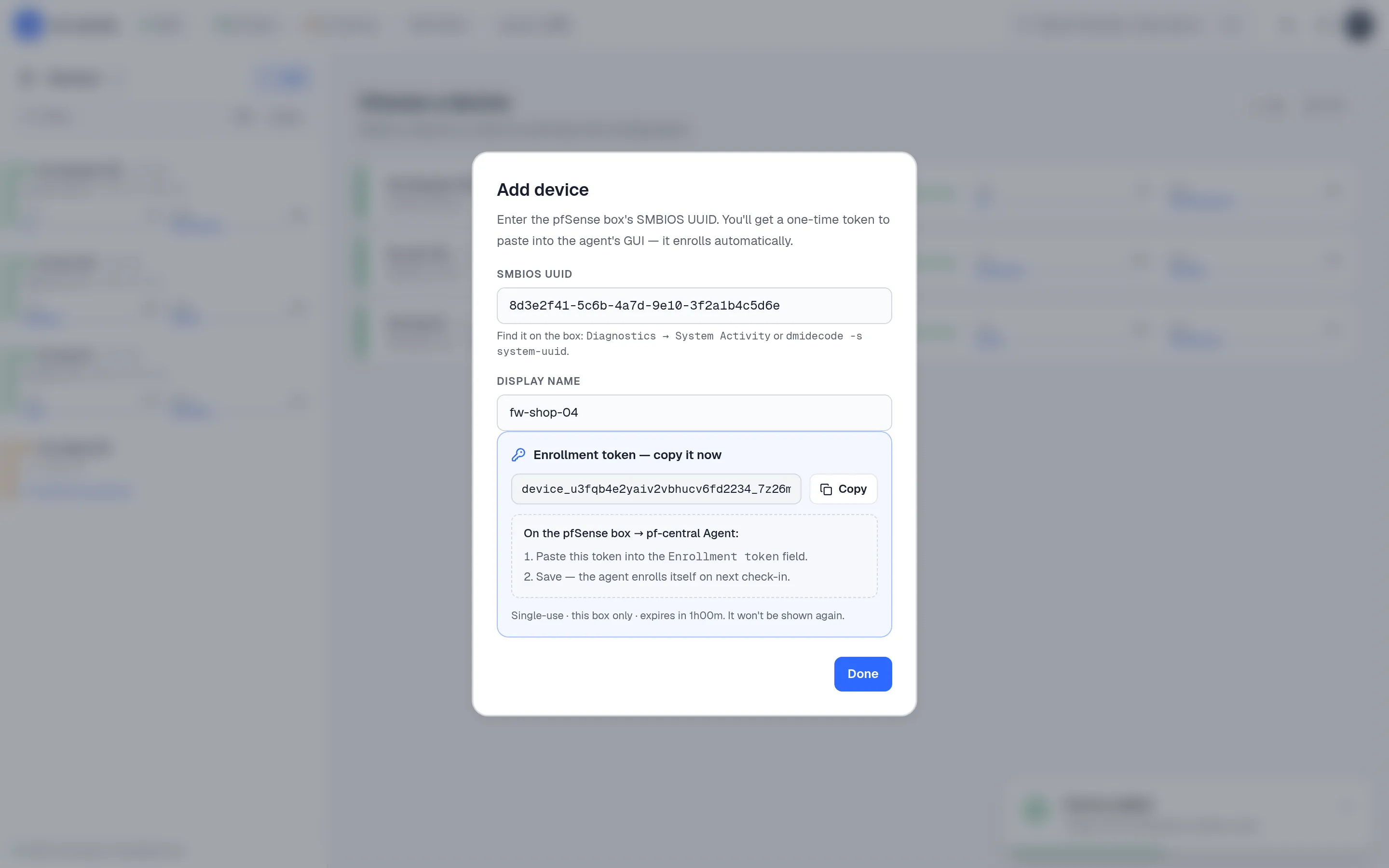
Full size ↗ Step 3 of 3 Copy the tokenClick Add & generate token. Copy the token now: it is shown once, works once, expires in one hour, and only works for this UUID. The left rail lists the device as awaiting enrollment.
3. Install the agent on the firewall
Section titled “3. Install the agent on the firewall”Pick one way. Both install the same package; the first one also enrolls the firewall in the same step.
Run this as root on the firewall. Put your token in BOOTSTRAP_TOKEN:
fetch -o - https://github.com/danielmichaels/pf-central-artifacts/releases/latest/download/install.sh \ | NATS_URL=nats://192.168.1.50:24222 \ ENROLL_URL=http://192.168.1.50:2808/enroll \ BOOTSTRAP_TOKEN=device_paste_your_token_here \ SITE="Brisbane HQ" \ shThe script installs the pfCentral package, downloads the agent, writes its settings, starts it, and prints a summary.
Install the package with no settings:
fetch -o - https://github.com/danielmichaels/pf-central-artifacts/releases/latest/download/install.sh | shThen in the pfSense GUI open Services → pfCentral → Settings and fill in:
| Field | Value |
|---|---|
| Device ID | Filled in for you: the SMBIOS UUID. You cannot change it. |
| Device Name | Optional. Defaults to the hostname. |
| Site | Optional, for example Brisbane HQ. Shown in pfCentral. |
| NATS URL | nats://192.168.1.50:24222 |
| Enroll URL | http://192.168.1.50:2808/enroll |
| NATS CA | Leave on Automatic. It is only used for tls:// URLs. |
| Bootstrap Token | Paste the token. |
Click Save. The package writes the agent’s config and restarts it.
4. Watch it come online
Section titled “4. Watch it come online”Within a few seconds, two things change:
- On the firewall, Services → pfCentral → Status shows Healthy — connected & enrolled, with the credential scope
pfsense.<uuid>.>. - In pfCentral the device leaves Awaiting enrollment and shows online, with live CPU, memory, disk, temperature and traffic.
What you built
Section titled “What you built”- A firewall that keeps one outbound connection open to pfCentral.
- Credentials on the firewall, in
/usr/local/etc/nats-agent/, that only allow it to use its own subjects. - A live view of the firewall in pfCentral.