Find your way around
This guide covers the web UI area by area. Each device page mirrors a part of the pfSense GUI, so if you know pfSense you already know where things are.
The layout
Section titled “The layout”One screen, three parts
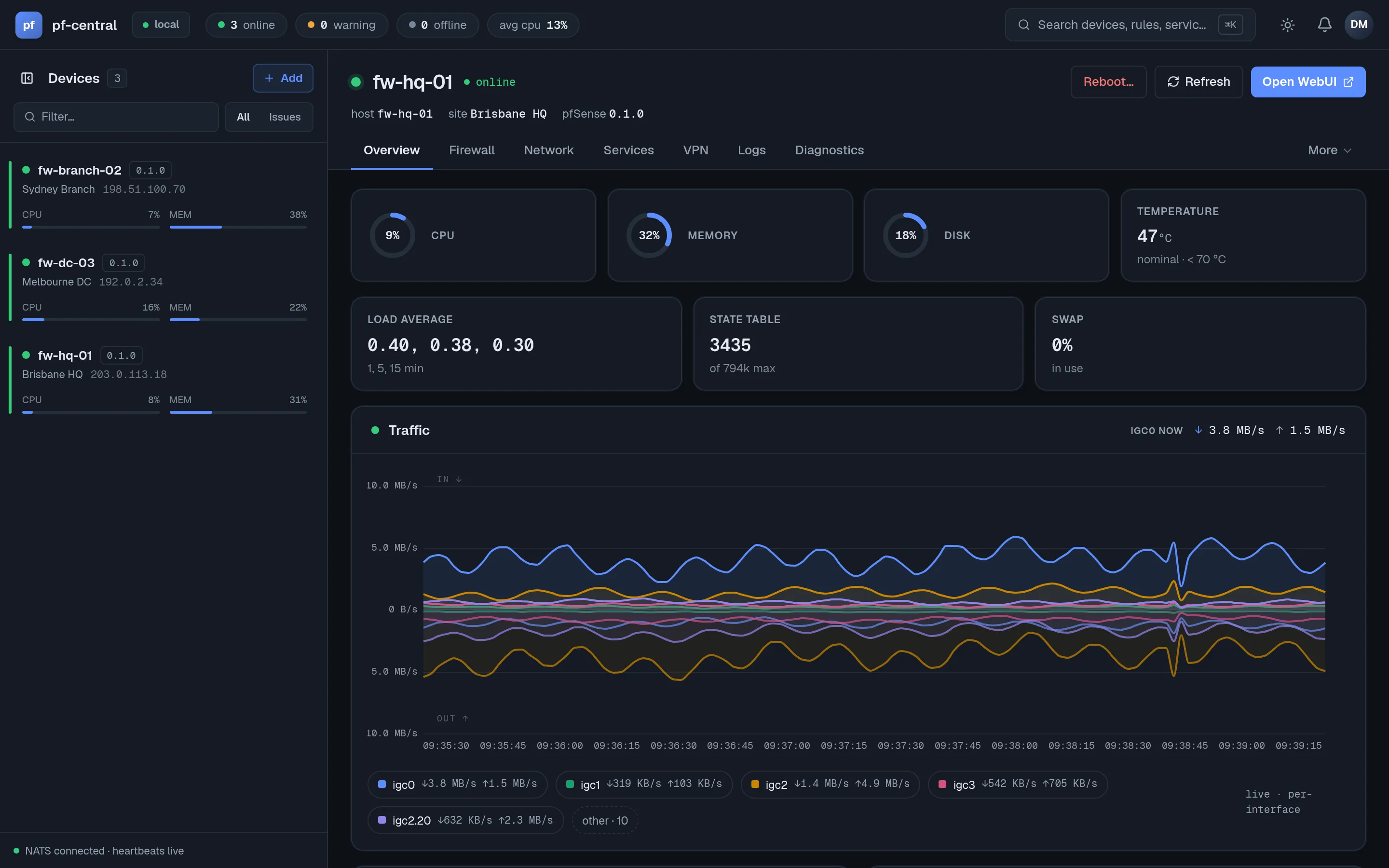
fig. — device overview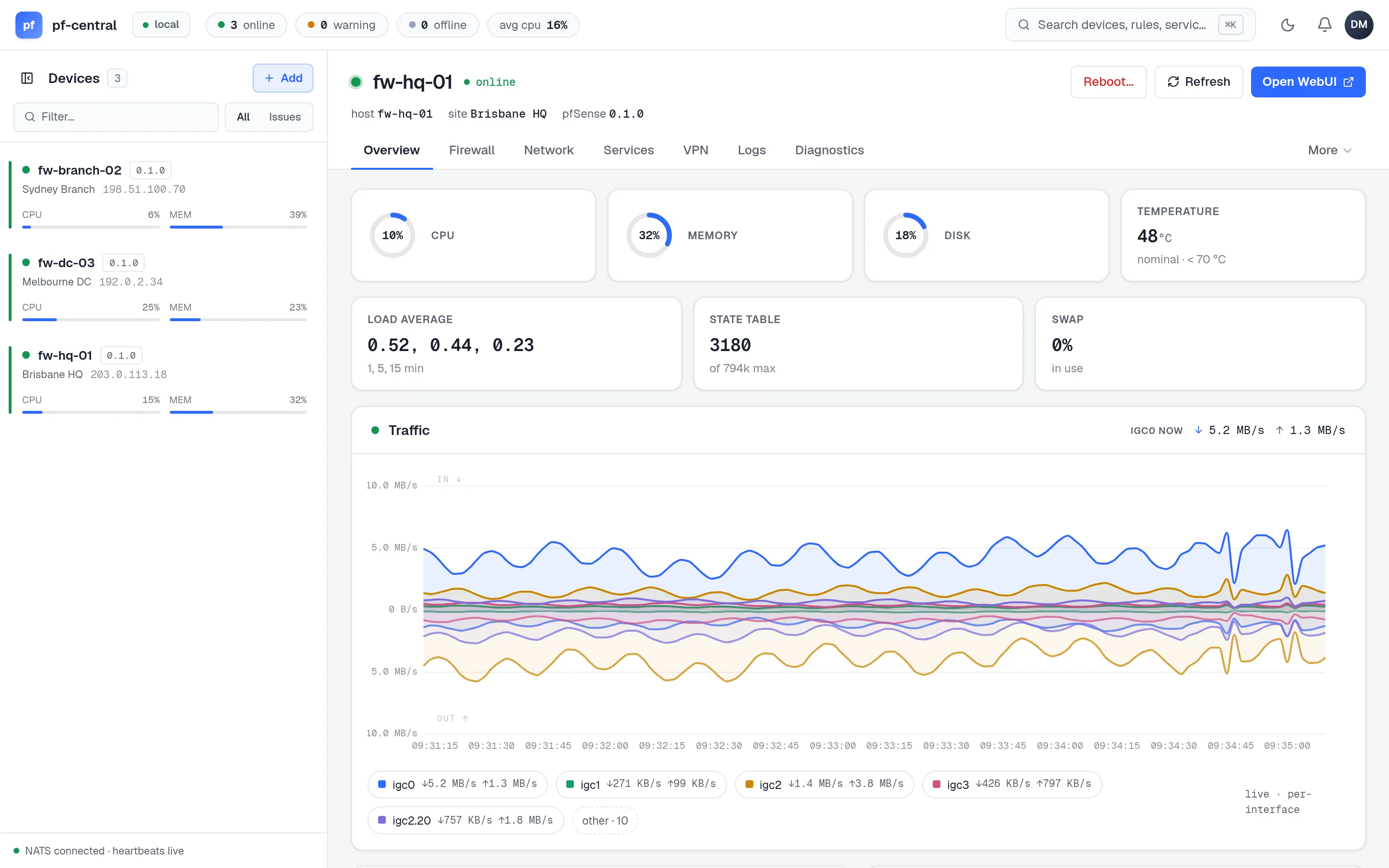
-
Top bar. Fleet counters (online, warning, offline, average CPU), search (⌘K), theme switch, and the avatar menu with Members, API Tokens and the API Explorer.
-
Device rail. Every firewall with status, version, site, IP and live CPU and memory. Filter by name, show only issues, or add a device.
-
Device tabs. Overview, Firewall, Network, Services, VPN, Logs and Diagnostics. More holds System pages.
-
Device actions. Reboot (admins), Refresh, and Open WebUI, which links to the firewall's own GUI.
-
Live data. Gauges and the traffic chart update every few seconds from the agent's telemetry.
Device tabs
Section titled “Device tabs”| Tab | Pages | pfSense equivalent |
|---|---|---|
| Overview | CPU, memory, disk, temperature, load, state table, swap, traffic per interface, gateways, interfaces, services | Dashboard |
| Firewall | Rules, Aliases, NAT, Schedules, Traffic Shaper, Virtual IPs | Firewall menu |
| Network | Interfaces (assignments, VLANs, bridges, GRE, groups, LAGG), Gateways, Static Routes, Gateway Groups, Interface Status, Gateway Status, CARP | Interfaces, System → Routing, Status |
| Services | Services, DHCP Server, DNS Resolver, DNS Forwarder, NTP, SSH, Cron, DHCP Leases | Services menu |
| VPN | IPsec, OpenVPN, WireGuard, OpenVPN Status | VPN menu |
| Logs | System Logs (system, firewall, DHCP, auth, OpenVPN), Log Settings | Status → System Logs |
| Diagnostics | Ping, Traceroute, DNS Lookup, ARP Table, Tables, States, Command Prompt, Packet Capture, Config History | Diagnostics menu |
| More | General Setup, Tunables, Console, Package Manager, User Manager, Certificates | System menu |
A few pages from pfSense are listed but not built yet: Advanced, High Availability, and Update. They show a “not implemented” page.
Lists, forms and Apply
Section titled “Lists, forms and Apply”Every configuration area works the same way:
- The list is read live from the firewall.
- New or the pencil icon opens a side panel form with the same fields as pfSense.
- Save writes the change to the firewall’s configuration. A toast confirms it.
- Apply (where pfSense has one) reloads the service so the running firewall uses the change.
- The trash icon deletes after a confirmation.
If you lack the role for an action, the button still shows but pfCentral answers Not permitted.
Packet capture and config history
Section titled “Packet capture and config history”Diagnostics → Packet Capture lets admins and owners capture traffic and download a PCAP file. Diagnostics → Config History lists pfSense’s existing configuration backups for download or deletion, not restore. Follow the packet capture and config history walkthrough for the steps and limits.
Command palette
Section titled “Command palette”Press Ctrl+K (⌘+K on macOS) anywhere. Type a device name or a page name. With a device open, it lists every page of that device.
Dark mode
Section titled “Dark mode”The moon icon in the top bar switches themes. The choice is saved for your browser.