

Tutorial 4: Bring in your team
In this tutorial you invite a colleague as an operator, see what that role can and cannot do, and then remove their access. It takes about 10 minutes.
You will learn:
- the four roles and how to pick one;
- how invite links work without email;
- what happens to a live session when you change a role or disable an account.
You need: the owner account from Tutorial 1, and a second browser or a private window to act as your colleague.
1. Pick a role
Section titled “1. Pick a role”| Role | Can | Cannot |
|---|---|---|
| viewer | See everything: fleet, status, rules, logs | Change anything |
| operator | Also change device configuration: rules, NAT, VPN, DHCP, DNS… | Add or delete devices, reboot, run commands, manage people |
| admin | Also add and delete devices, reboot, run diagnostics commands, install packages, invite and manage operators and viewers | Manage owners or other admins |
| owner | Everything | — |
A good default for a network team: viewer for the help desk, operator for engineers, admin for the one or two people who onboard firewalls. Full details are in Roles and permissions.
2. Invite your colleague
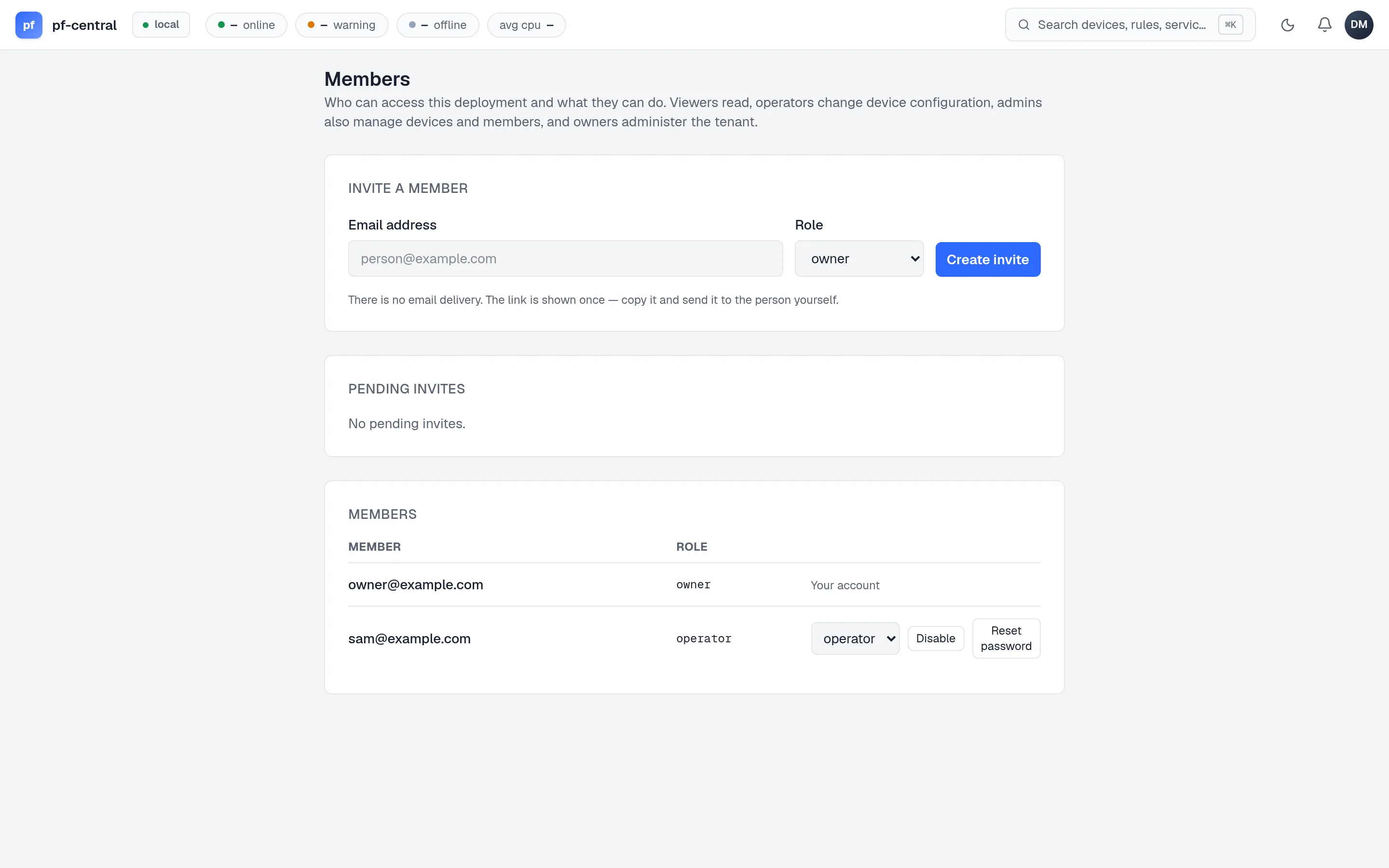
Section titled “2. Invite your colleague”Open the avatar menu (top right) and choose Members.
-
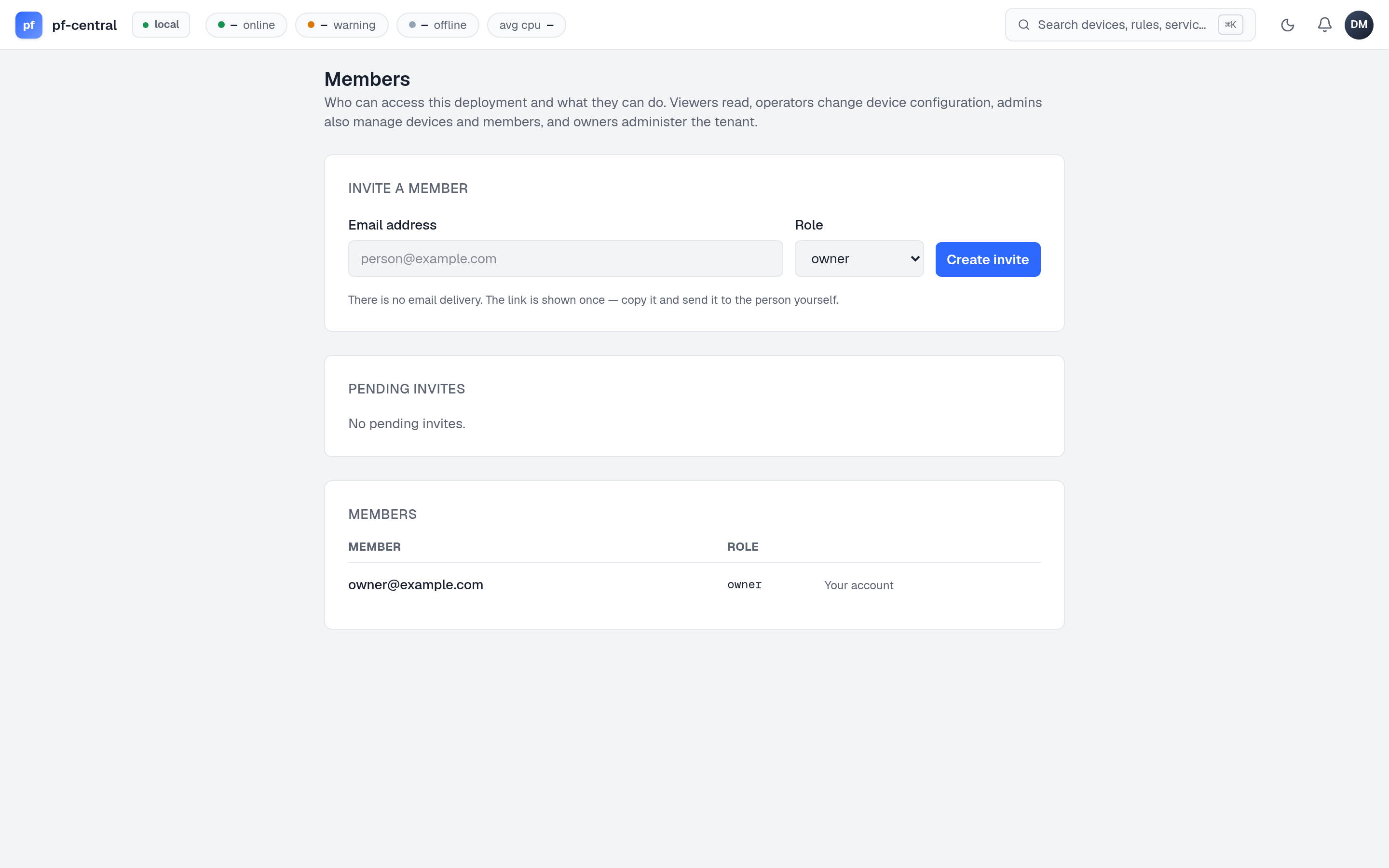
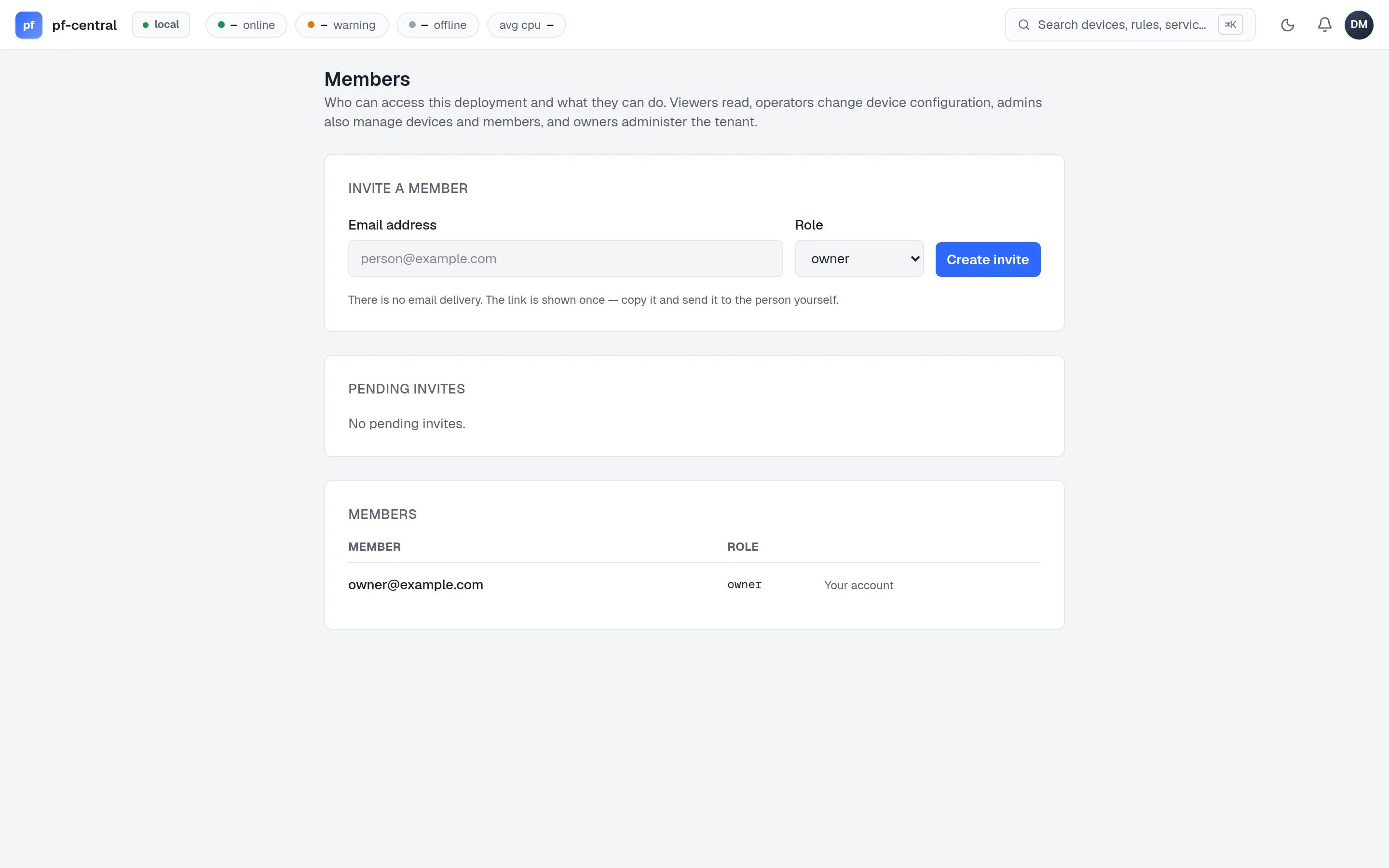
Full size ↗ Step 1 of 5 The Members pageThree panels: invite a member, pending invites, and current members. Only owners and admins can open it.
-
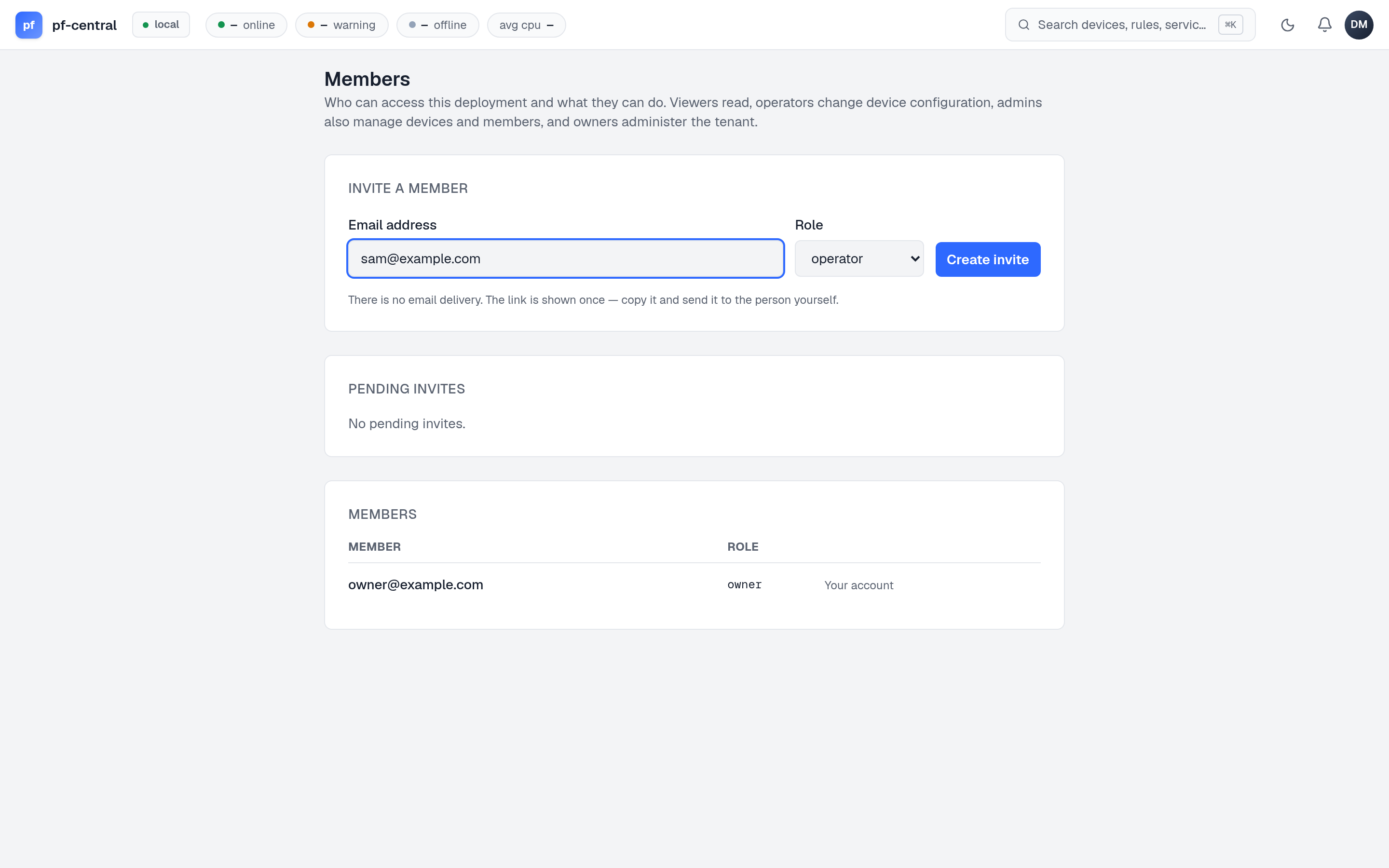
Full size ↗ Step 2 of 5 Enter the email and roleType
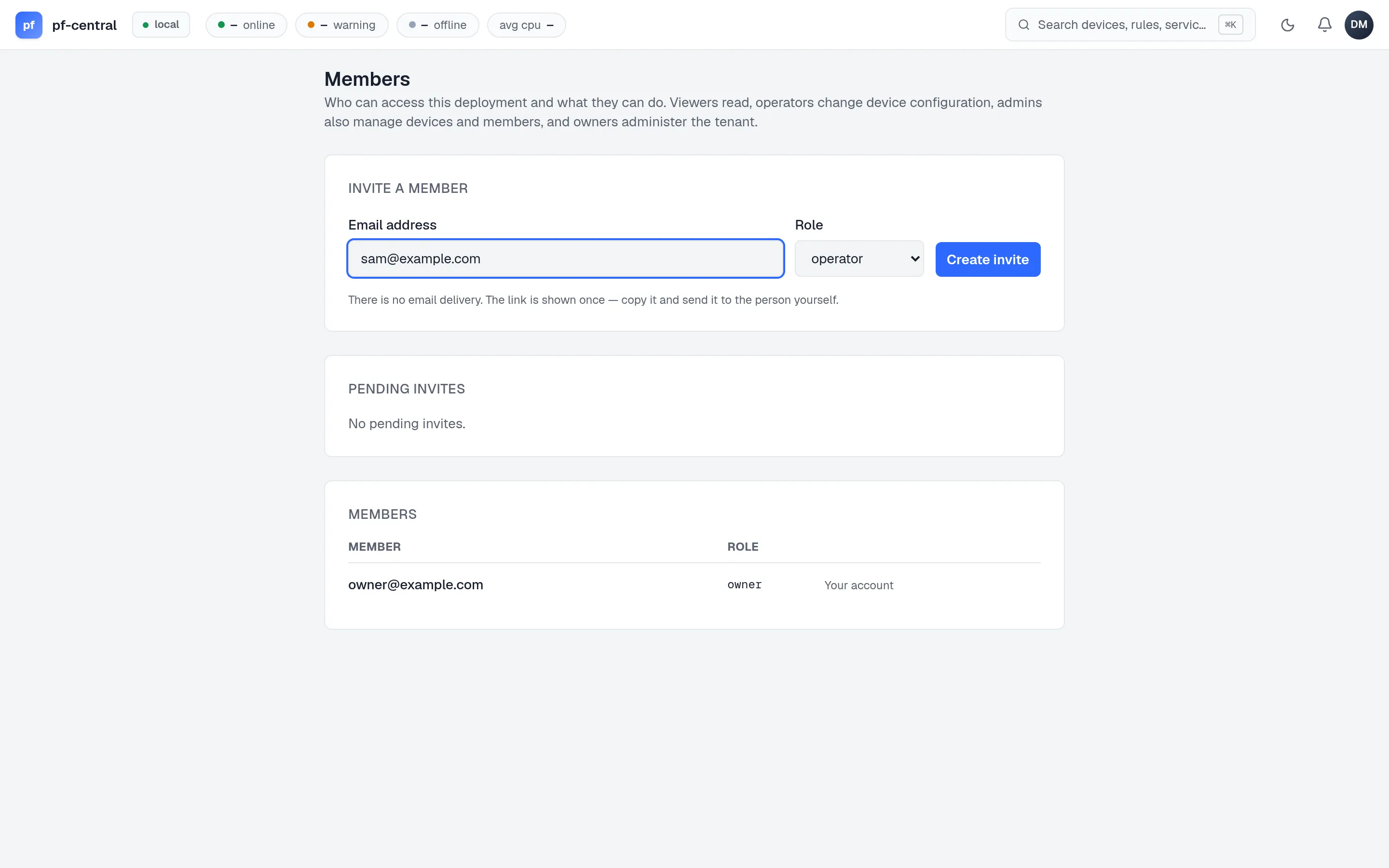
sam@example.comand choose operator. The list only offers roles you are allowed to grant. Click Create invite. -
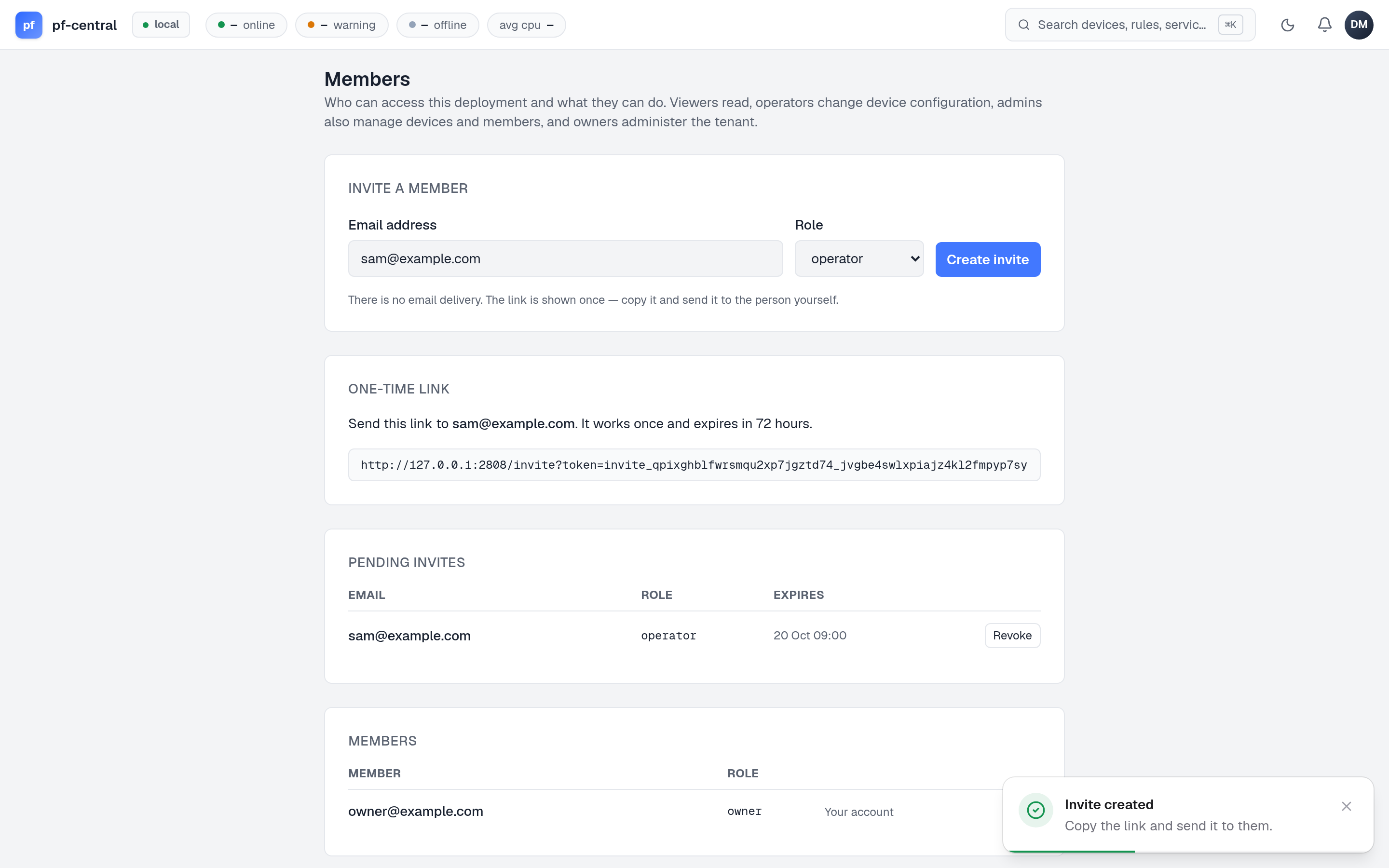
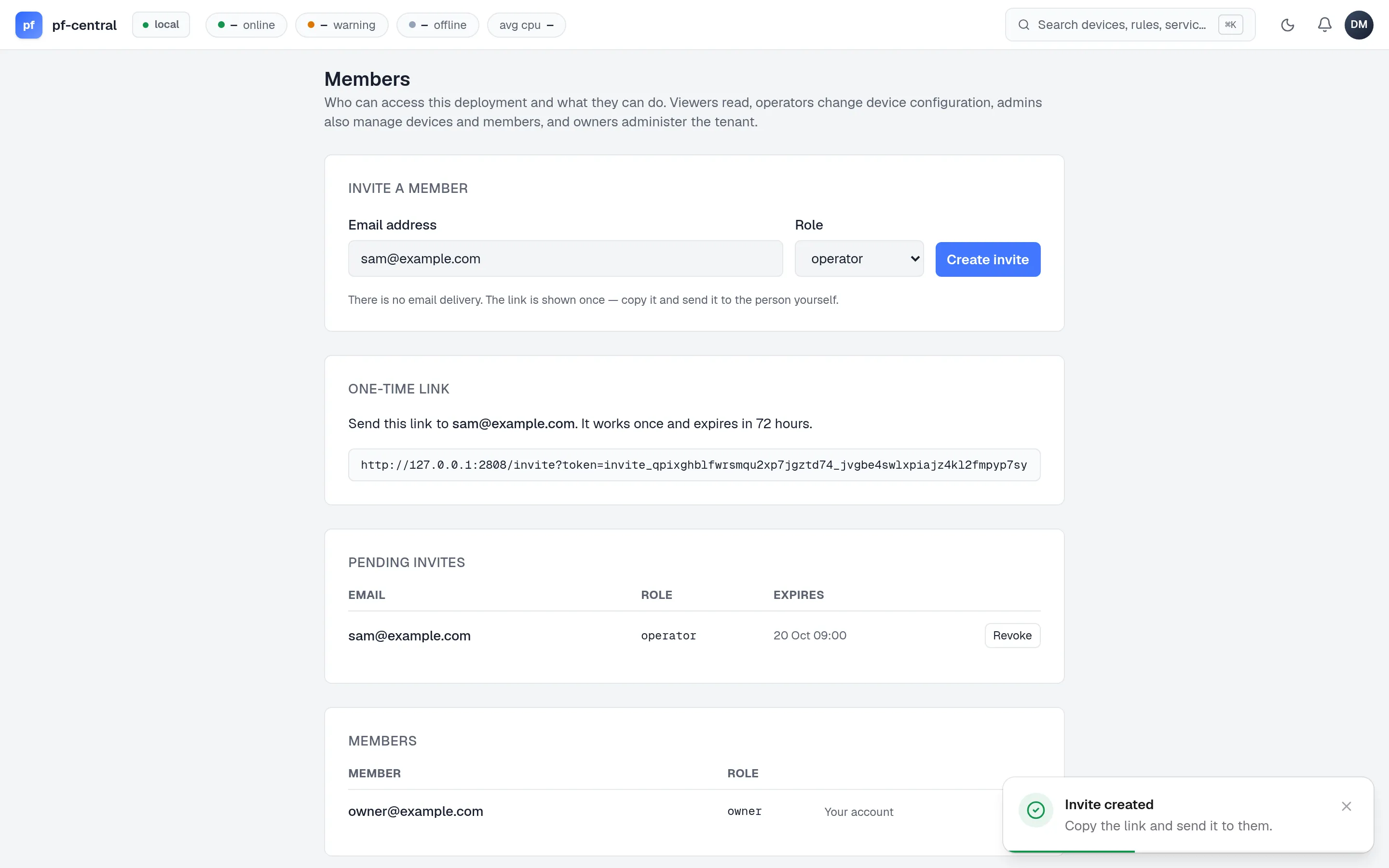
Full size ↗ Step 3 of 5 Copy the one-time linkThe link is shown once, works once, and expires in 72 hours. Without email delivery set up, you send it to Sam yourself, for example in chat.
-
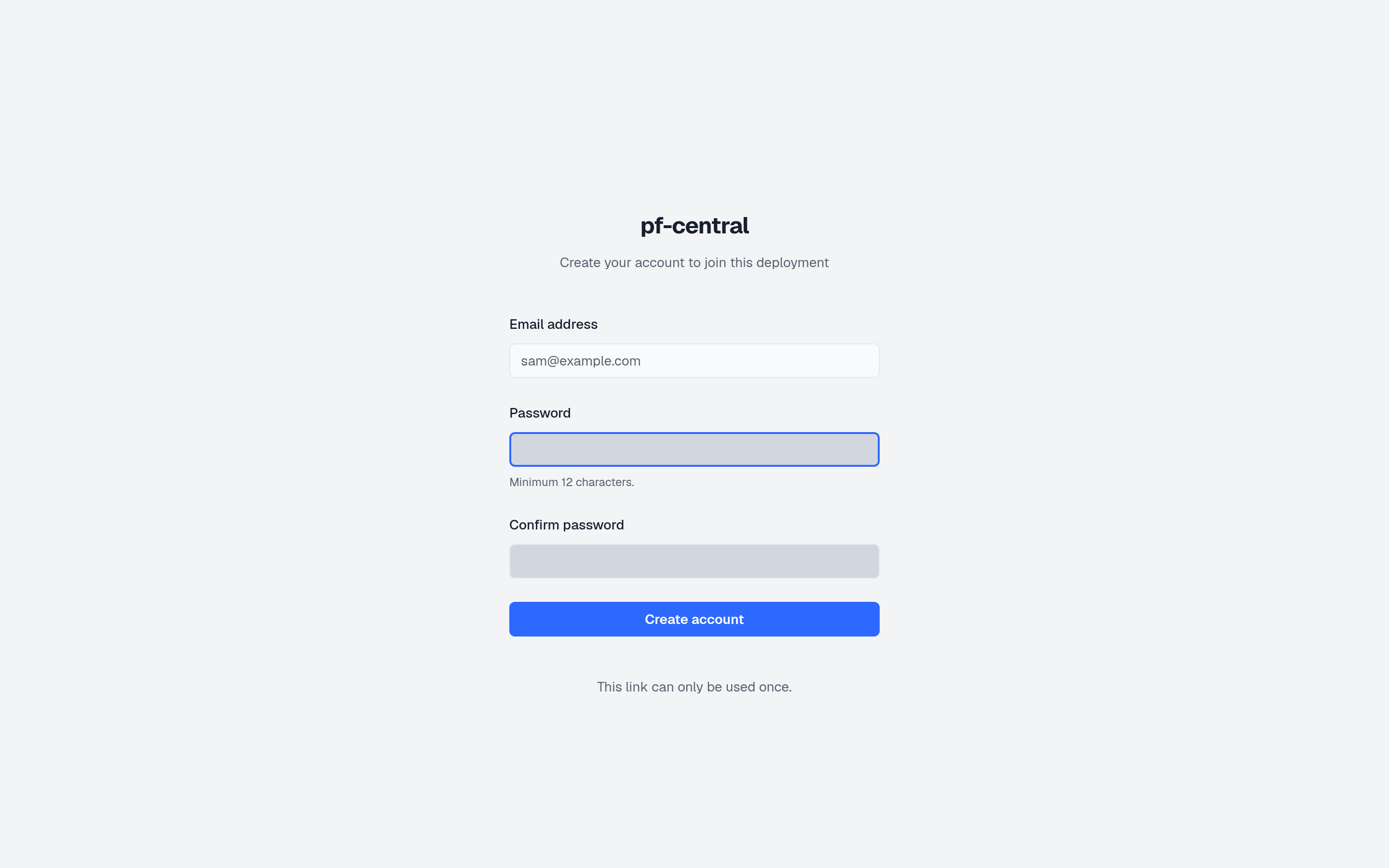
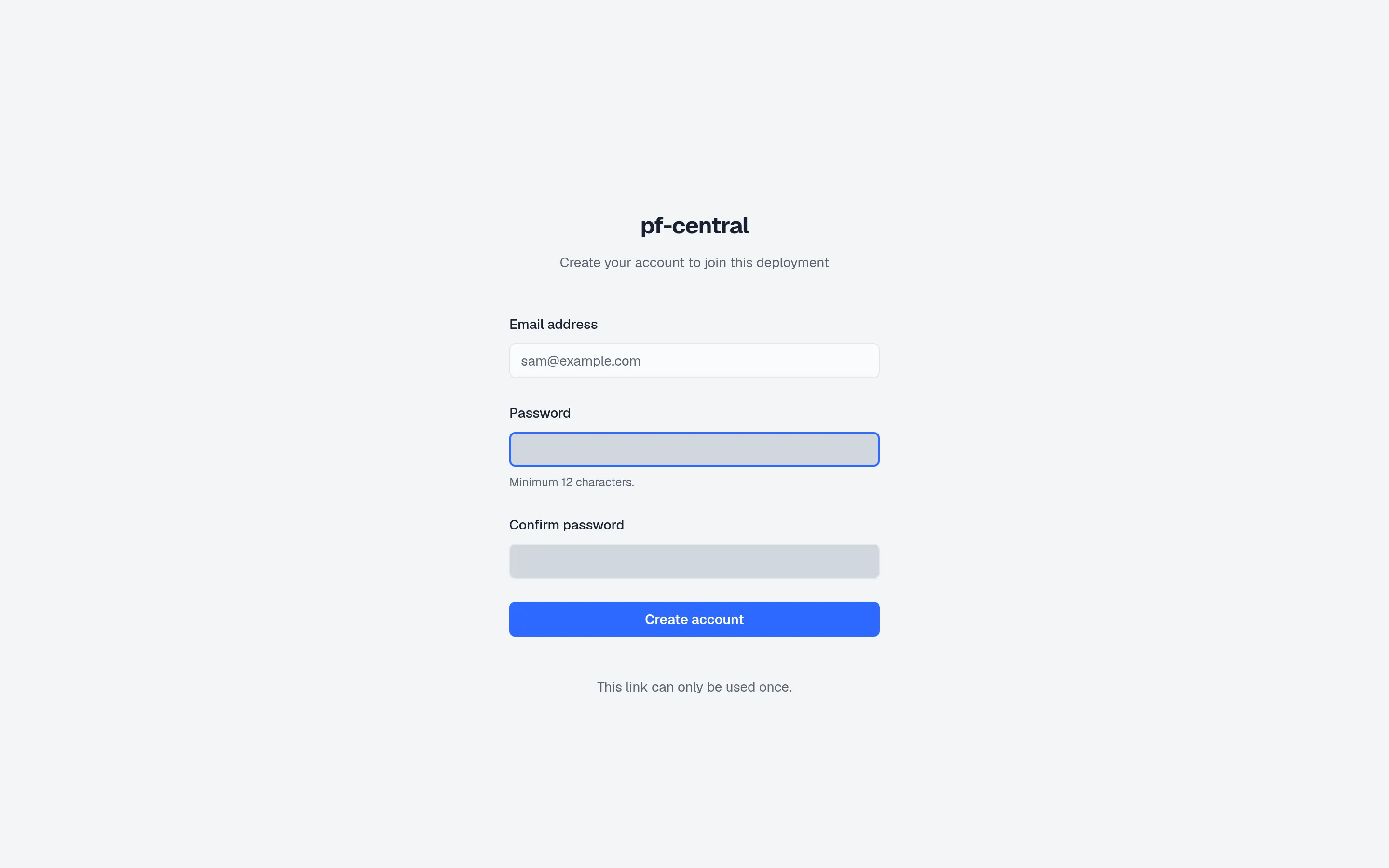
Full size ↗ Step 4 of 5 Sam acceptsSam opens the link, sees the address it was made for, and sets a password. The email and role come from the invite, so the link cannot be used to claim a different address or a higher role.
-
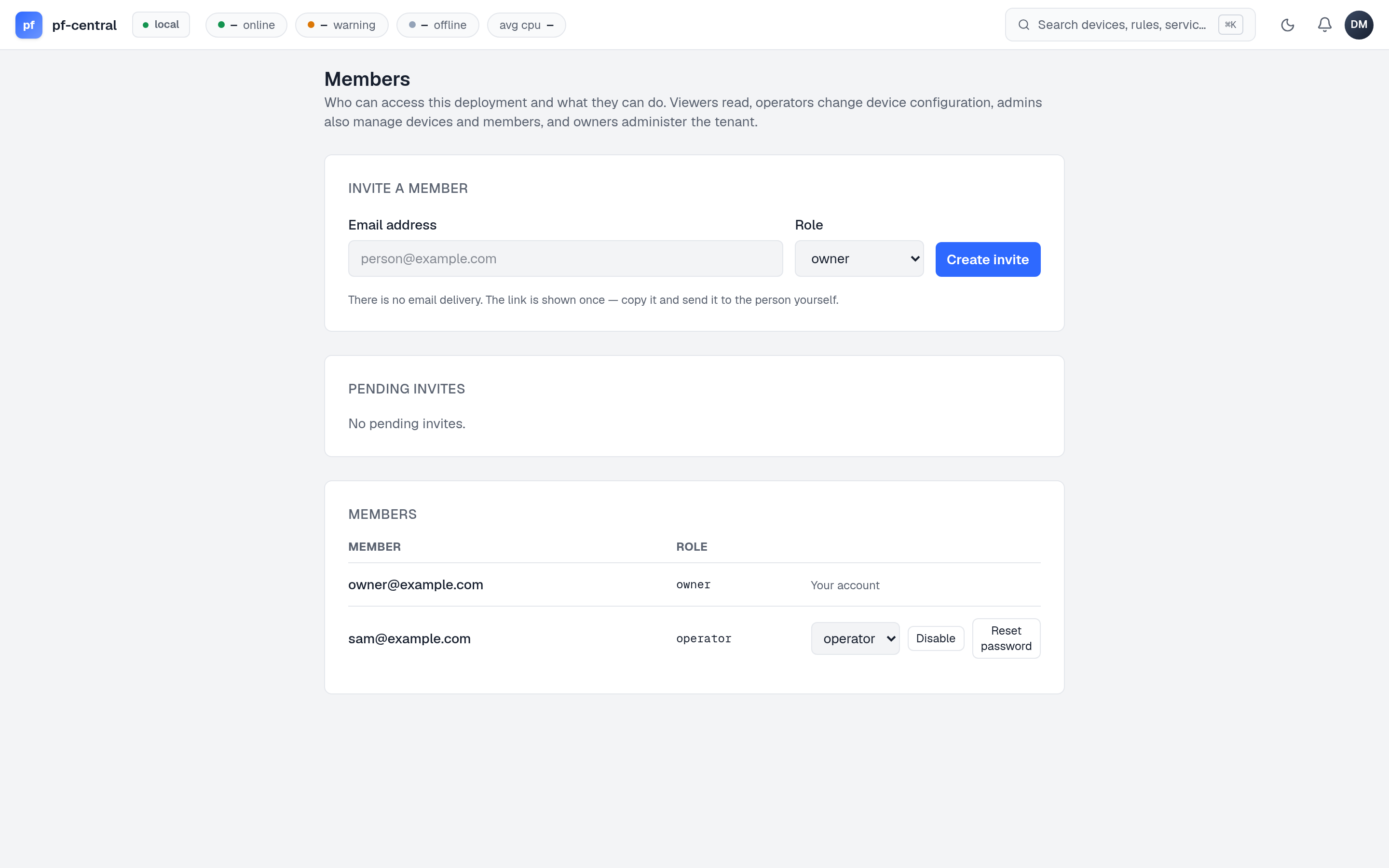
Full size ↗ Step 5 of 5 Sam is inSam now appears in the members list with a role menu, Disable and Reset password.
3. See the role in action
Section titled “3. See the role in action”Sign in as Sam in your private window and try:
- Open a firewall’s Firewall → Rules. Sam can create and edit rules. Operators change configuration.
- Click Reboot… in the device header. pfCentral answers Not permitted. Rebooting is a manage action, for admins and owners.
- Open the avatar menu. There is no Members entry.
Every refusal is recorded in the audit log with the role, the action and the reason.
4. Change the role, then remove access
Section titled “4. Change the role, then remove access”Back in your owner window:
- Change Sam’s role to viewer in the members list. Sam’s next click already uses the new role; there is no need to sign out.
- Click Disable. Sam’s open session stops working on the next request, and any API tokens Sam made stop working too.
- Click Enable to restore access, or leave the account disabled.
What you learned
Section titled “What you learned”- Roles are enforced by the server on every request.
- Invite links carry the email and role; the person who opens them cannot change either.
- Role changes and disabling take effect immediately.
You have finished the tutorials. Next, plan a real deployment: Day 0 · Plan your deployment.